How to Record Partial Invoice Payments in Eaglecart
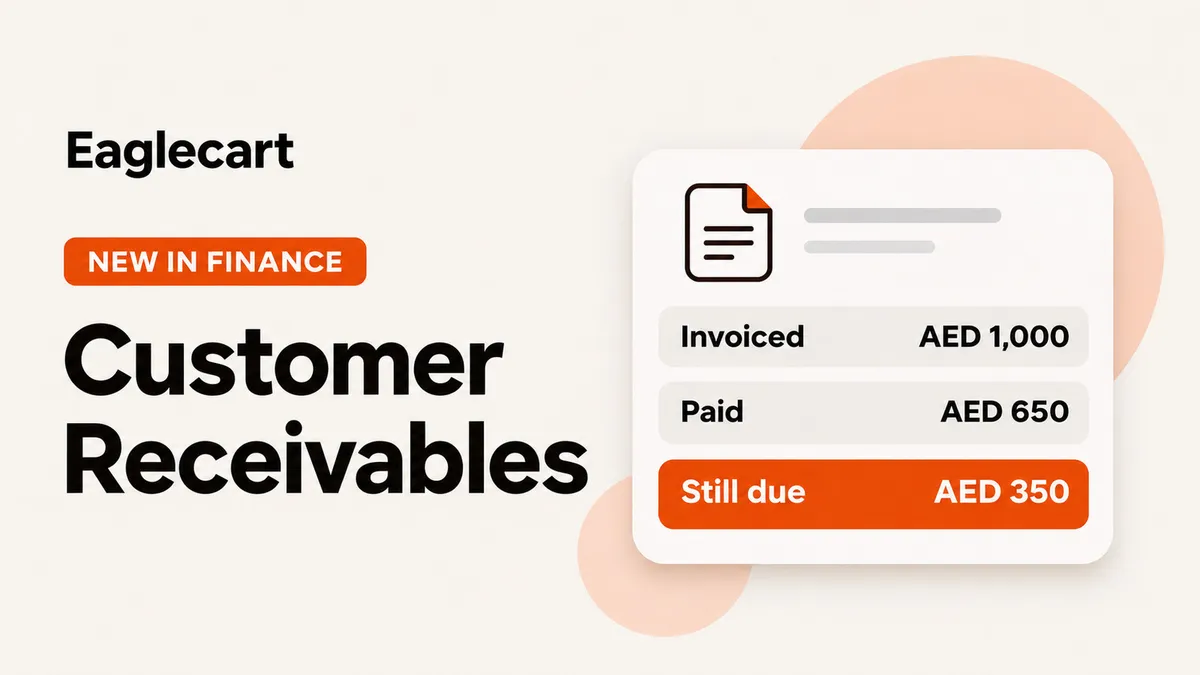
To record a partial invoice payment in Eaglecart, open the invoice under Finance → Invoices, select Receive Payment, and enter the amount actually received. Eaglecart shows the amount paid and the remaining balance. If your customer pays again later, record the next payment against the same invoice.
How do I record a partial invoice payment?
For a UAE shop or wholesaler that lets customers pay in stages, recording each payment against the original invoice gives staff one place to check what is still due. If the sale started with a quote, first convert the quotation into an invoice.
- Open the invoice and select Receive Payment.
- Enter the amount received in AED, the payment method, and the date. Add a reference or note if useful.
- Select Record and check the updated balance on the invoice.
Can I record more than one payment on the same invoice?
Yes. Open the same invoice and repeat Receive Payment each time the customer pays. Each payment appears separately in the customer’s Receivables history.
| Transaction | Amount received | Balance due |
|---|---|---|
| Original invoice | AED 0 | AED 1,000 |
| First payment | AED 400 | AED 600 |
| Second payment | AED 250 | AED 350 |
In this tested example, the invoice and the customer’s Statement of Account both showed AED 350 outstanding after the second payment.
How do I print a payment receipt or customer statement?
Go to Finance → Receivables and open the customer’s account. Use Print beside a payment to print its receipt. For a history of the account, choose Statement, select the period, then choose Print Statement. The statement shows invoice charges, payments, a running balance, and the total due.
Try it in Eaglecart
Already using Eaglecart? Open Finance → Receivables in your dashboard. If you’re evaluating the platform, explore Eaglecart Finance for quotations, invoices, and related workflows.