Free Invoice and Quotation Software in the UAE: How to Create a Quotation and a VAT Invoice Online
Free Invoice and Quotation Software in the UAE: How to Create a Quotation and a VAT Invoice Online
If you run a business in the UAE, sooner or later you have to send two documents: a quotation with your price, and an invoice to get paid. Most people start by typing these into a Word file or buying a printed invoice pad from a stationery shop. It works for a while, but it looks unprofessional, it does not handle VAT properly, and you end up with no record you can search later.
The good news is that you do not need expensive software to do this well. With Eaglecart you can create quotations and VAT invoices online for free, send them to your customer, and turn them into an order when the deal is done. Everything stays in one place, so you enter the details once instead of three times. This guide shows you exactly how it works, step by step.
Why a Word file or a printed pad is not enough
A quotation typed into a document has no company details, no Tax ID, and no signature, so it looks like anyone could have made it. A handwritten invoice from a pad has the same problem, and it leaves you with no copy you can find again. In the UAE, VAT has to be shown correctly on a tax invoice, and a rough document usually gets that wrong.
The bigger issue is that these three things — the quotation, the invoice, and the order — are really one deal at three stages. When they live in separate tools, the numbers stop matching, the stock you promised gets sold to someone else, and you waste time copying the same details again and again. Free online invoice and quotation software fixes this by keeping the whole flow connected.
How to create a quotation online
In Eaglecart, quotations live under Finance, in the Quotations section. You can see all your quotations in one list, with their status, and a button to create a new one.
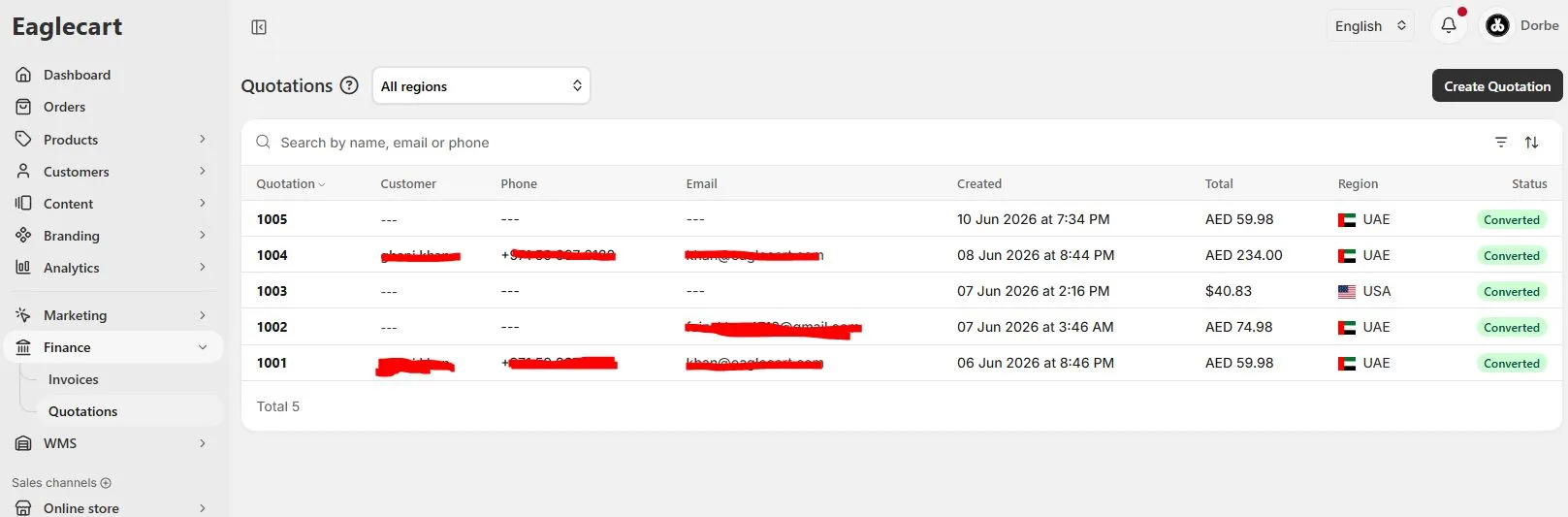 All your quotations in one place, each with its status.
You click Create Quotation and most of the work is already done for you. Your business name, address, phone number and Tax ID fill in automatically from your business profile, so you never retype them. The quotation gets its own ID and date on its own.
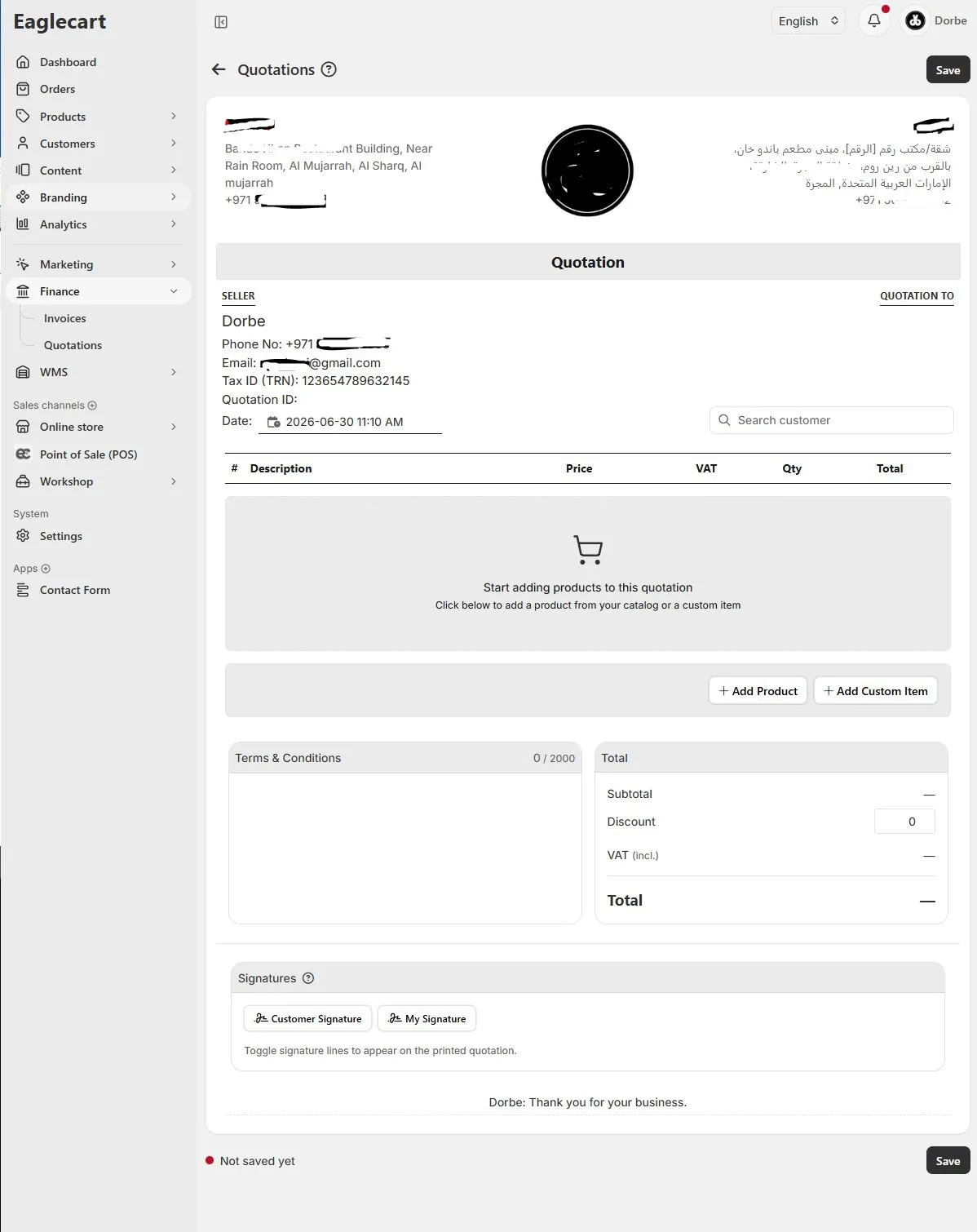 automatically. Just add the customer and your items.
Next you choose the customer: you can search your existing customer list and add them in one click, or add a brand new customer right there inside the quotation. Either way, that customer is now saved for the invoice and any future sale.
Then you add what you are selling. You have two options. Add Product pulls items straight from your own catalogue and shows you the live stock and price next to each one, so you are quoting against real availability, not guesswork.
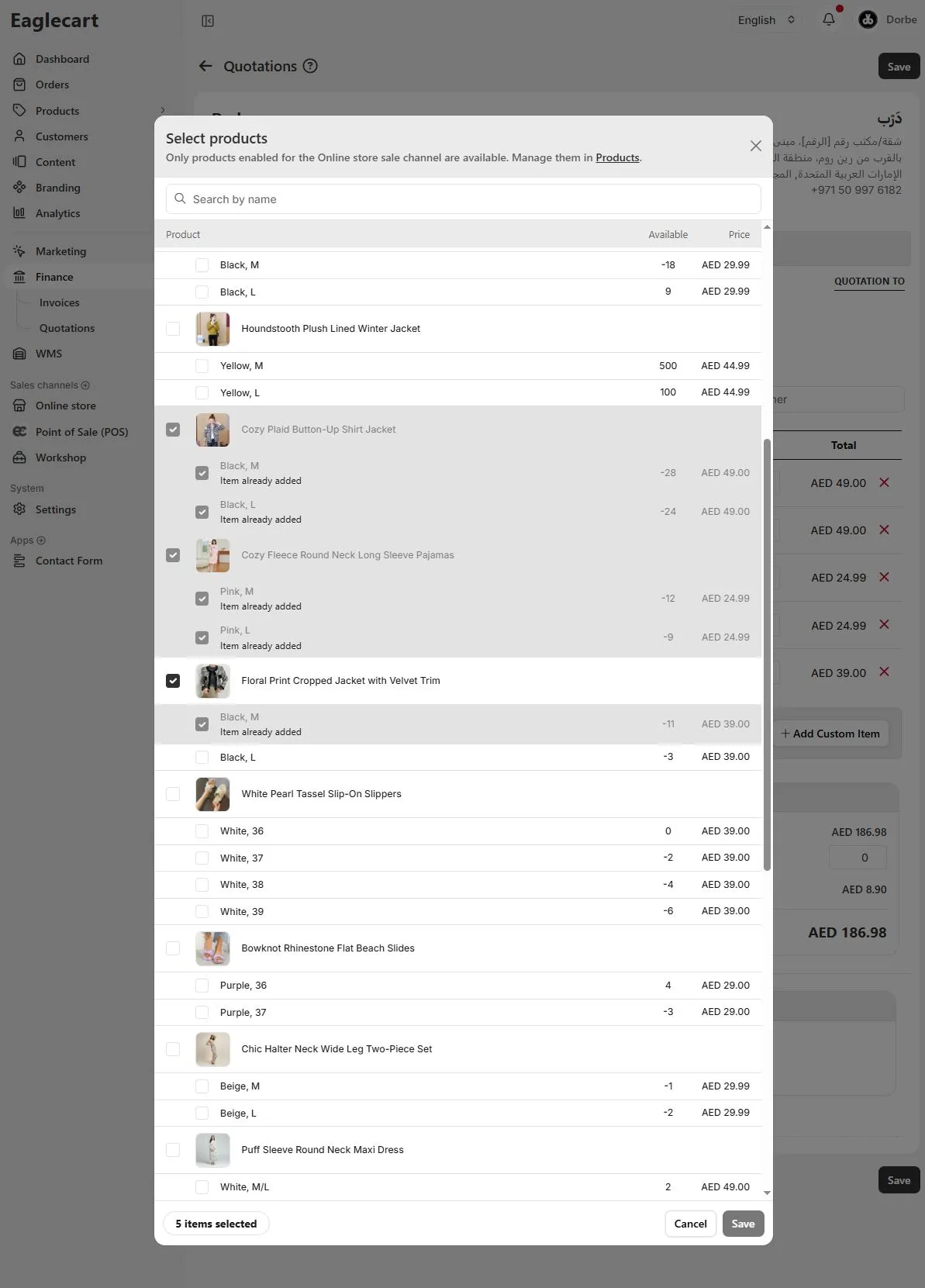
Adding a custom item, service, or one-off charge
A lot of quotations include something that is not a normal stocked product: a service, a delivery charge, or an item you are sourcing specially. The Add Custom Item option is built for this. You enter a name, a price, and a quantity. You can also enter your cost, and it shows you the profit and margin on that line automatically, so you can see straight away whether the deal is worth doing. Two simple toggles let you charge tax on the item and mark whether it is a physical product.
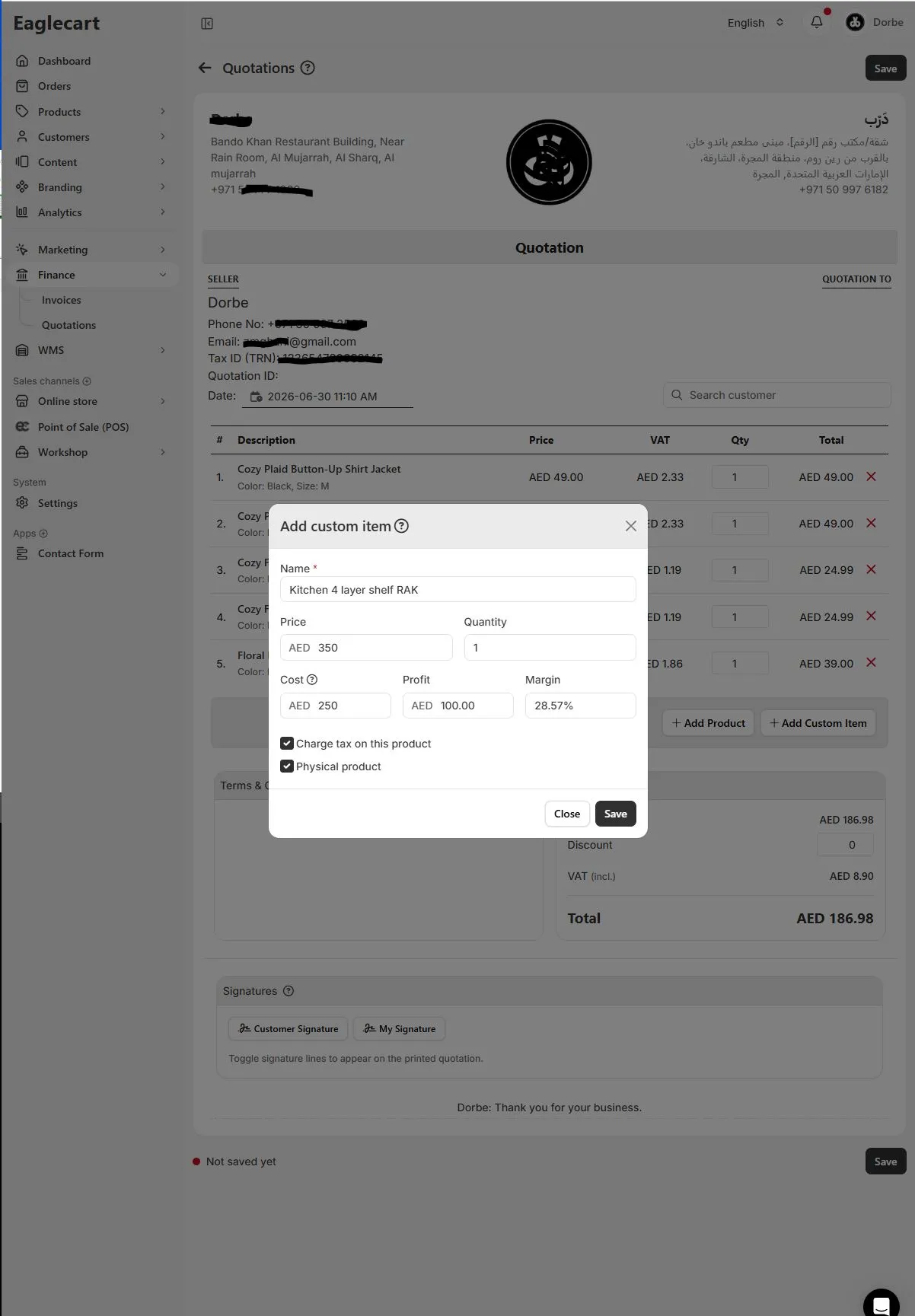
This is useful for consultants and service businesses especially, because most of what they quote is not a product on a shelf. You can build a full quotation out of custom lines and still get clean totals and proper VAT.
Sending a quotation your customer can sign
Once your lines are in, the quotation does the maths for you. It shows the subtotal, applies any discount you enter, calculates the VAT, and gives a final total. You can add Terms and Conditions so the conditions of the offer are written into the document itself. You can also turn on signature lines: a customer signature, your own signature, or both.
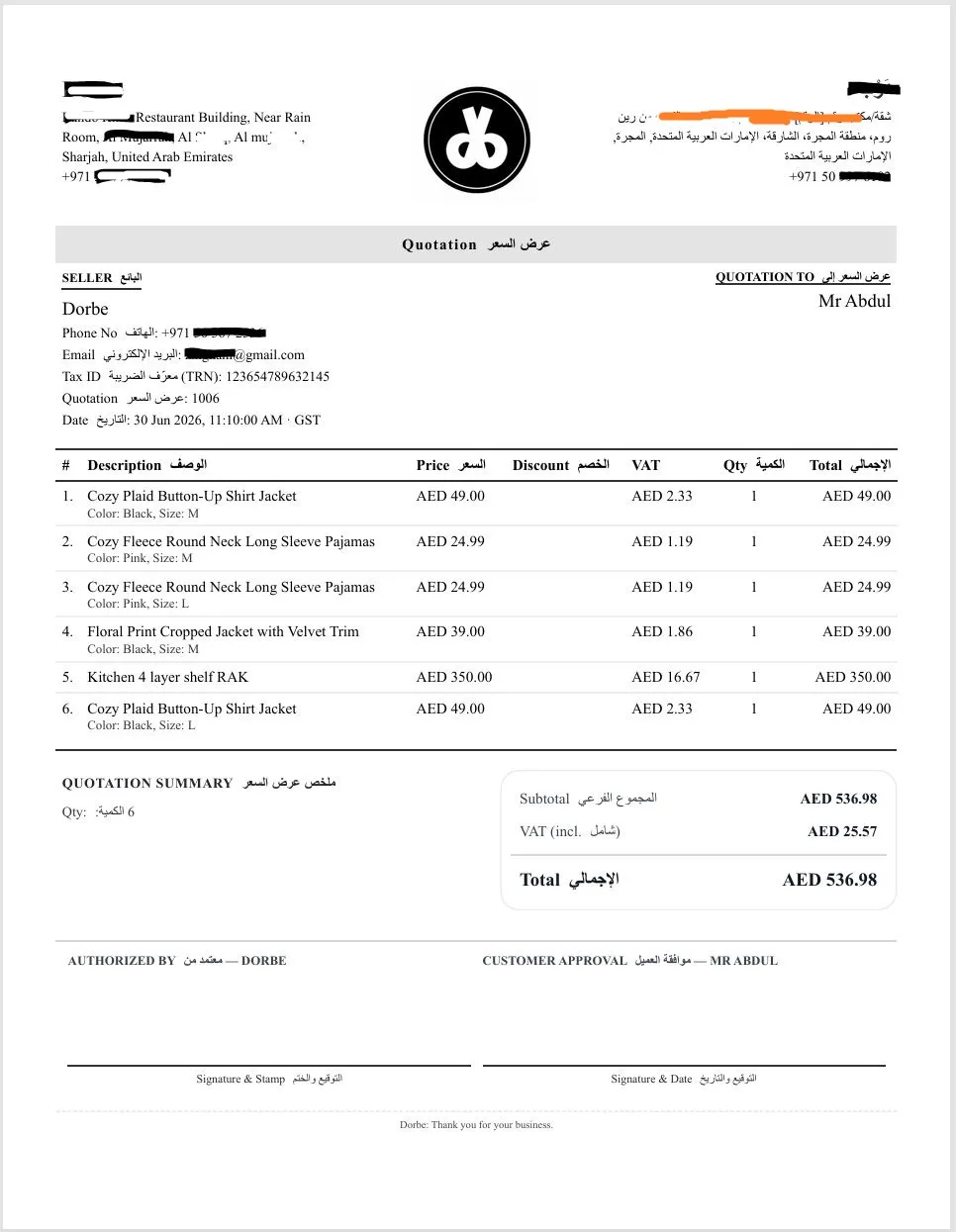
When you print or send the quotation, it comes out as a clean document in English and Arabic, with your seller details, the customer it is addressed to, every line with its tax, and a summary at the bottom. There is an Authorized By section for you and a Customer Approval section for the customer.
You send it, the customer signs it and sends it back, and now you have proof that both sides agreed to the same price, in both languages. For a freelancer or small business, this one signed document replaces the whole printed quotation pad, and it looks like it came from a real company.
How to create an invoice online from the quotation
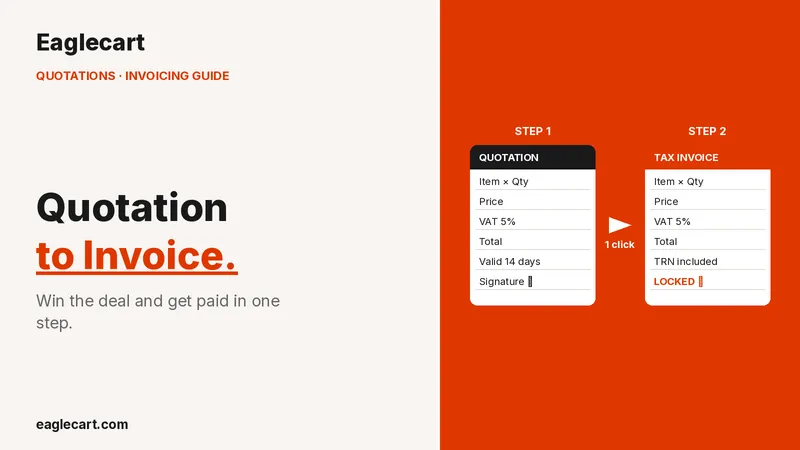
When the customer agrees, you do not start a new document. You press Move to Invoice, and the quotation becomes a VAT invoice automatically, carrying every line and total across.
One thing to know: this step is final. Eaglecart warns you that once the quotation is moved, it is locked and cannot be changed. You can still view it, and the new invoice lives separately.
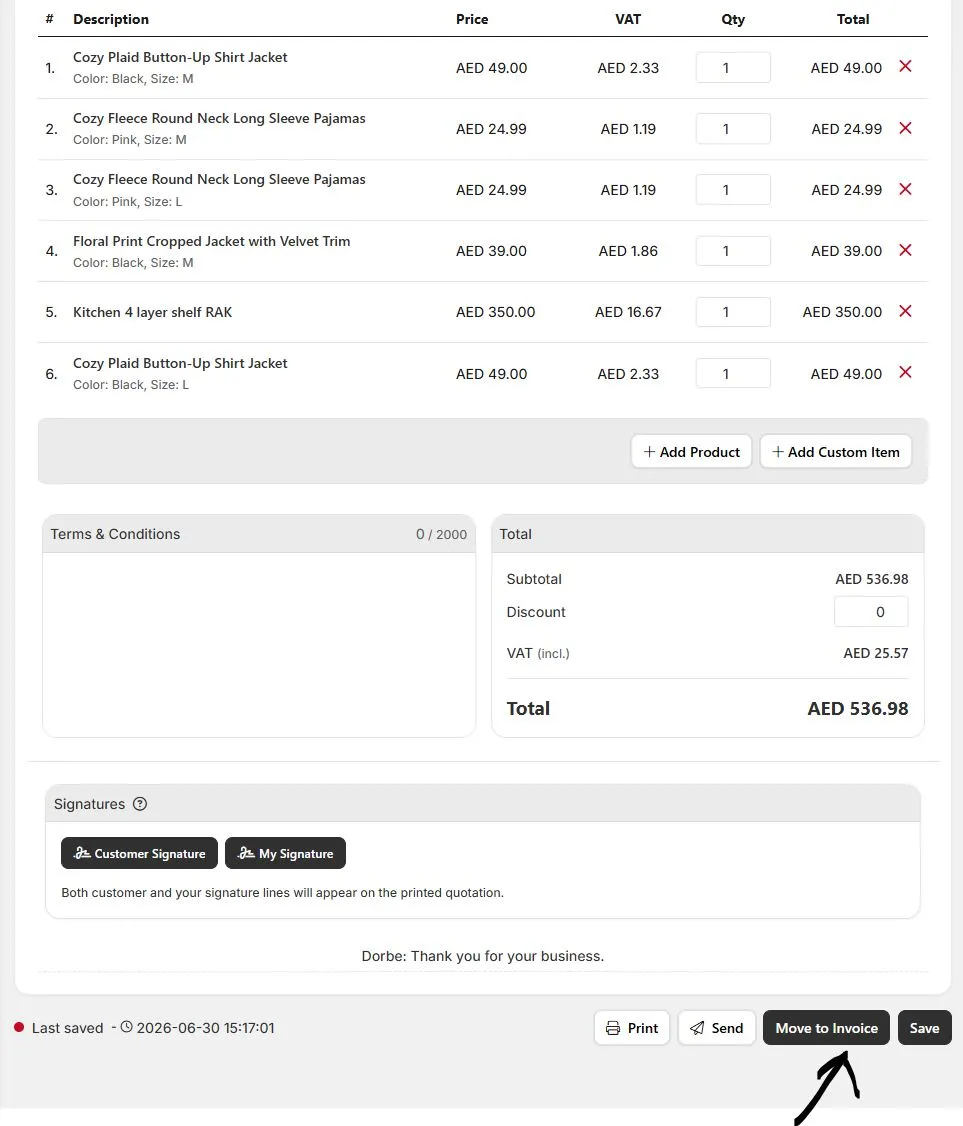
The quotation is then marked as Converted in your list. This is on purpose. A quotation your customer signed is a record, and a record should not be quietly editable afterwards. Locking it protects both you and the customer.
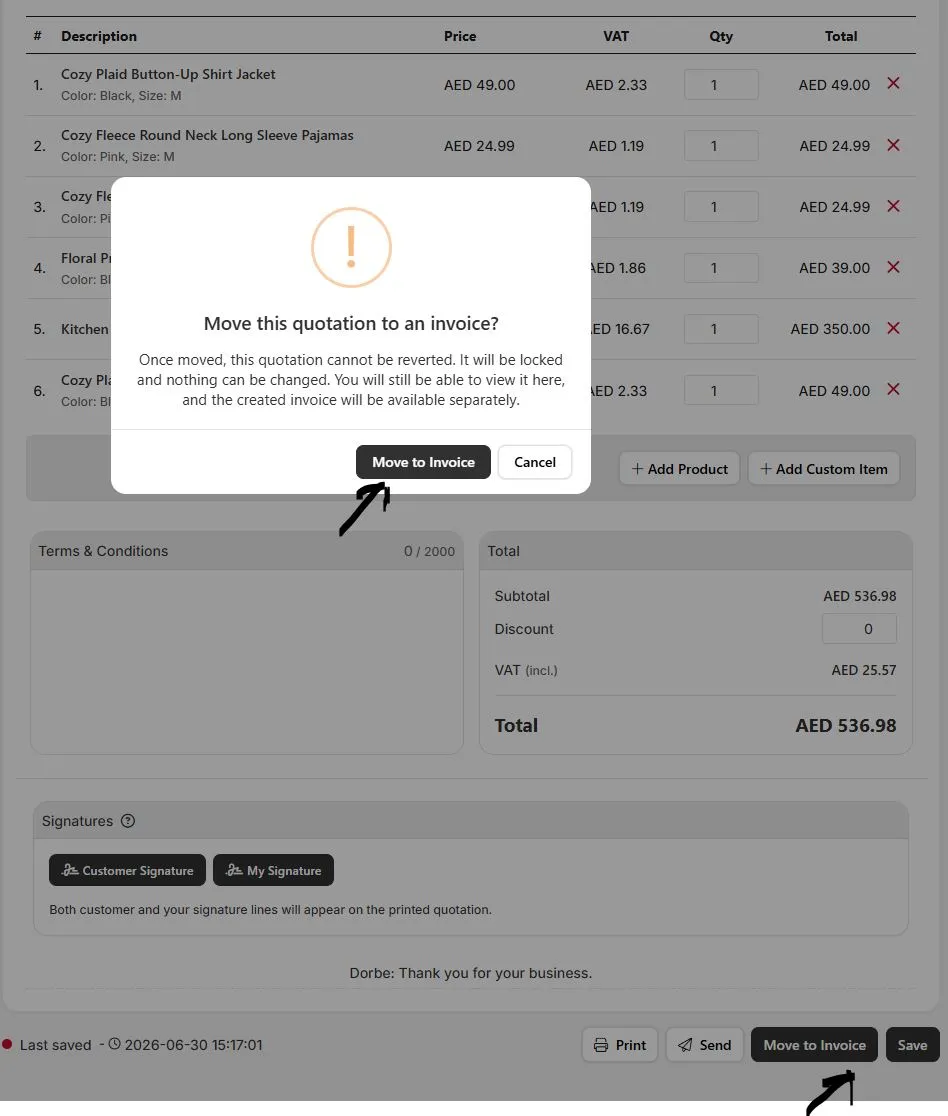
You can also create an invoice directly without a quotation if you do not need one. Either way, you get the same proper VAT invoice.
What makes it a proper UAE VAT invoice
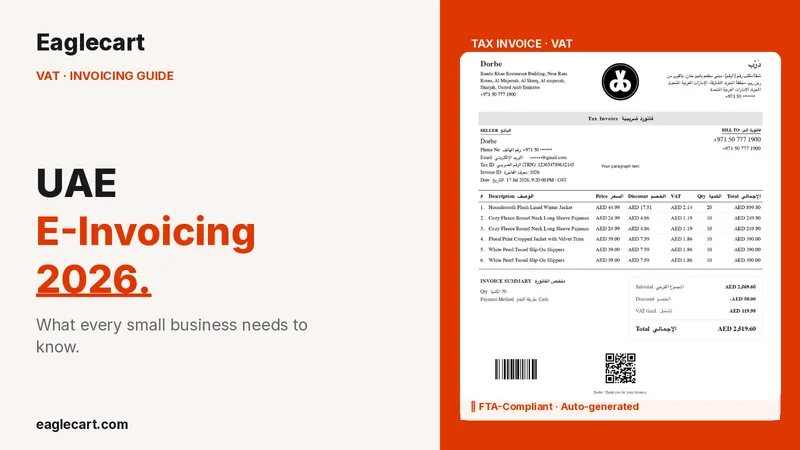
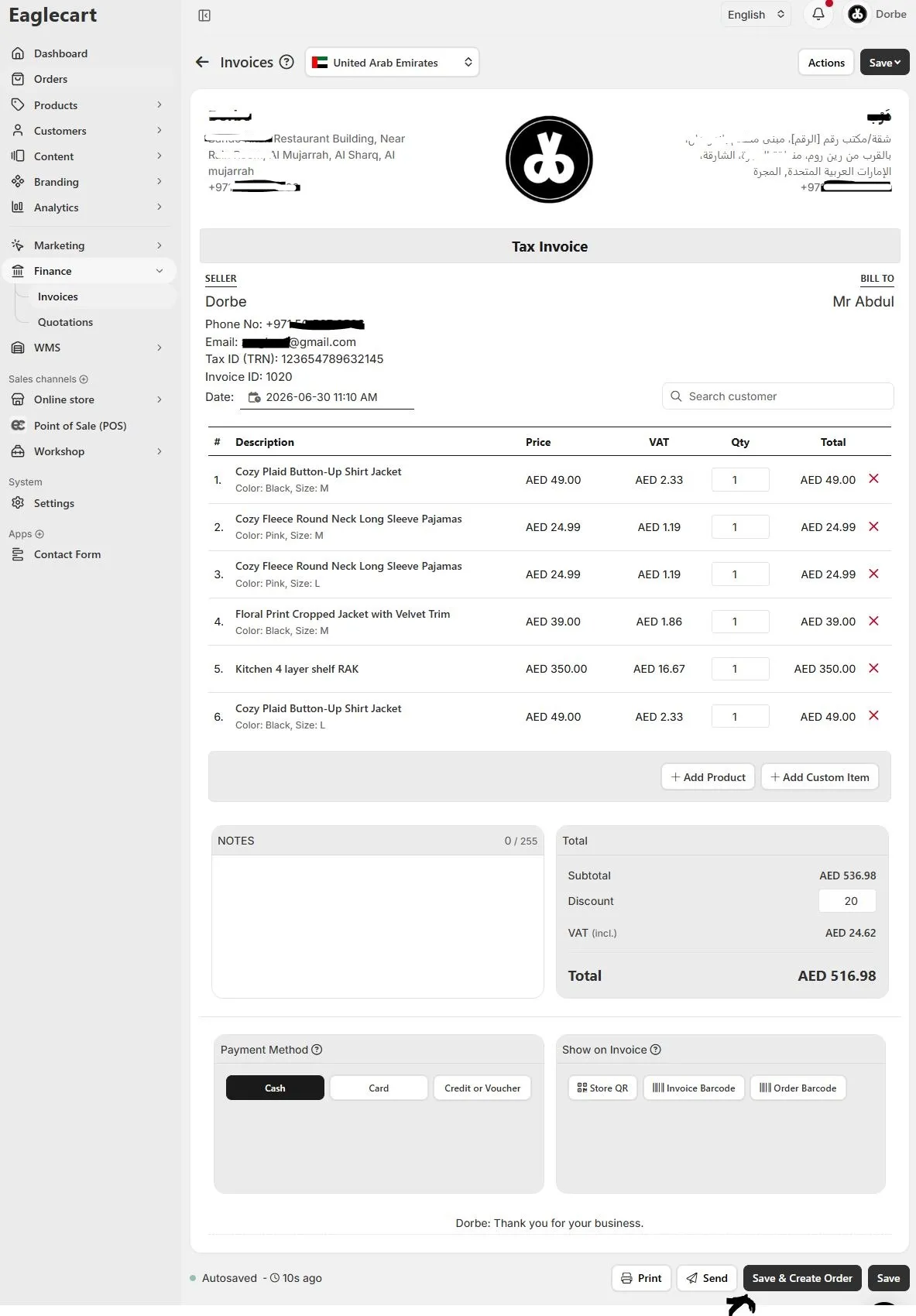
The invoice comes through clearly headed as a Tax Invoice, with its own invoice ID and date, your seller details, and the customer it is billed to. Every line shows the price, the VAT, the quantity, and the total, and the totals section shows the subtotal, any discount, the VAT, and the final amount. You can still add a product or a custom item, and you can add notes for the customer.
 A proper Tax Invoice with price, VAT, quantity and total on every line.
A few things are built in specifically for how UAE businesses get paid. You can set the payment method as cash, card, or credit and voucher. You can apply a discount, and choose what shows on the printed invoice, including a store QR code, an invoice barcode, and an order barcode.
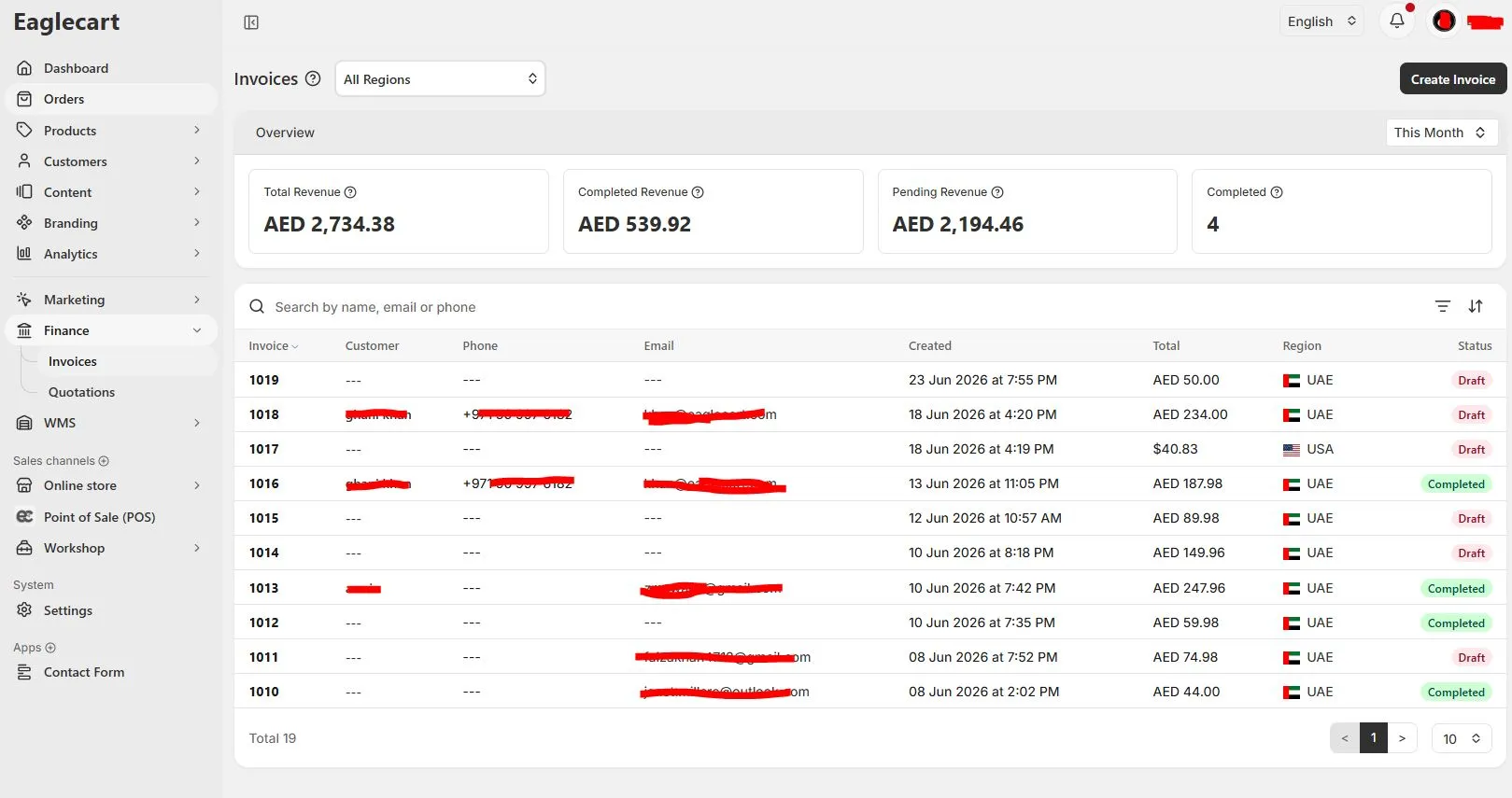
When you print or send it, the customer gets a clean VAT invoice and you keep a structured copy you can always find again. All your invoices sit in one list, with totals for revenue and what is still pending, so you always know where you stand.
Turning the invoice into a real order
Getting paid is not the end. The goods still have to move and the order still has to be tracked. On the invoice there is a Save and Create Order button that turns the bill into a live order in your Orders table.
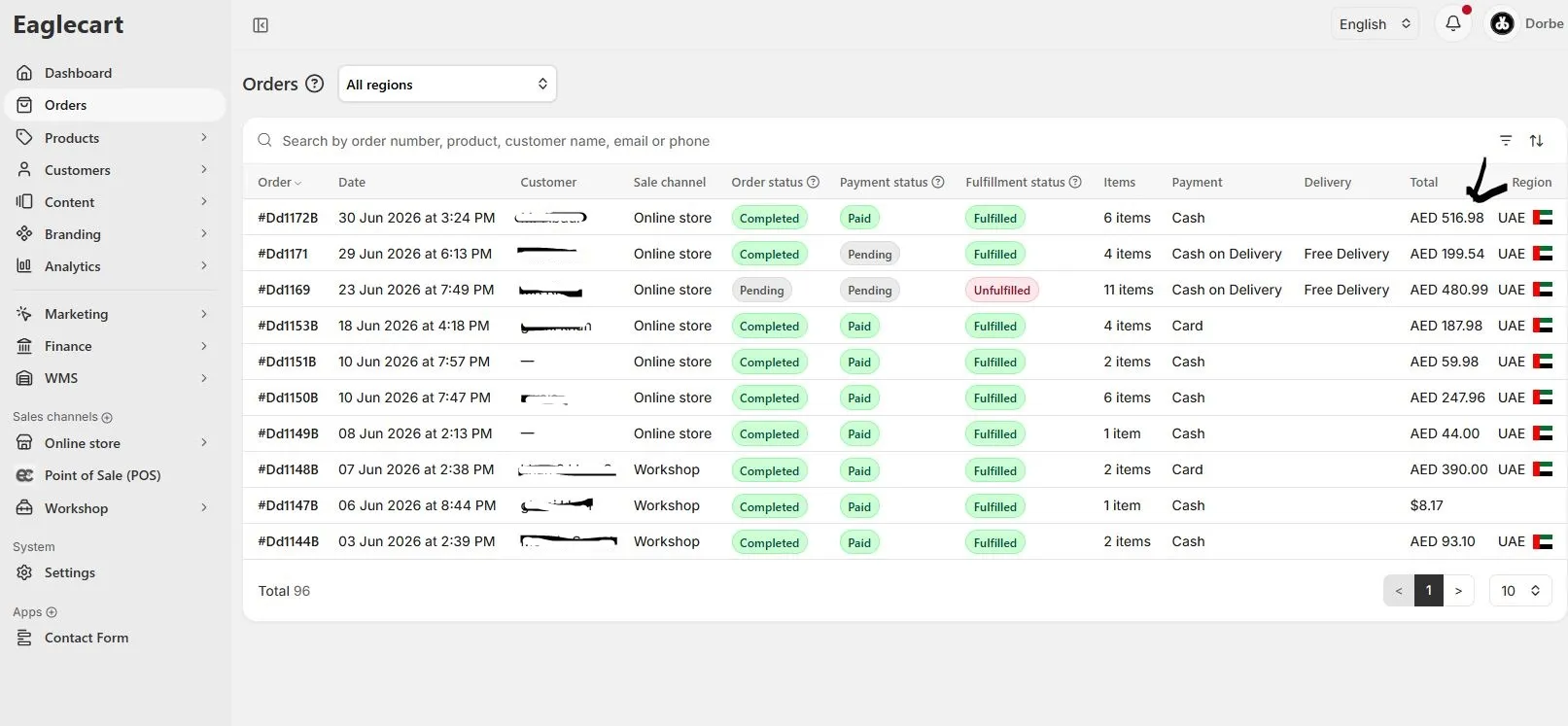
Two useful things happen here. If a line was a product from your inventory, the quantity is deducted from your stock automatically, so your stock count stays correct without a second update. And if you added a new custom item along the way, it can be added into your catalogue, so a one-off you quoted becomes a product you can sell again. By this point the deal you first typed as a quotation has become a saved customer, a signed document, a VAT invoice, an order, and a stock movement, and you only entered it once.
Tracking the order, payment, and delivery
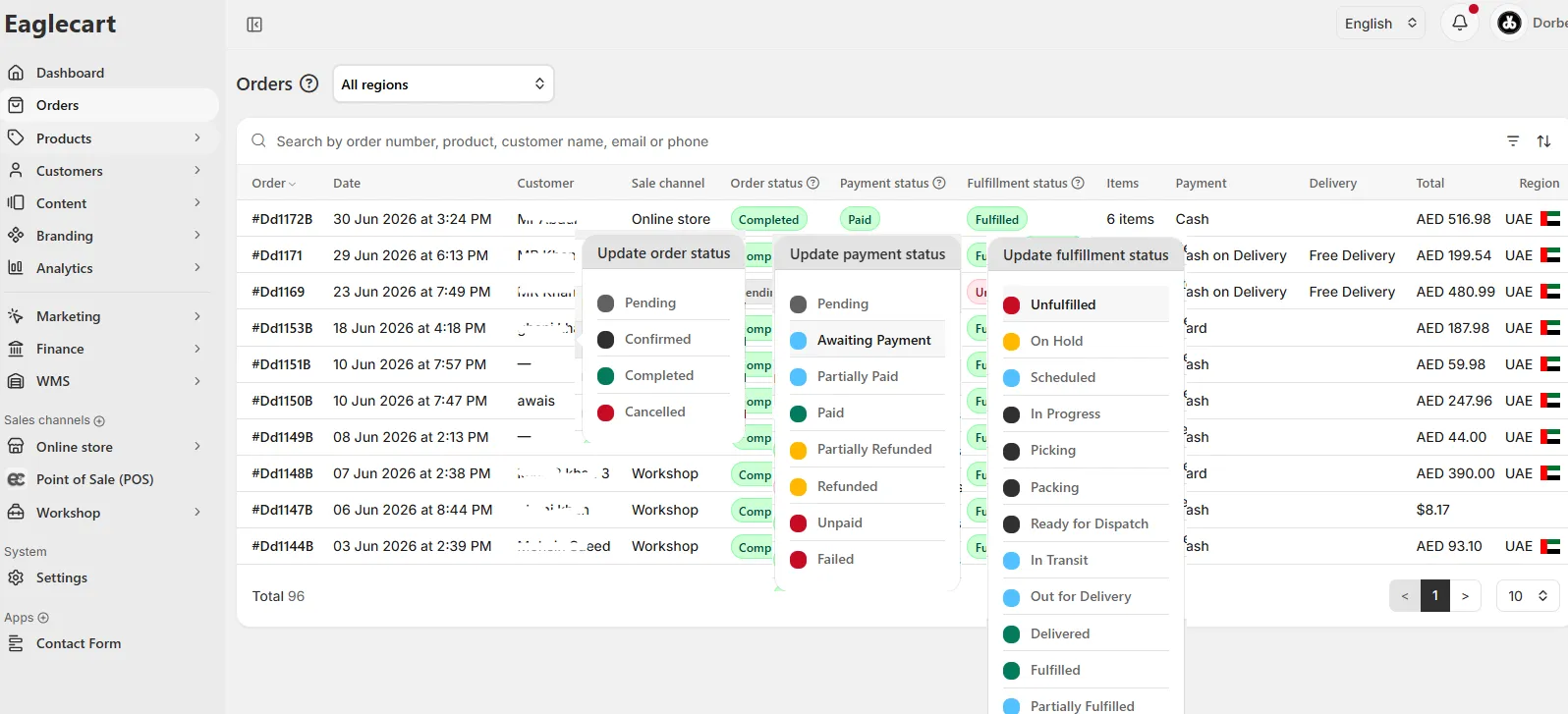
Inside the Orders table you manage the order through three separate things, because in real life they move at different speeds. The order status can be Pending, Confirmed, Completed, or Cancelled. The payment status moves on its own, from awaiting payment to partially paid to paid, with refunds and failures covered too. The fulfilment status follows the goods, from unfulfilled through picking, packing, ready for dispatch, in transit, out for delivery, and finally delivered.
Keeping these three apart means you always know exactly where a deal stands. A customer can be fully paid while the goods are still being packed, or the goods can be delivered while payment is still partial, and you can see both at a glance.
Who can do what: owner control
Because this flow handles your prices, invoices, and money, not everyone should be able to do everything. The owner sets user permissions and decides which user can create, update, or delete quotations, invoices, and orders. A freelancer working alone simply has full control. A small team can let staff raise quotations and invoices while the owner keeps deletion and sensitive changes locked down.
Who free invoice and quotation software is for
This is built for the people who do their own selling and billing, usually on a laptop at the end of the day:
Freelancers who need to send a professional quotation on the spot and a clean invoice when the work is done. Consultants whose business is really just quotations and invoices, and who need them correct, VAT-ready, and saved. Small traders and shop owners who are tired of printed pads that look amateur and leave no record. Online stores and workshops that want to send a customer a quotation first, then carry it all the way to a finished, delivered order.
If you have been stitching quotations, invoices, and orders together by hand, this is the place to start. It is free to begin, it is built in the UAE for UAE businesses, and you can create your first quotation and VAT invoice today
Frequently asked questions
Is the invoice and quotation software really free?
Yes. You can start free and create quotations and VAT invoices online in the UAE without paying for separate billing software.
Can I create a VAT invoice online for my UAE business?
Yes. Invoices come through as proper Tax Invoices showing the price, VAT, quantity, and total on every line, with your seller details and Tax ID, ready to print or send.
How do I turn a quotation into an invoice?
Once the customer agrees, you press Move to Invoice and the quotation becomes a VAT invoice automatically. The original quotation is then locked and marked as Converted so it stays as a record.
Can I add my own customers and products?
Yes. You can add a customer from your existing list or create a new one inside the quotation, and you can add products from your catalogue or add a custom item for anything not yet in your catalogue.
Does it support Arabic invoices and quotations?
Yes. The printed quotation comes out in both English and Arabic, with seller and customer signature sections, suited to UAE business.
Do I need accounting software as well?
For sending quotations and VAT invoices and turning them into orders, no. The whole flow from quotation to invoice to order is handled in one place, and your stock updates automatically when an order is created.