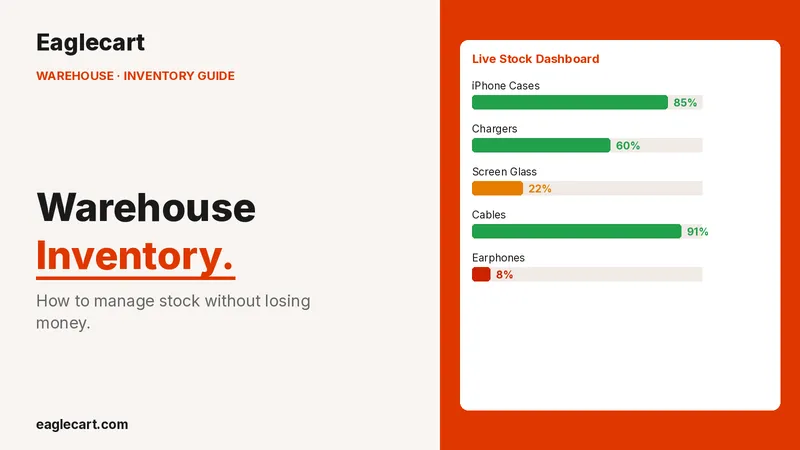
How to Set Up Racks, Shelves, and Boxes in Eaglecart in the UAE
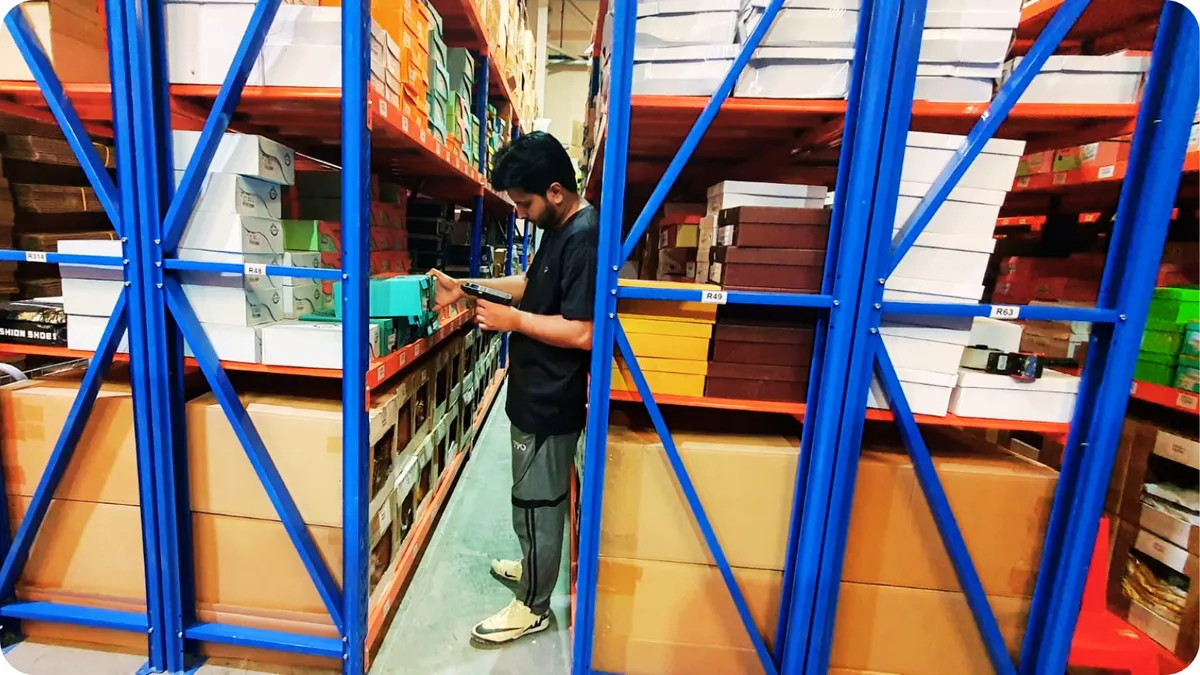
Warehouse Management System (WMS) in the UAE: How to Set Up Racks, Shelves, and Boxes in Eaglecart
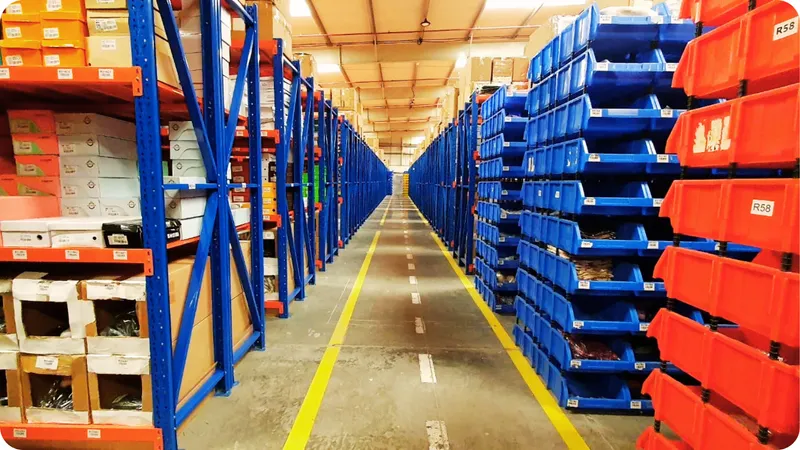
When our warehouse grew to over 20,000 products and around 1,700 orders a day, one thing decided if an order went out on time: did the staff know where the item was. Stock you cannot find is money you have lost. That is the exact problem a warehouse management system solves, and it is why we built the WMS that is now part of Eaglecart, a UAE-built platform. If you run a warehouse, store, or growing online business in Dubai, Sharjah, Ajman, Abu Dhabi, or anywhere in the Gulf, here is how to set up your own warehouse layout step by step, so every product has a clear home and your team can find it in seconds.
Open the layout builder
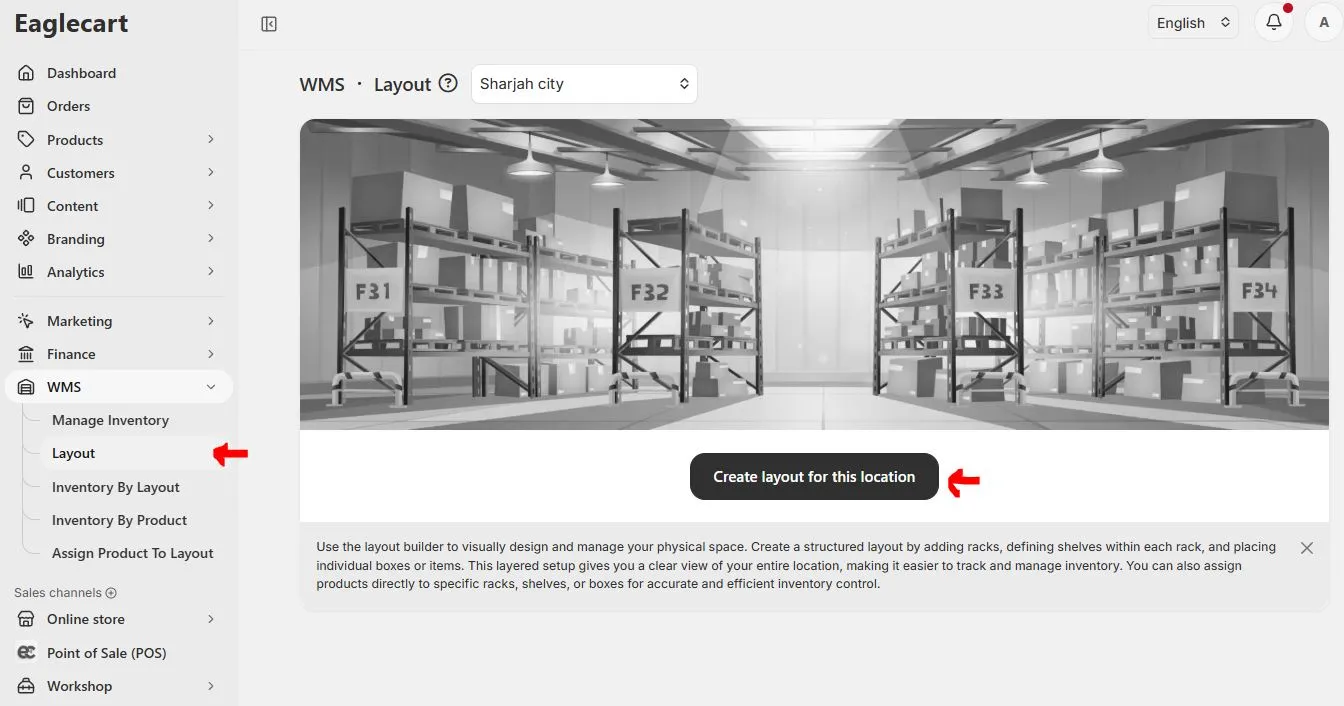
In your Eaglecart dashboard, open WMS in the left menu and click Layout. Pick your location at the top, like Sharjah city, Dubai, or Abu Dhabi. Then click Create layout for this location to start a fresh, empty layout for that warehouse. If you run more than one branch across the UAE, each warehouse gets its own layout here, all managed from one dashboard.
Add your first rack
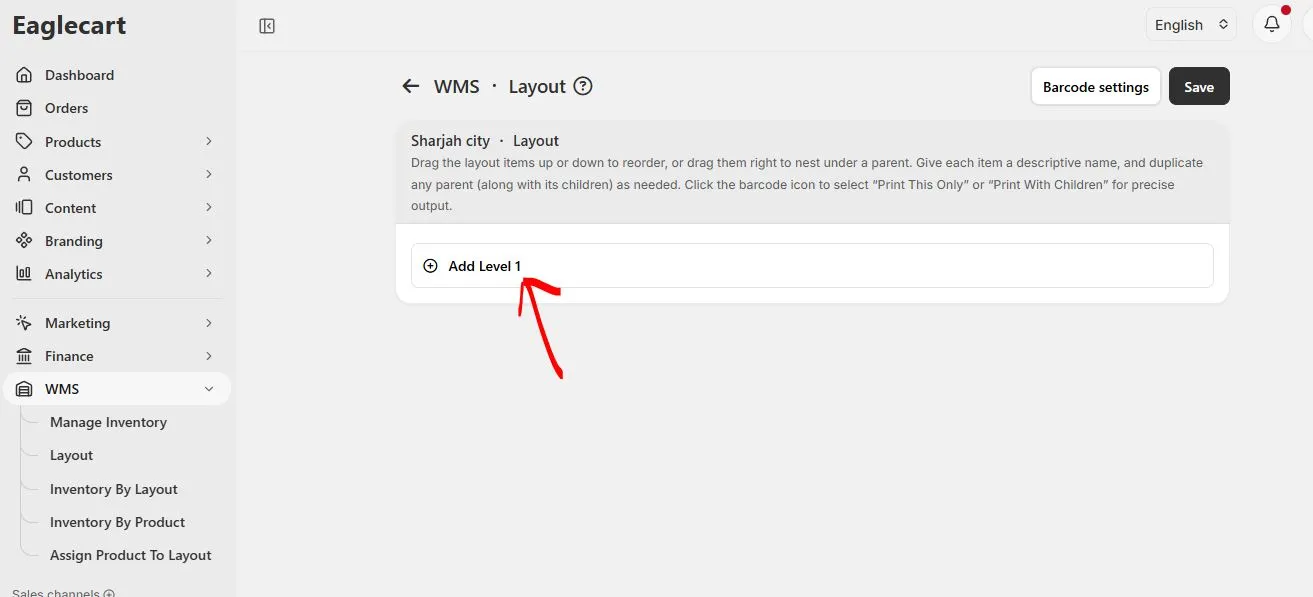
You will see one button: Add Level 1. This is your first rack. Click it, then give it a clear name like Rak 1. Use the same name you write on the real rack, so your team can match the screen to the floor easily.
Add shelves and boxes
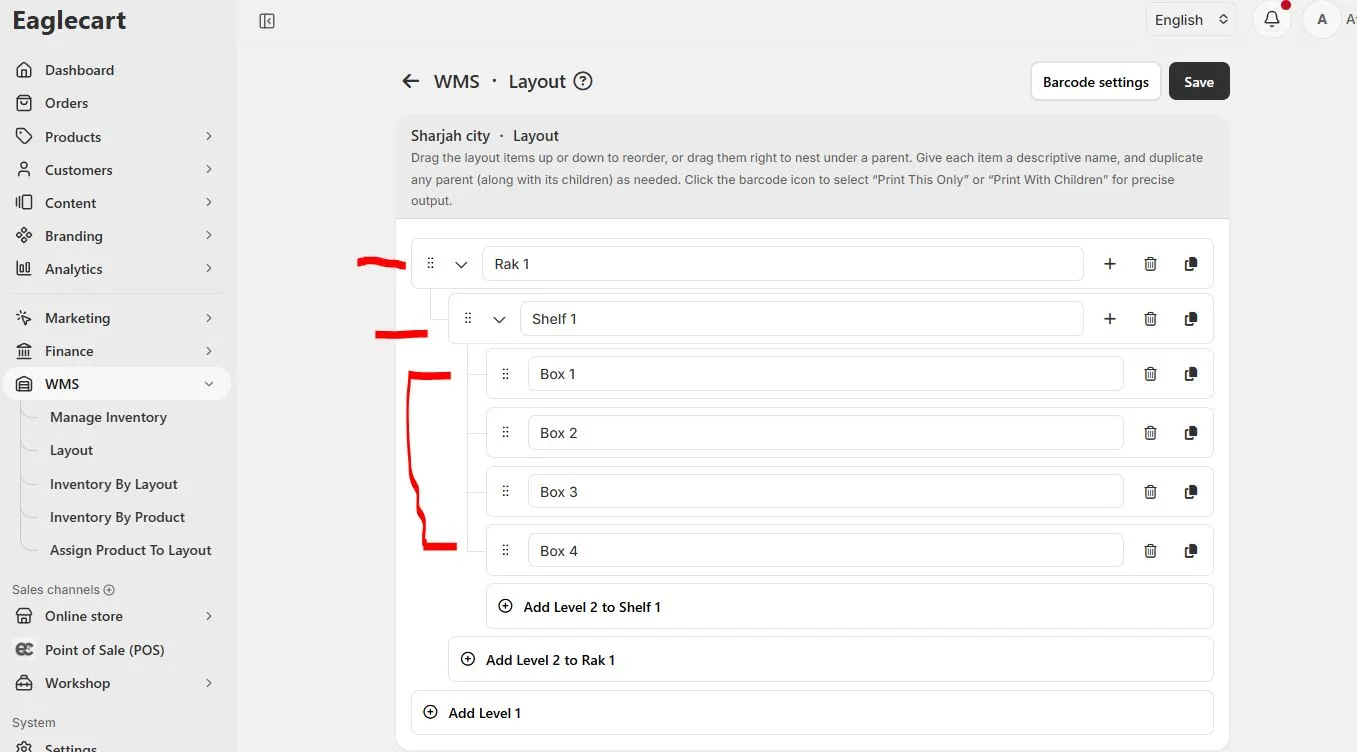
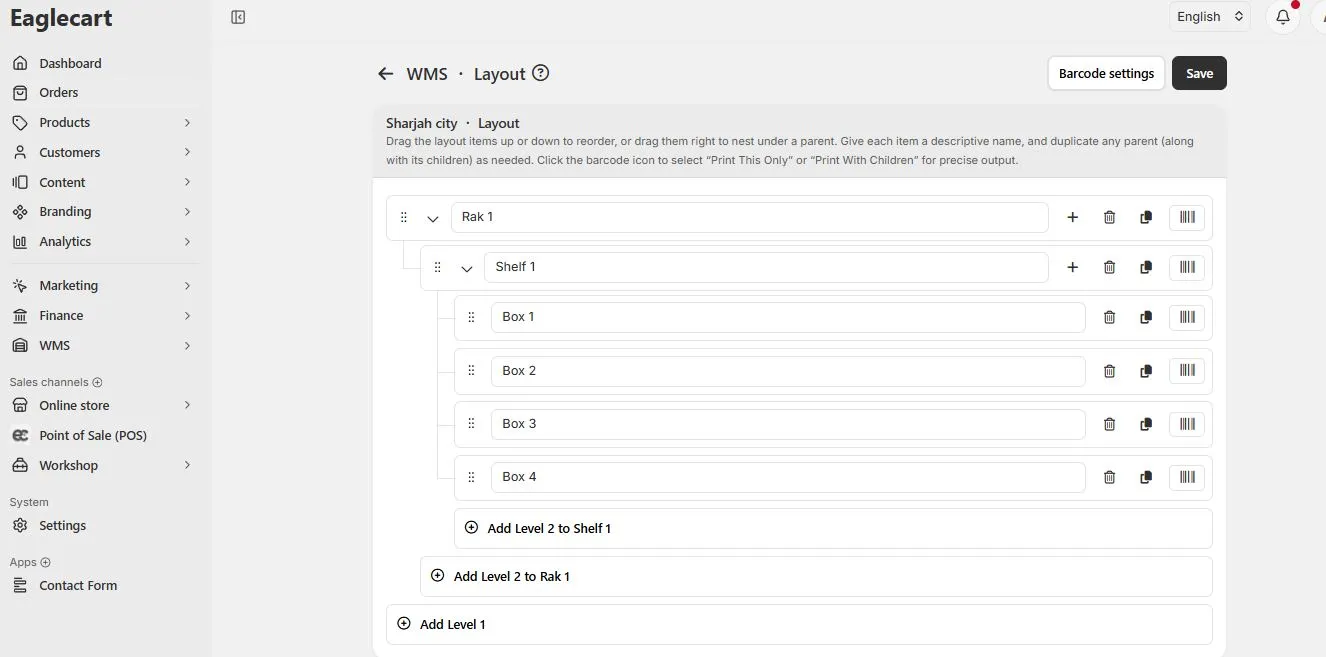
Now build the rack out. Use Add Level 2 to Rak 1 to put a shelf inside the rack, and name it Shelf 1. Then use Add Level 2 to Shelf 1 to add your boxes: Box 1, Box 2, Box 3, Box 4. This warehouse to rack to shelf to box structure is what lets you track inventory down to the exact spot. Build it to match your real shelves exactly.
See the full rack and save it
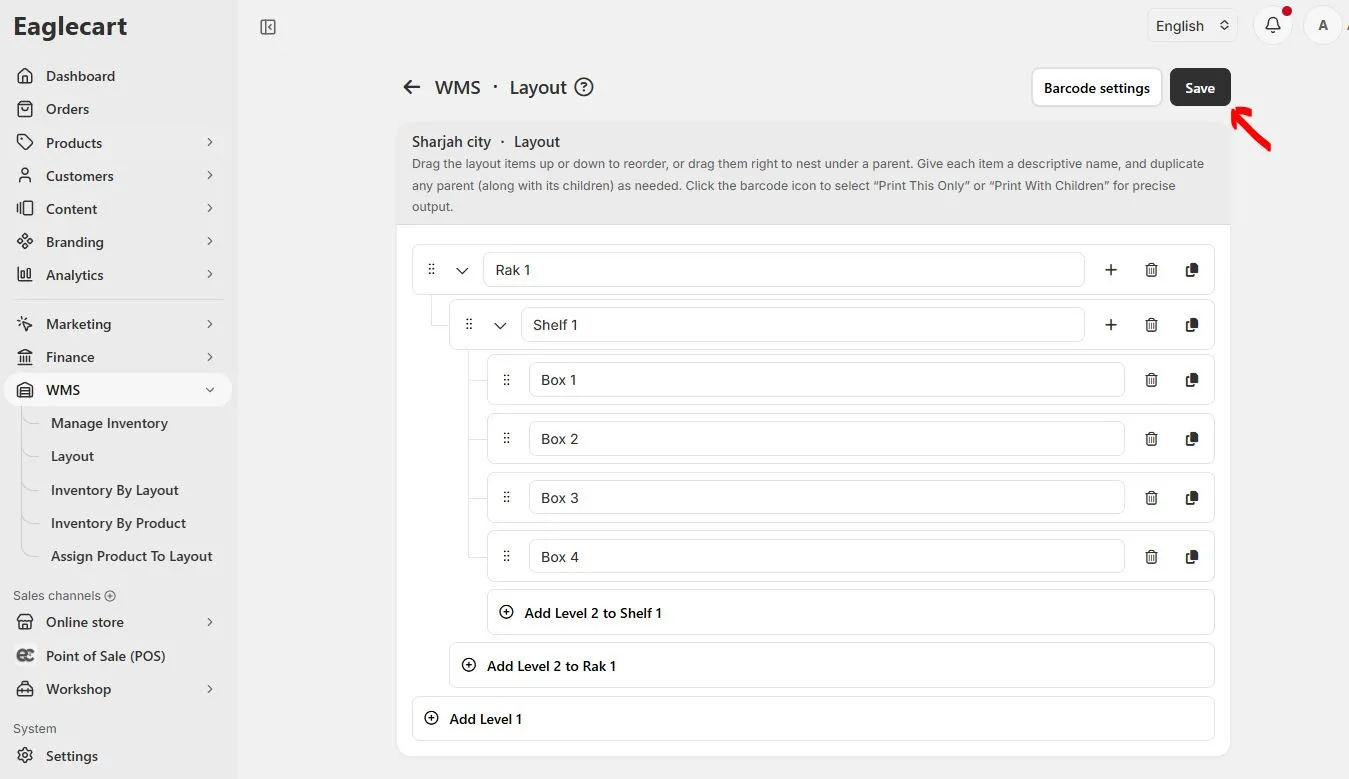
This is your finished rack: the rack on top, the shelf under it, and the boxes under the shelf. To move things, drag a row up or down, or drag it to the right to put it under another item. When it looks right, click Save at the top right.
Copy a shelf
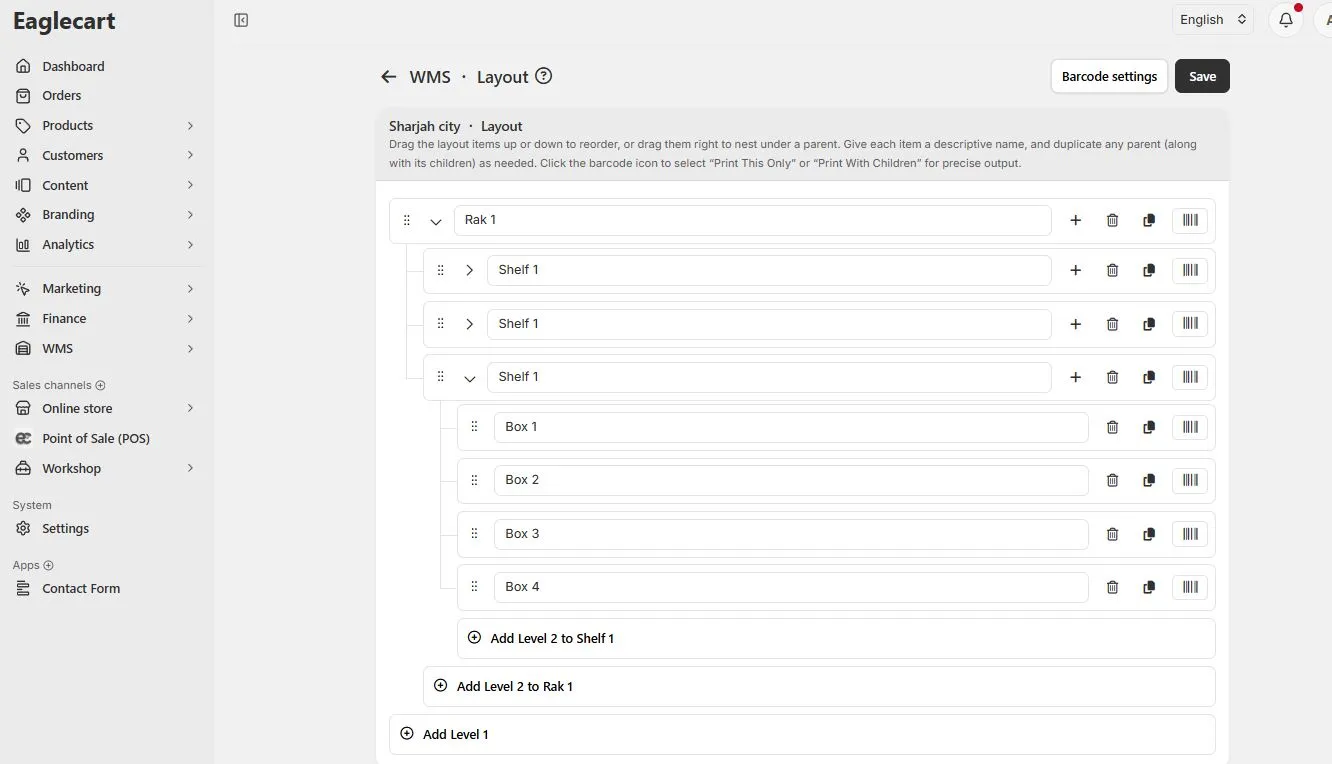
Most racks have more than one shelf, and they usually look the same. So build one shelf with its boxes, then click the copy button to make more of the same shelf in that rack. The copy comes with all its boxes inside, so you do not build each one by hand.
Copy the whole rack
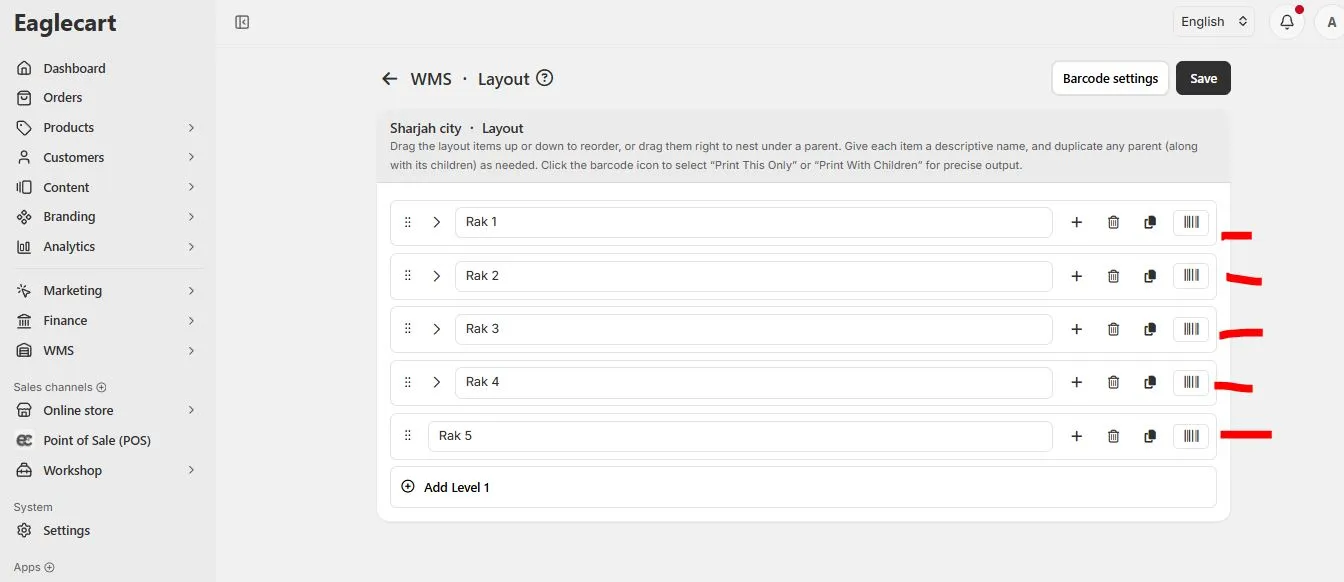
You can copy a full rack the same way, and this saves the most time when mapping a large warehouse. Build one rack, then copy it to make Rak 2, Rak 3, Rak 4, and Rak 5, each with its shelves and boxes ready. If you hit a limit, Eaglecart will tell you that you can upgrade your plan to add more.
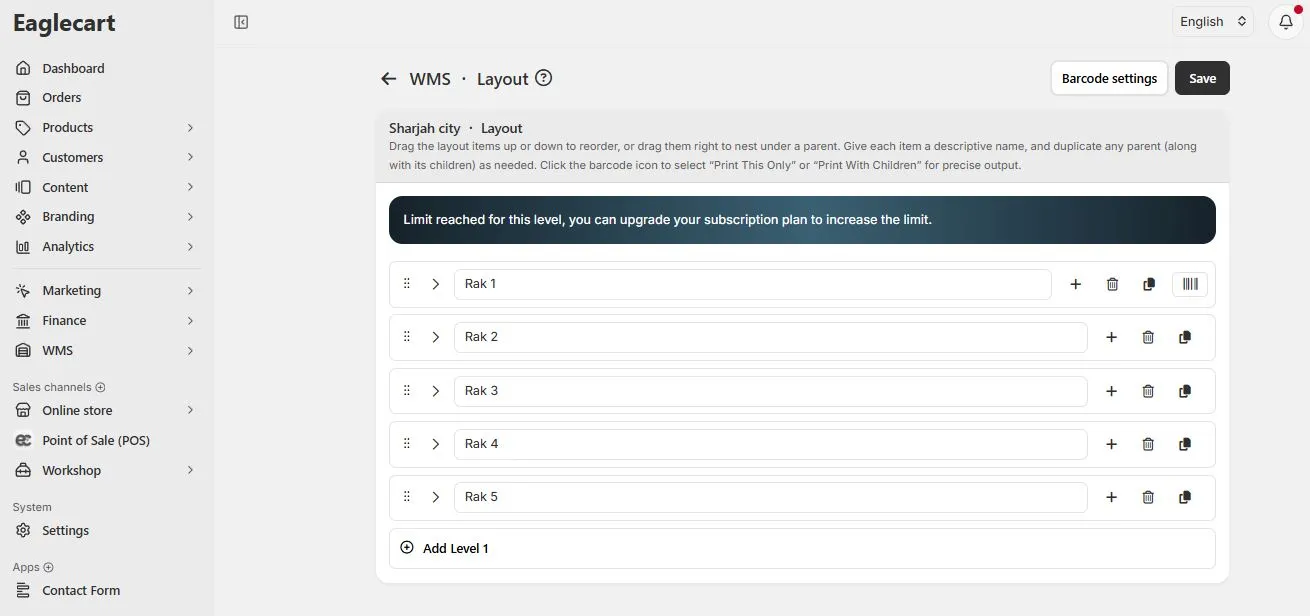
Delete, copy, or print any item
Once your layout is built, each row has small buttons to delete, copy, or print. You can print one item on its own, or print a whole rack with everything inside it. Eaglecart makes the barcode number for you, so you never create any codes yourself.
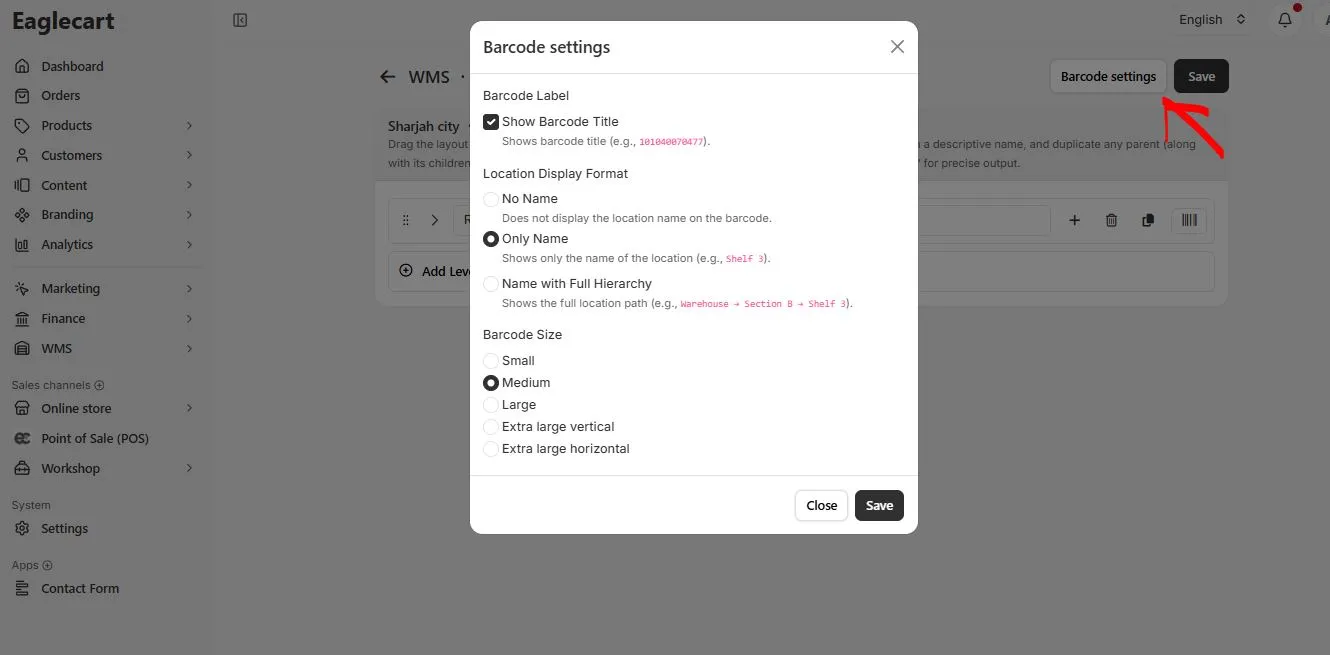
Choose how the barcode label looks
Click Barcode settings at the top right to set up your labels. You can show or hide the barcode title. For the name, you can show no name, only the name (like Shelf 3), or the full path (like Warehouse to Section to Shelf). You can also pick the label size, from small up to extra large. Set this once and save.
Print the labels
Click the barcode button on any row and you get three choices. Print this only prints one label for that spot. Print with children prints the rack plus all its shelves and boxes in one go. Download saves the labels instead. Any normal printer works, so you do not need special warehouse hardware.
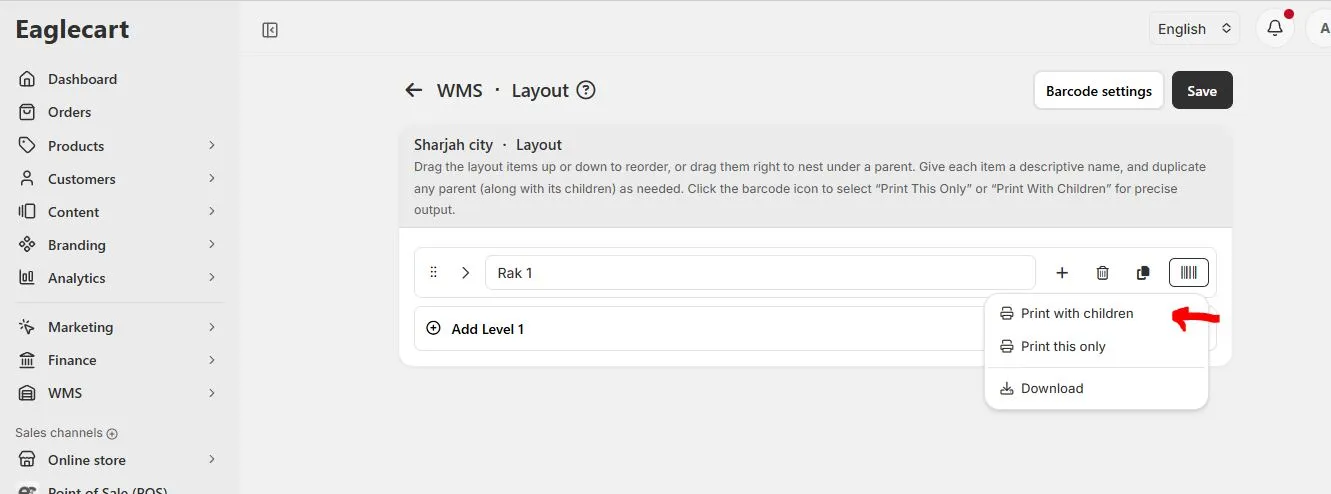
Print labels for all your racks
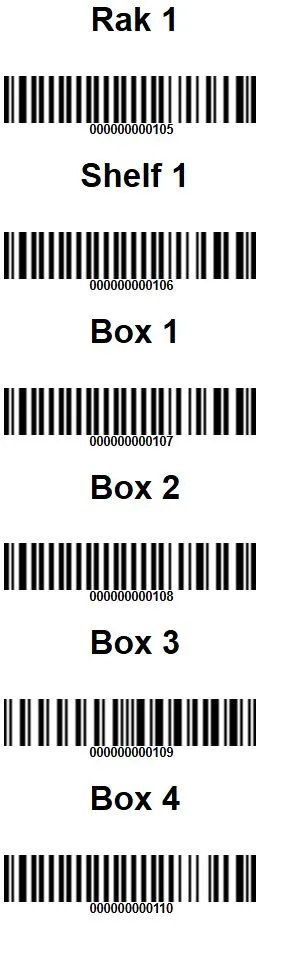
To label a full warehouse fast, use Print with children on each rack. This gives you the rack label plus every shelf and box label under it at once. Repeat for each rack and you have all your labels ready to print.
[ IMAGE: Print_Barcede_for_all_your_Rack_and_paste_on_them.JPG ]
Stick them on the floor
Now you have a clean barcode label for the rack, each shelf, and each box, each with its own number. Paste each label on the spot it belongs to. After that, any scanner, even a phone, can read a location in one second. Now your warehouse on screen matches your warehouse in real life.
What you can do next
Once the layout is built and labelled, use Assign Product To Layout to put each product in its rack, shelf, or box. Then you can see what is in each spot and where each product sits, in real time. And because Eaglecart is one platform, this same stock is shared with your online store and your shop counter, so every sale takes from the right place. Set it up once, and you can start free and bring this order to your own warehouse, anywhere in the UAE and the Gulf.
Common questions about warehouse management in the UAE
What is a warehouse management system, and do I need one?
A warehouse management system, or WMS, tracks the exact location and quantity of every product across your racks, shelves, and boxes. If your team spends time searching for stock, miscounts items, or ships the wrong product, a WMS pays for itself quickly. For a growing business in Dubai, Sharjah, or anywhere in the UAE, it is the difference between a warehouse that scales and one that breaks under more orders.
Does Eaglecart's WMS work in Dubai, Sharjah, Ajman, Abu Dhabi, and other Gulf countries?
Yes. Eaglecart is built in the UAE and works across all the emirates, including Dubai, Sharjah, Ajman, Abu Dhabi, Ras Al Khaimah, Fujairah, and Umm Al Quwain, as well as other GCC and Gulf markets. The platform supports Arabic and RTL, so it fits businesses across the region.
Do I need special hardware or a barcode scanner?
No. Eaglecart's warehouse management runs on any phone, tablet, or desktop, with no special hardware to buy. Barcode labels print on any normal printer, and you can scan locations with a phone camera, a tablet, or a plug-and-play USB barcode scanner.
Can I manage more than one warehouse?
Yes. You can set up multiple warehouse locations and manage them all from one dashboard, with a separate layout for each site. This suits businesses with branches across different emirates or Gulf countries.
Does the warehouse stock connect to my online store and shop?
Yes. Eaglecart is one platform, so your warehouse, online store, and point of sale share the same stock. When a sale happens on any channel, it deducts from the correct location automatically, so you never sell something you have already shipped.
How do I start using the warehouse management system?
Open the WMS section, go to Layout, create a layout for your location, and build your racks, shelves, and boxes as shown above. You can start free and map your first warehouse in minutes, whether you are in the UAE or anywhere across the Gulf.