POS System for Small Business in UAE: How It Actually Works
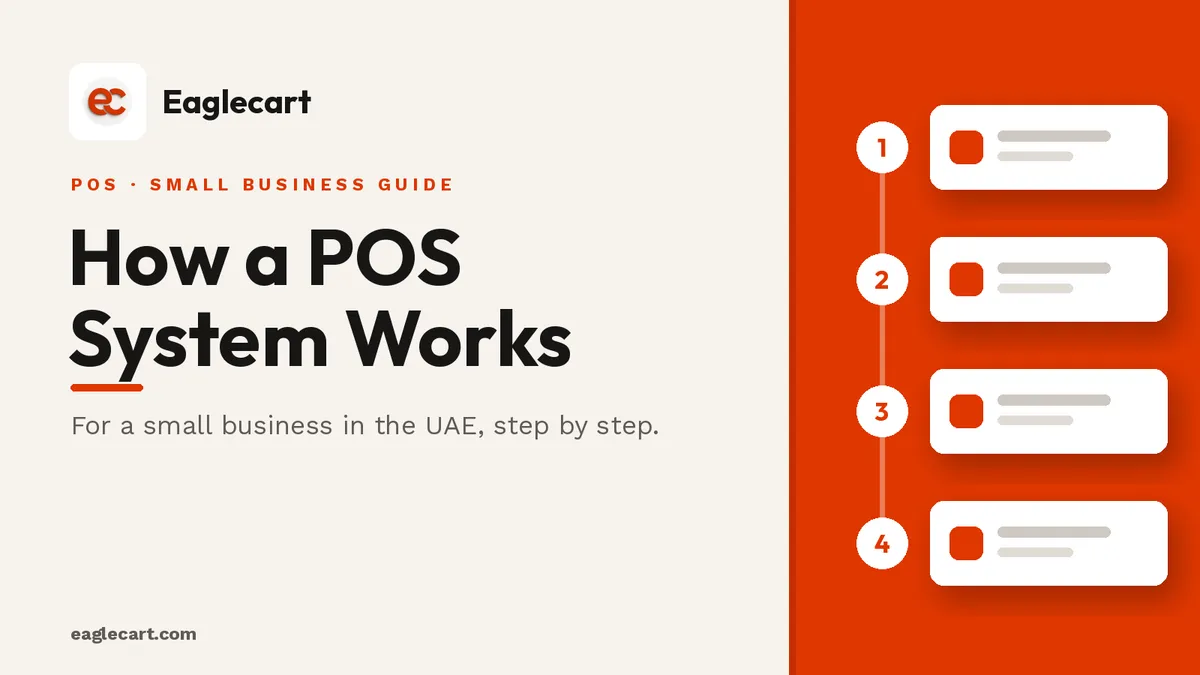
A POS system for a small business runs in one simple loop: you find the product, add it to the cart, take the payment, and give a receipt — and the moment the sale closes, your stock drops by itself. For the customer standing at your counter, that is the whole job.
But a POS that is connected to your online store can do something a cash register never could: it can serve the customers who never walk in — the people in the buildings around your shop. Below is how both sides work, step by step, using Eaglecart POS as the example, on a phone or a desktop.
When we ran our showroom, the slow part was never the customer choosing — it was the counter. On a busy afternoon you would have three people waiting while someone wrote a price on a pad, added the VAT by hand, and hunted for the receipt book. Every one of those seconds is a customer deciding whether to wait or leave. A good POS makes that whole moment disappear, so let me walk you through what actually happens.
Key Takeaways
- The in-shop POS loop is four steps: find the product, build the cart, take payment, give the receipt.
- Stock is shared, so a shop sale and an online order draw from the same count — you do not oversell.
- Customers near your shop can order from your website; the order lands in your dashboard, where you print a packing slip and send it out.
- Stock comes off the moment an online order is placed; for cash on delivery, you mark it paid once the cash is back.
The in-shop POS loop: four steps
Before the detail, hold the shape in your head. Every walk-in sale, however simple or complex, is the same four steps in the same order.
Find the product. Build the cart. Take the payment. Give the receipt. Learn those four and you can run the till on day one. Here is each one as it works in Eaglecart POS.
Step 1: Find the product — search or scan the barcode
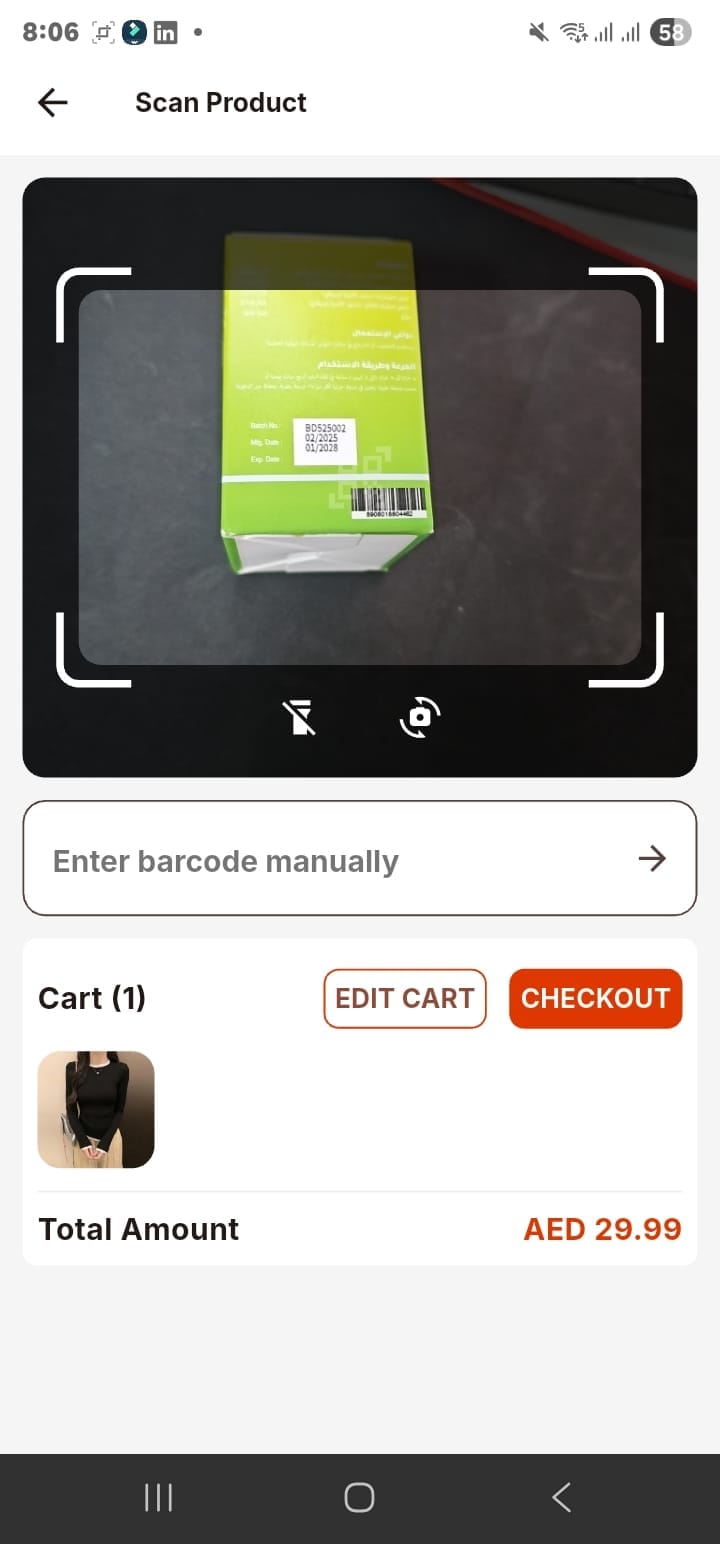
You open the POS and your products are already there, the same catalogue you manage in your dashboard. Add an item by typing part of the name, or by scanning its barcode. If you have a scanner it works like any shop scanner; if you do not, the phone app turns the camera into the scanner. You can also type a barcode in by hand when a label is damaged, and on the desktop you get a full grid of products to tap through by category.
Step 2: Build the cart, add the customer, or hold the sale
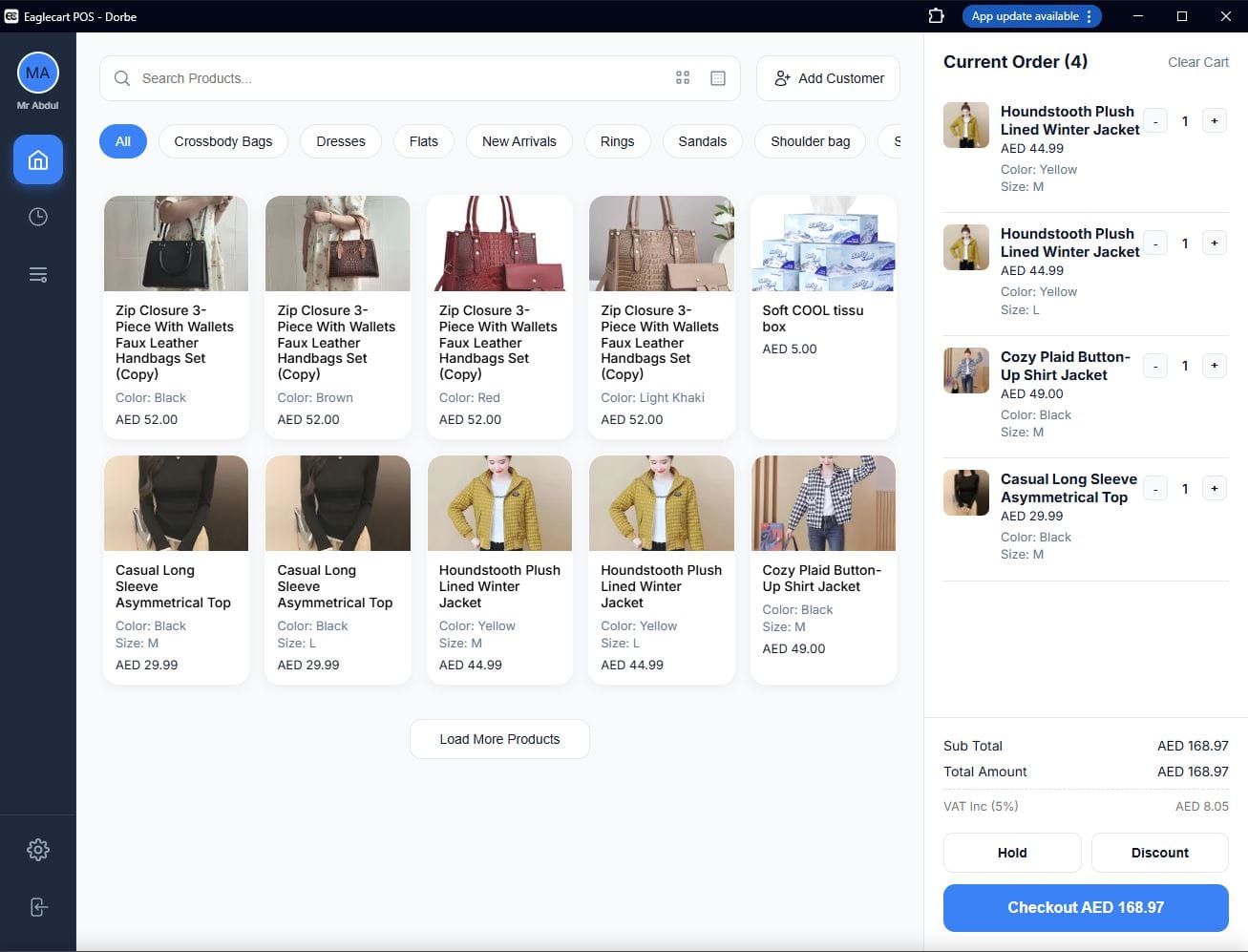
As you add items, the cart keeps a running total with VAT calculated as you go. Adjust the quantity, remove a line, or apply a discount right there. If the customer wants their details on the sale, add them in seconds with a phone number and name, which links the sale to their record for next time. And if they are still deciding while a queue builds, put the sale on hold, serve the next person, and pull it back when they are ready.
Step 3: Take the payment, with the change worked out
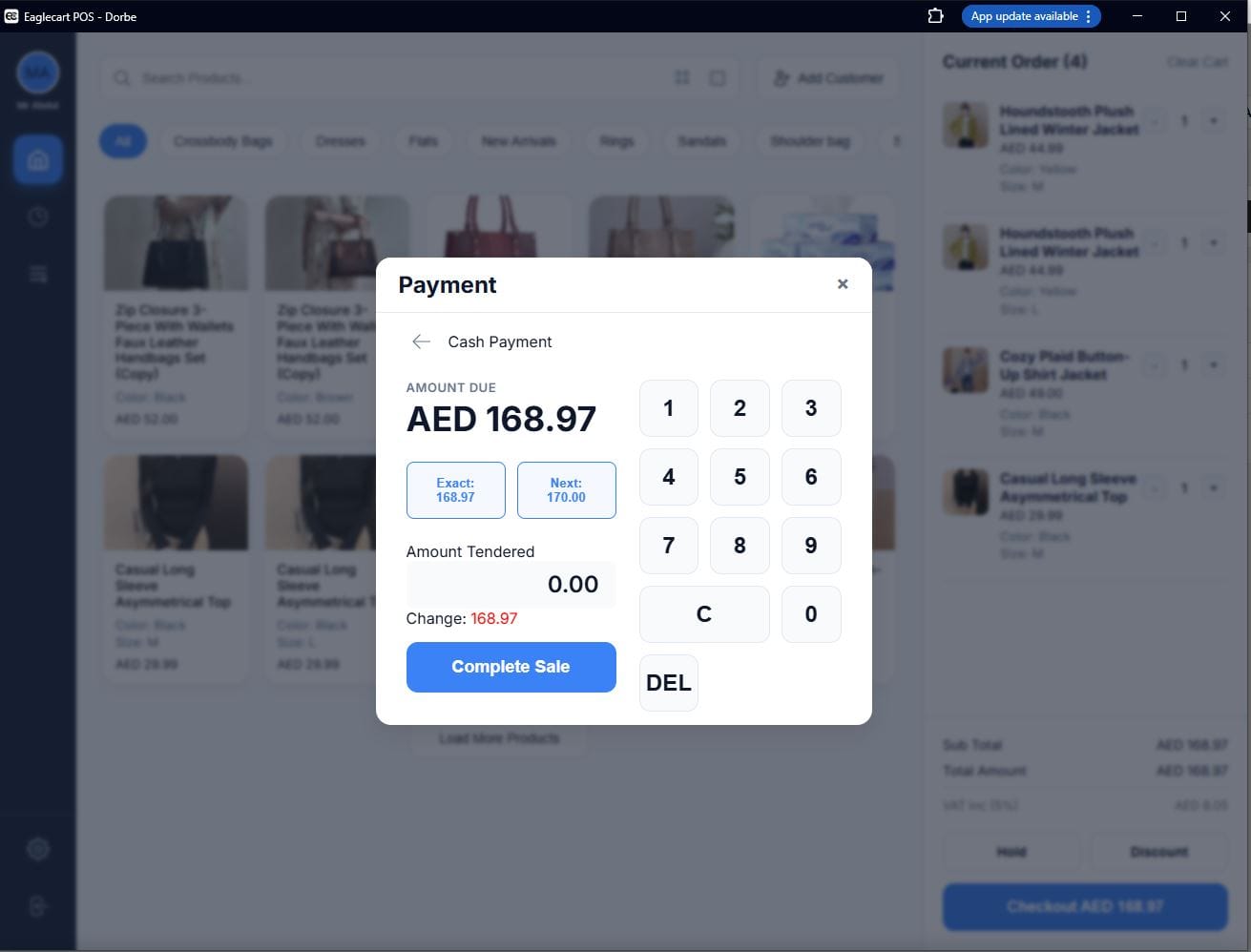
Tap checkout and choose how the customer is paying — cash or card. For cash, the system does the part people get wrong: it works out the change. Tap the exact amount, tap the next round number the customer is likely to hand over, or type whatever they give you, and the screen shows the change to return straight away. The moment the payment is confirmed, the sale is done.
Step 4: Print or share the receipt
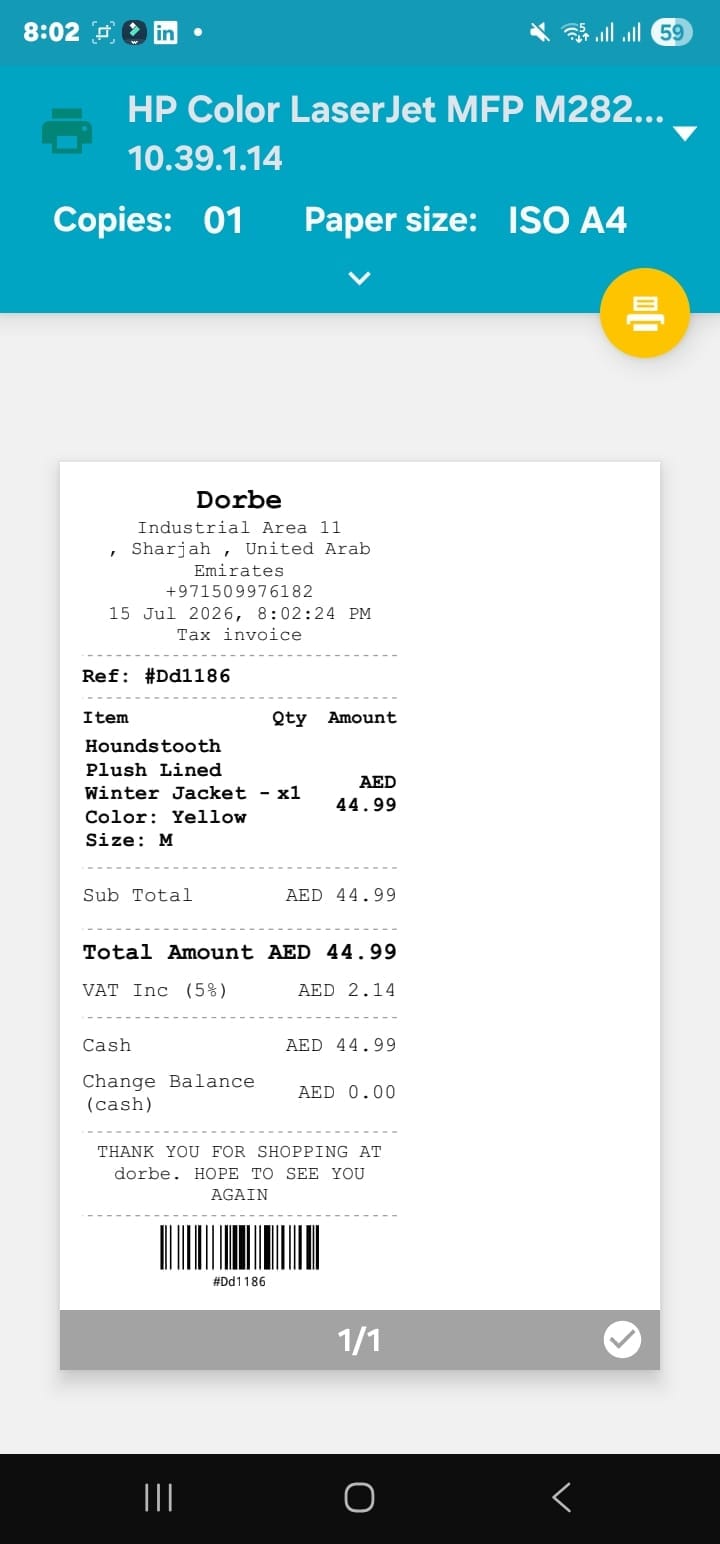
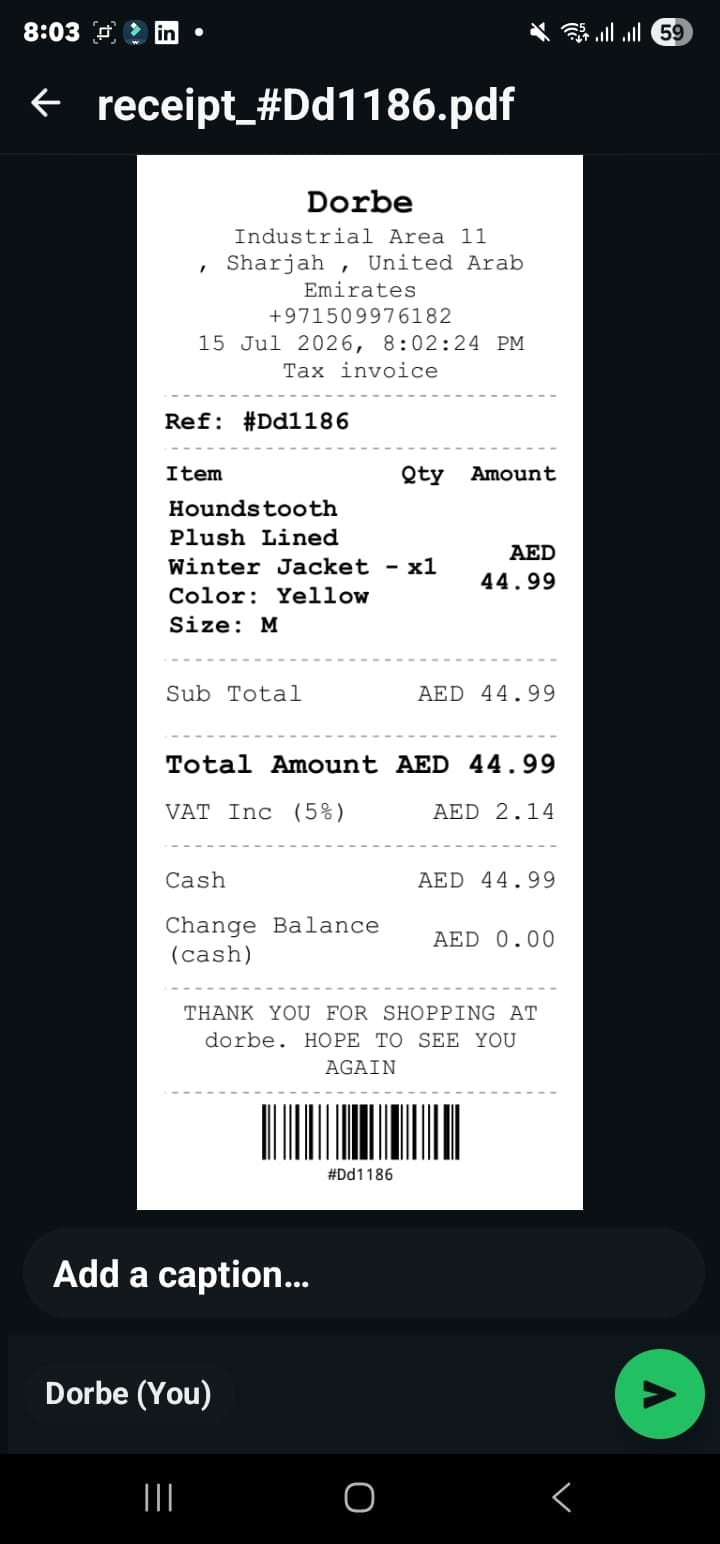
With the sale closed, the receipt is ready instantly. Print it on a receipt printer or on A4, or send it to the customer digitally — for example over WhatsApp — with no paper at all. It comes out as a proper VAT tax invoice showing your shop details, the items, the 5% VAT and the total, the same document whether you print it or share it. Then you tap new sale and the till is clear for the next person.
What happens after every sale
This is the part manual billing can never do. The second a sale closes, that item comes out of your stock, and the sale is logged in your report.
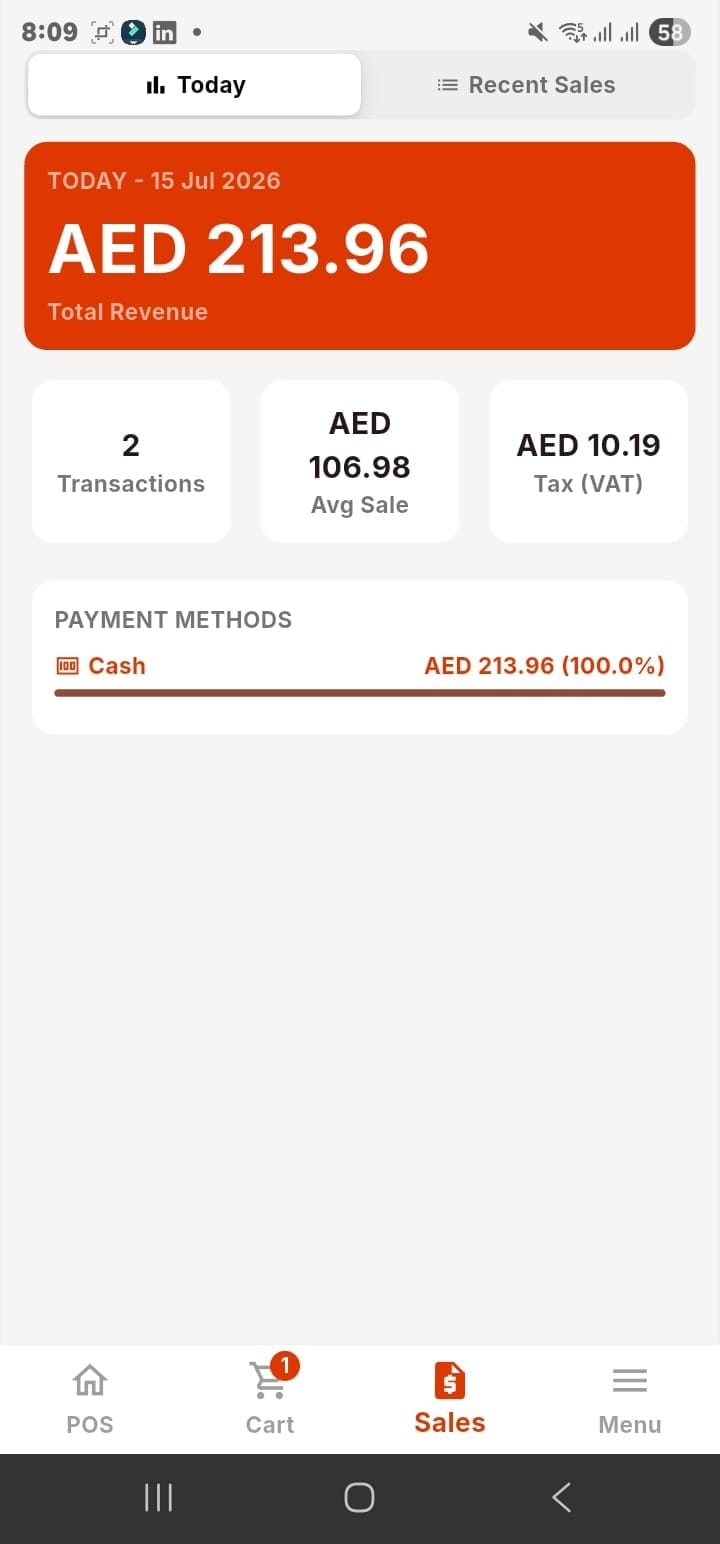
Because Eaglecart keeps one stock number across the shop and the online store, a sale at the counter lowers the same inventory your website is selling from. And your sales report fills in as you go — the day's revenue, the number of transactions, the average sale and the VAT collected — so "how did we do today?" is a glance, not an evening of adding up.
Your POS also serves the customers who never walk in
Here is the part that turns a shop into something bigger. Because your stock is shared with your online store, the people around your shop can order from you without ever coming in — and you fulfil it yourself.
Picture a small grocery shop at the base of a residential tower. The owner shares the shop's website with the building — a code on a sticker by the lift, a message on WhatsApp, a flyer under the doors. A resident on the tenth floor opens it and orders a milk pack and a bottle of water, entering their apartment number and WhatsApp number at checkout.
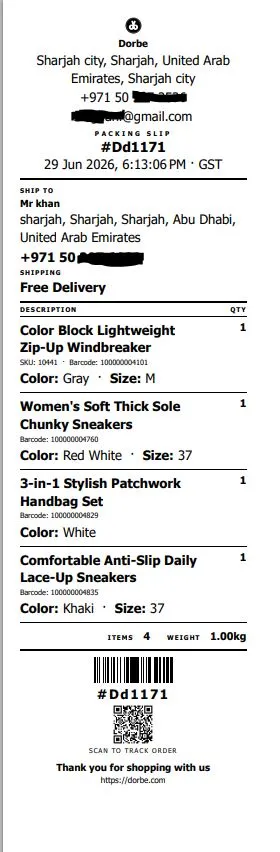
The moment they place that order, the stock comes off — so the website can never sell the last milk pack twice, even if two neighbours order at once. The order lands in the owner's dashboard. He opens it and prints the packing slip: it carries the shop's details, the order reference, the customer's name, address and phone, the delivery method, and every item with its barcode, colour, size and quantity, plus the item count, the weight, and a code to track the order.
He hands the items and the slip to his shop staff, who takes them up to the tenth floor. The customer pays cash, the staff brings it back, and the owner marks the order paid in the dashboard. That is it. That shop just ran a delivery — no app to build, no courier account, no second system. The same products, the same stock and the same customer records that run the counter also run the doorstep.
Your phone is a POS too, and receipts go on WhatsApp
None of this needs a big setup. The Eaglecart POS runs on iOS and Android, so a phone in your hand is a full till.
Scan a product with the camera, take the payment, and share the receipt on WhatsApp instead of printing it. Add the customer to the order and you start building a real sales history, so you can see who your regulars are and what they bought. Walk-in sale, online order, delivery, stock, customer — it all runs in one loop, so nothing is missed and nothing is entered twice.
Running more than one counter or shop
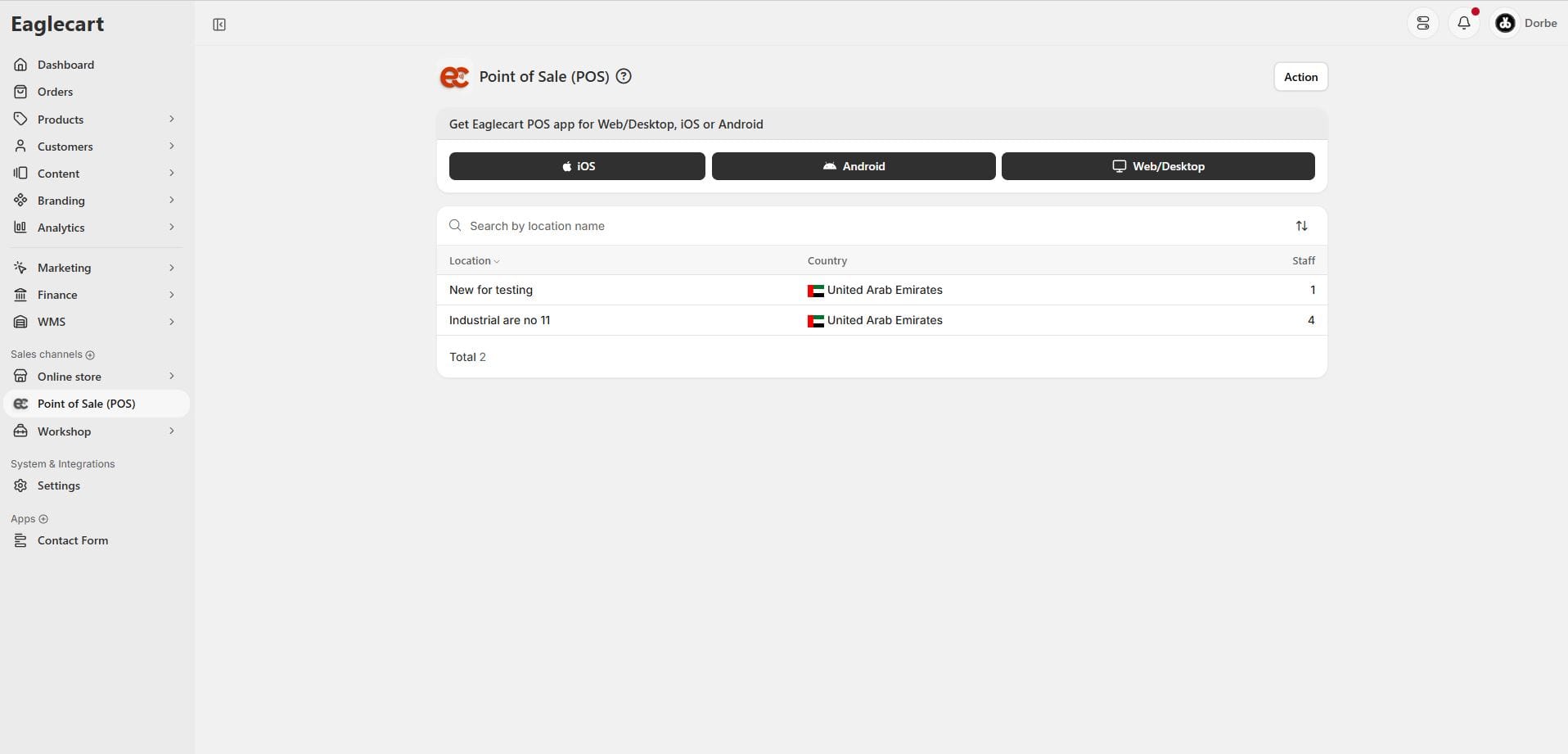
If you have more than one till or more than one location, you are not running separate little islands. Each terminal signs in to its own store and location, and you see all of them from one dashboard. You pick the store and location when you log in, and the sales, stock and reports roll up to the same place, whether you have one counter in one shop or several across the emirates.
Frequently asked questions
How does a POS system work, step by step?
You find the product by search or barcode, build the cart, take the payment, and give a receipt. When the sale closes, your stock updates and the sale is recorded automatically.
Can customers near my shop order from it and get delivery?
Yes. Share your Eaglecart store with the buildings around you, and customers can order from your website. The order appears in your dashboard, where you print a packing slip and send your own staff to deliver it — no separate delivery app needed.
How do I give a customer a receipt?
After payment, print the receipt on a receipt printer or A4, or share it digitally, for example on WhatsApp. It comes out as a proper VAT tax invoice either way.
Will a POS stop me overselling the same item online and in the shop?
Yes. Eaglecart shares one stock number across your shop and your website, and an online order removes stock the moment it is placed, so you cannot sell the same last item twice.
Can I use a POS system on my phone in the UAE?
Yes. Eaglecart POS has iOS and Android apps, so you can scan with the phone camera, take payment and share the receipt without any extra hardware. A desktop version is there when you want a full counter setup.