How to Run Multiple Shops from One POS Dashboard in the UAE
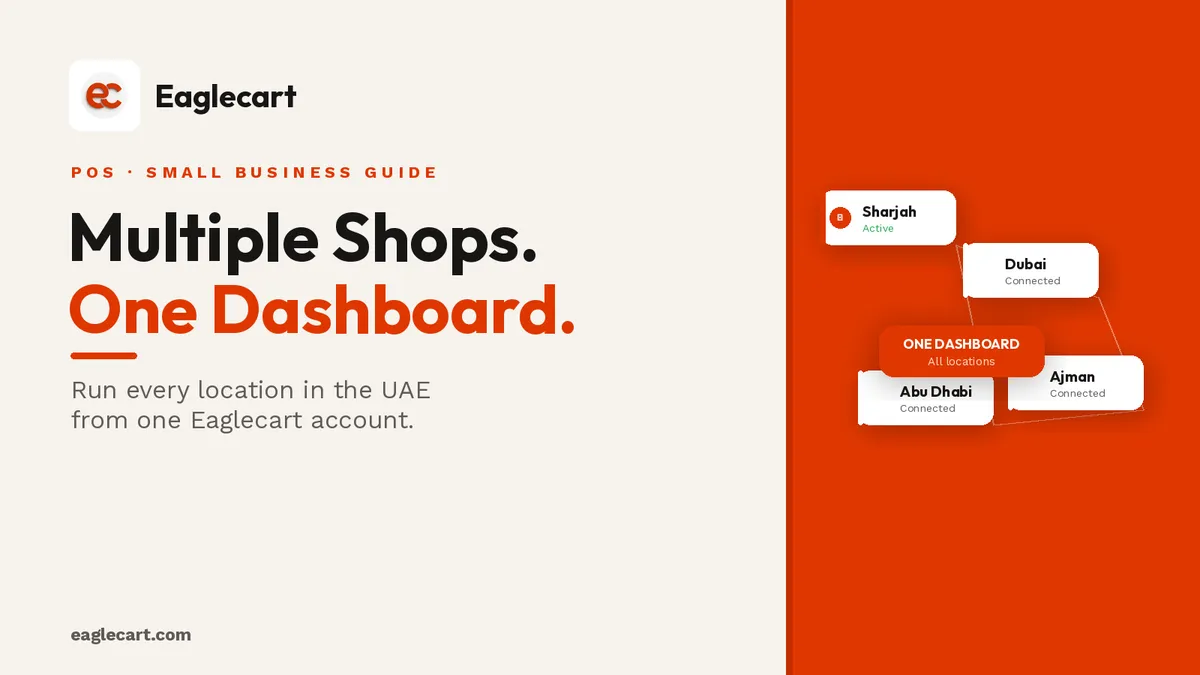
Running one shop well is hard enough. Running two or three across different emirates — Sharjah, Dubai, Abu Dhabi — means managing twice or three times the staff, the stock and the reporting. Most shop owners who expand do it with separate systems for each location: different tills, different spreadsheets, and an end-of-day routine of pulling numbers from three places and adding them together. It works, barely, until it stops working.
With Eaglecart POS, every location you open is part of the same system. Each till logs in to its own store and location. Stock is tracked per location. Sales are recorded per location. And you see all of it — every counter, every location, every day's numbers — from one dashboard, on your phone or at your desk.
When we opened our retail showroom alongside our ecommerce operation, this was the lesson that cost the most to learn late. Two separate stock systems, two separate reports, two separate everything. Reconciling them at the end of the month was a half-day job that should have taken five minutes. The shift to a single dashboard was the moment the business actually became manageable at two locations.
Key Takeaways
- Each Eaglecart POS terminal logs in to its own store and location — stock and sales are tracked separately per location.
- All locations roll up to one dashboard, so you see the full picture without pulling numbers from multiple places.
- Staff log in with their own credentials — you never share the owner account across locations.
- Adding a new location does not require a new account or a new system — it is added in your dashboard settings.
The problem with running two shops on separate systems
Most UAE retailers who open a second location default to the simplest approach: run it on its own till, its own cash book, its own spreadsheet. It feels manageable until you try to answer a question like "how much did we sell across both shops today?" or "which location is running low on this product?" With separate systems, those questions require someone to collect data manually from two places, every single time.
The other problem is stock. If your two shops share a product catalogue, keeping the inventory honest across both requires manual updates every time a sale happens at either location. That almost never happens correctly, and overselling follows quickly.
How Eaglecart handles multiple locations
When you add a location in your Eaglecart dashboard, it becomes available as a selection on every POS device. When a staff member logs in to the POS — on a phone, a tablet or a desktop — they choose their store and location. From that point, everything that happens on that device — sales, stock movements, receipts — is recorded against that specific location.
Nothing is shared by mistake. Location A's sales are Location A's. Location B's stock is Location B's. And you, as the owner, see both from one place.
Logging in to the right location
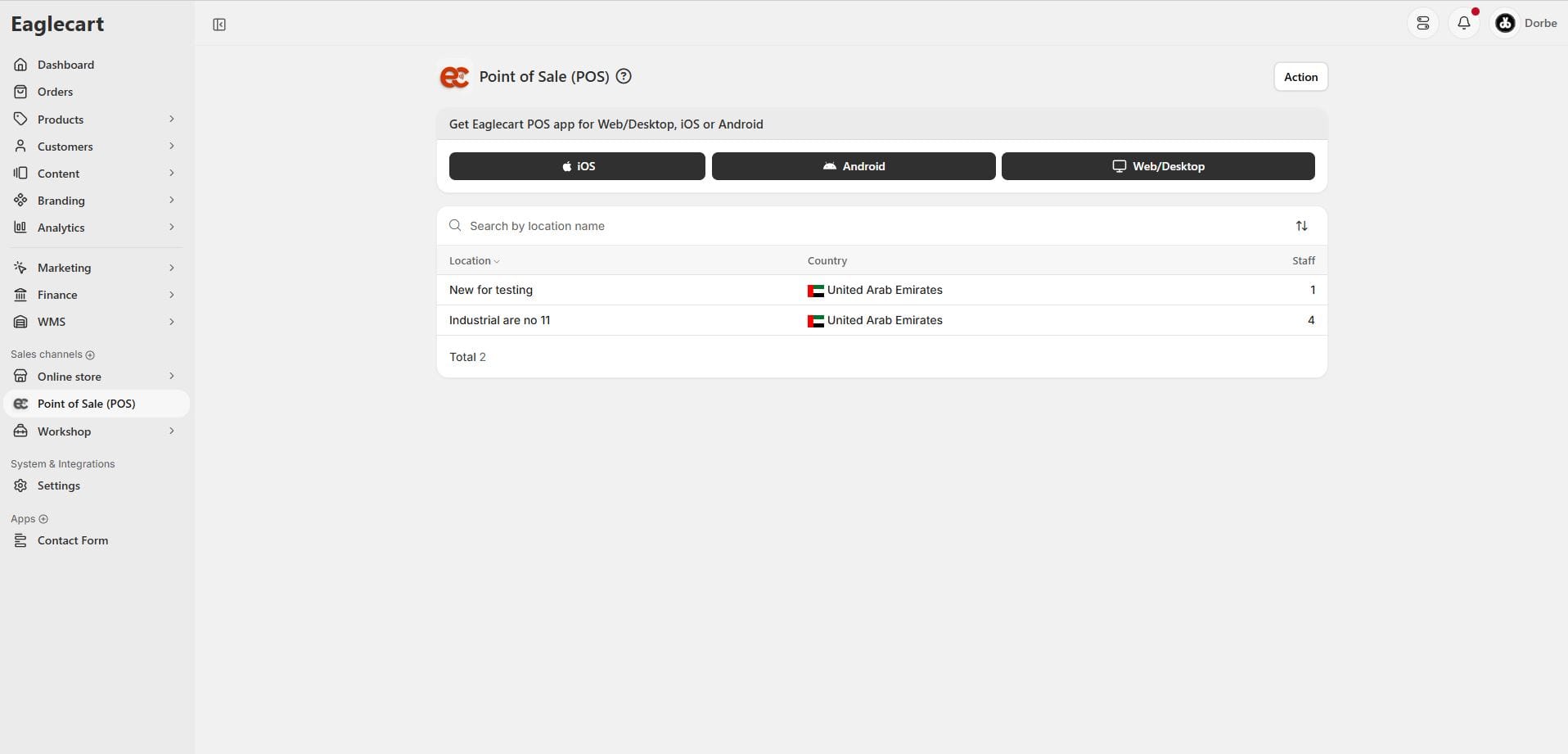
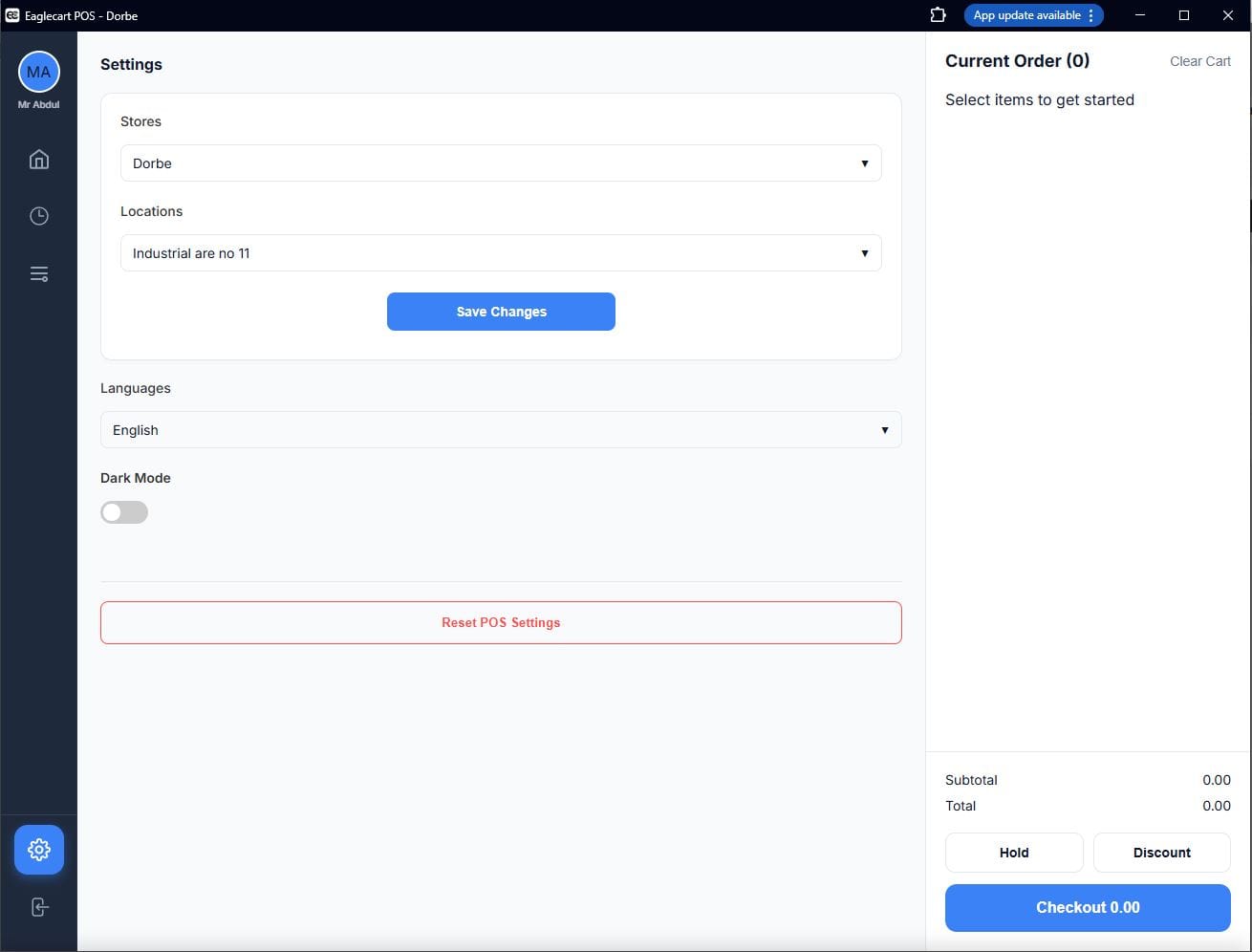
Every time a staff member opens the Eaglecart POS app, they choose their store and location before the sale screen appears. On mobile, this is a two-step screen: choose the store from a dropdown, then choose the location. On desktop, the same selection is in POS Settings. Once set, the device remembers the location until the settings are reset.
This means a staff member at your Sharjah shop and a staff member at your Dubai shop can both be logged in simultaneously, selling from their own stock, and the sales land in the right place without any manual sorting at the end of the day.
Switching location on the same device
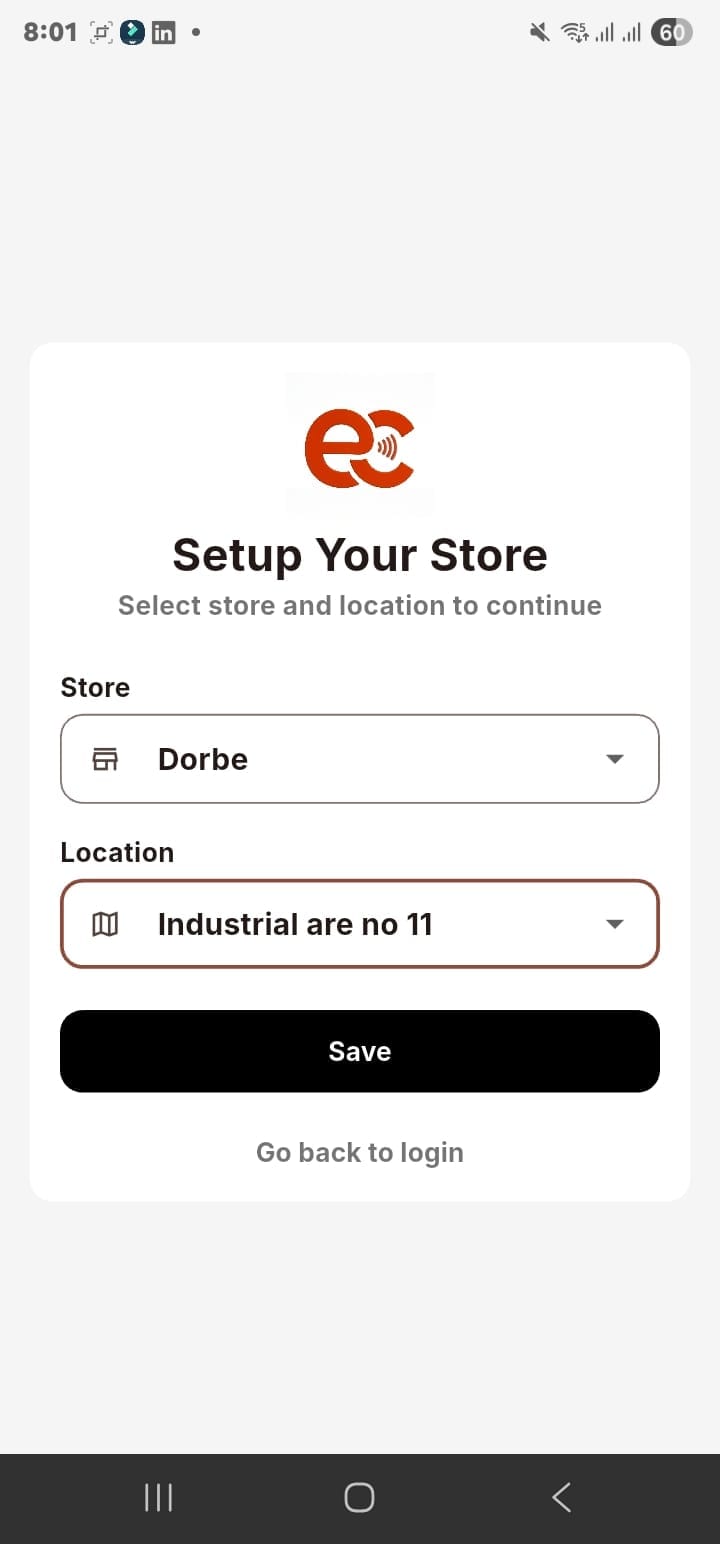
Sometimes a staff member needs to use the same device at a different location — a phone shared between two counters in the same shop, or a manager carrying a tablet between locations. In POS Settings, they tap Reset POS Settings, which clears the saved location. The next login asks them to choose the store and location again. No data is lost — only the saved location preference is cleared.
This makes one device genuinely flexible across locations without any confusion about which location a sale is being recorded against.
Staff, roles and permissions across locations
Managing staff across multiple locations does not mean multiple accounts or multiple logins. You add every staff member once, in your Eaglecart dashboard, assign them a role, and they use those credentials to log in at whichever location they are working that day. Roles control what each person can do: a cashier can ring up sales; a manager can apply discounts and pull reports; you retain full owner access.
This means a staff member can work your Sharjah location on Monday and your Ajman location on Tuesday using the same login. Their role follows them. You do not need to create new accounts or reconfigure anything.
Sales history and reports per location
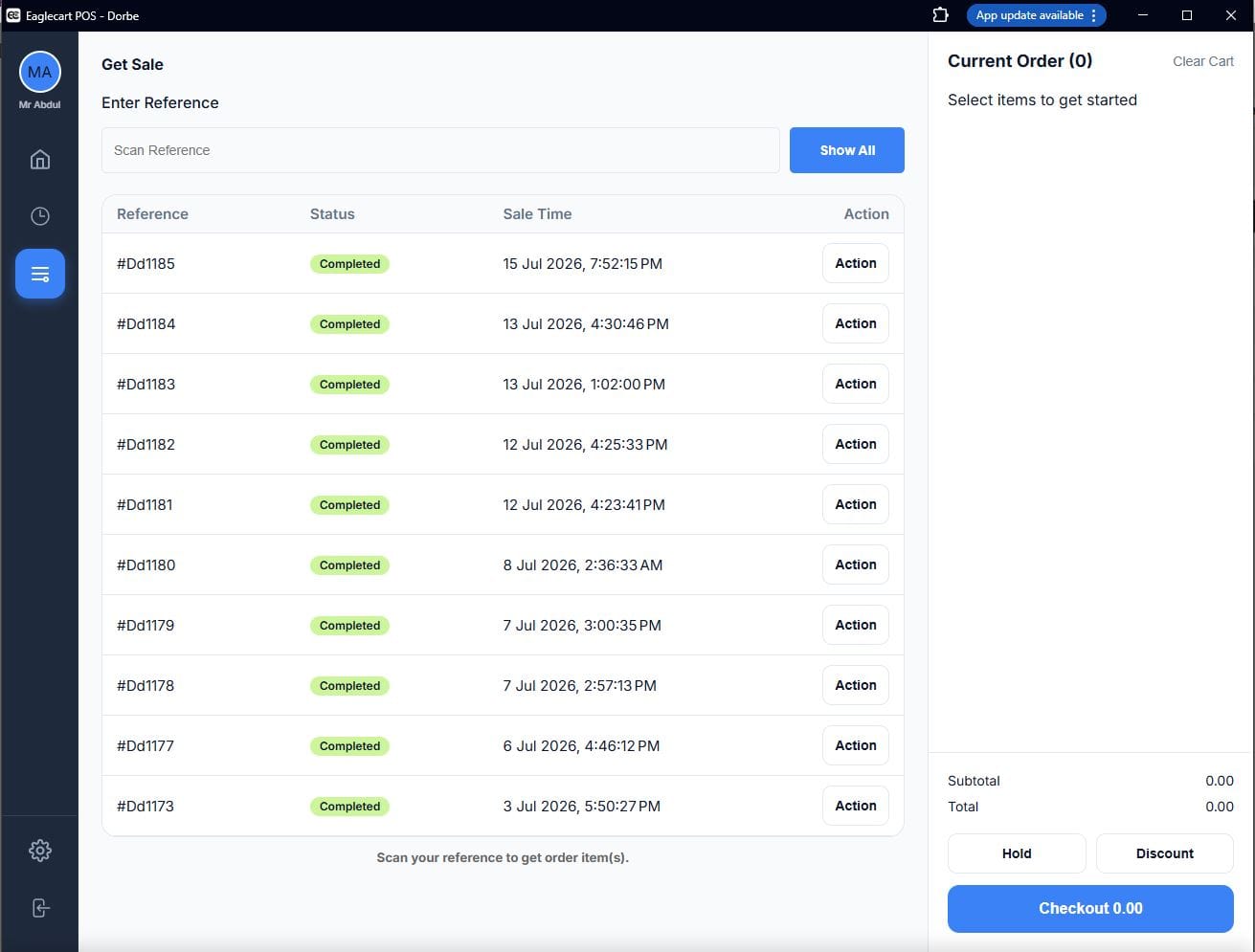
The sales history in the POS shows every transaction at that location, searchable by reference number and sorted by date and time. If a customer at one location needs a receipt from yesterday, the staff at that location find it in seconds — they do not need to call head office or search a shared spreadsheet.
At the owner level, your dashboard shows sales, stock and performance across all locations. You can see how one location is performing against another, which products are moving fastest at each site, and where the day's revenue is coming from — all without leaving the dashboard.
Stock per location
Each location has its own stock. When a sale happens at Location A, the stock at Location A drops. Location B's stock is unaffected. This means you can run genuinely independent inventory at each site, while still seeing all of it from one dashboard.
If you also run an online store through Eaglecart, the online store draws from a connected stock pool — it does not accidentally draw from a specific shop's local stock. Everything is clearly separated at the location level while still being visible from the top.
How the desktop POS handles a busy multi-counter setup
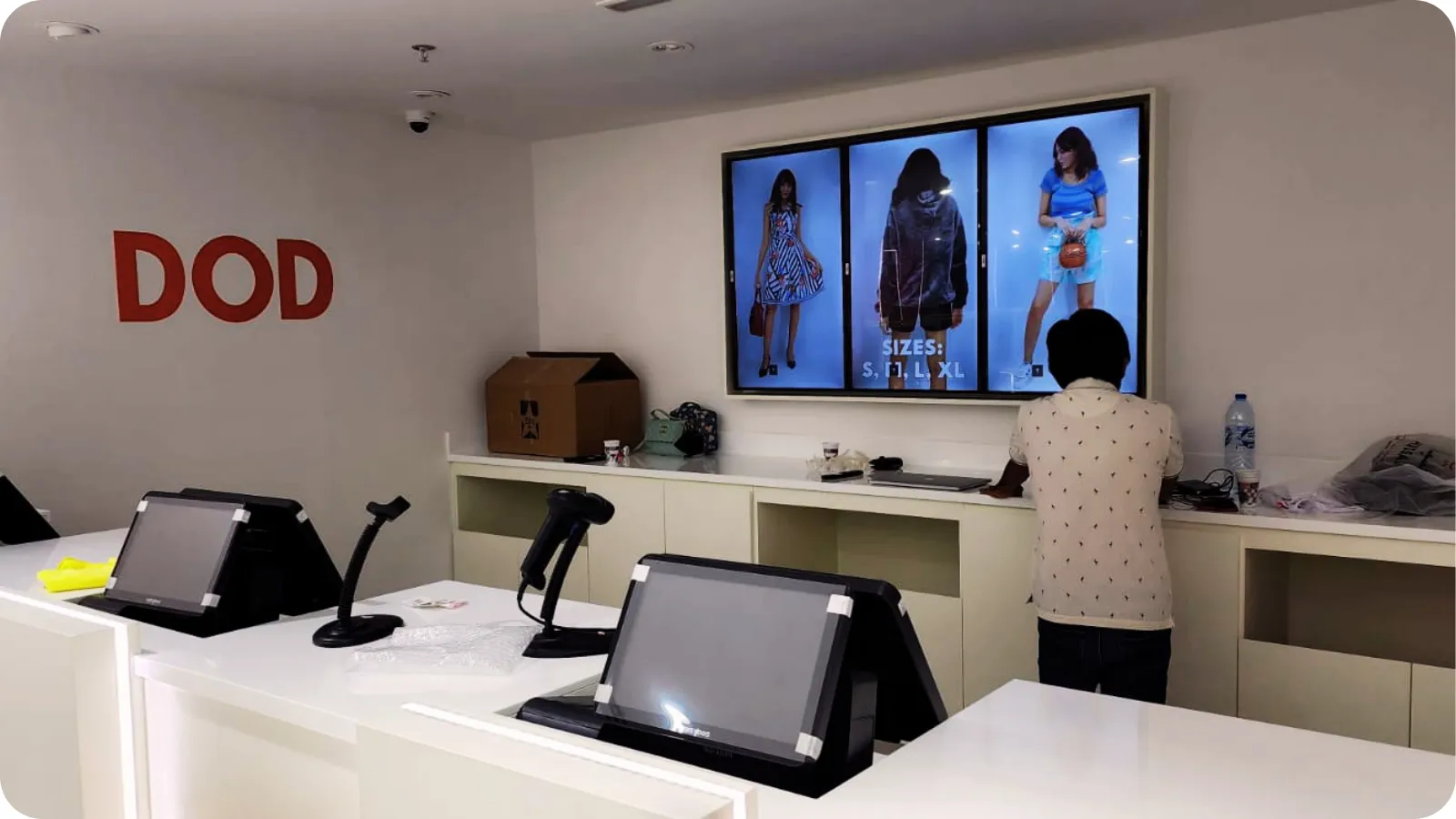
For a location that runs more than one counter — a busy showroom with two or three tills open at once — each counter is its own POS device, logged in to the same store and location. Sales from all counters roll up to the same location in the dashboard. There is no limit on how many devices can be active at once for the same location.
Adding a new location
When you open a new shop, adding it to Eaglecart takes a few minutes. In your dashboard Settings, create the new location with its name and details. It immediately becomes available in the POS location selector on every device. There is no separate account to set up, no new system to install, and no migration of data. Your existing products, pricing and staff are already there — the new location simply plugs in to the system you already have.
Frequently asked questions
Can I run multiple shop locations from one Eaglecart account?
Yes. You add each location in your dashboard settings, and every POS device can log in to its chosen store and location. All sales, stock and reports from every location appear in one dashboard.
How does each POS device know which location it belongs to?
When a staff member logs in, they choose the store and location from a dropdown. The device remembers the selection until the settings are reset. Sales and stock are recorded against that location automatically.
Can the same staff member work at different locations?
Yes. Staff are added once in the dashboard with a role, and they log in with the same credentials wherever they are working. The role and permissions follow them across locations.
Is stock tracked separately per location?
Yes. Each location has its own stock count. A sale at one location only reduces that location's inventory. You can see each location's stock separately and the combined picture in your dashboard.
How much does a second location cost?
Eaglecart POS for small business is AED 49 per month per location. Each location is independent — its own stock, its own sales history, its own staff — while all of them are visible from one owner dashboard.