Mobile POS in UAE: How to Sell from Your Phone on Android and iOS
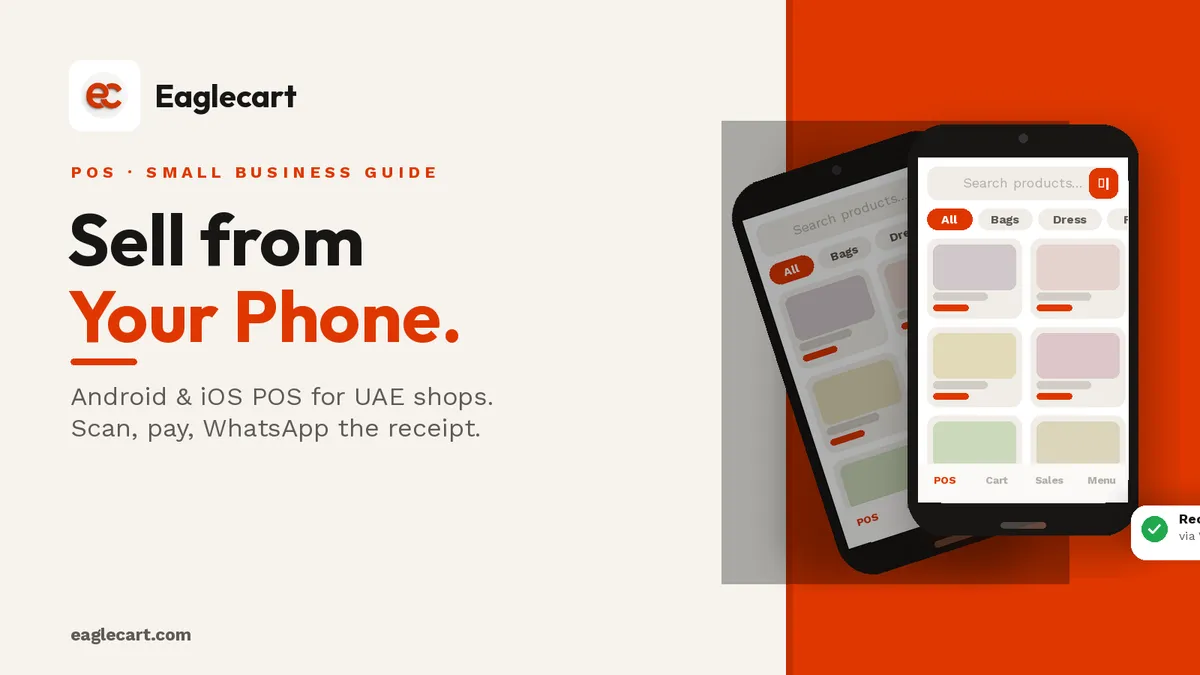
Your phone is already a full point-of-sale system. With the Eaglecart POS app on Android or iOS, you can scan a product with your camera, take cash or card, share the receipt on WhatsApp, and watch your stock update — without a counter, without a receipt printer, without any extra hardware at all.
For a small stall, a pop-up shop, a market stand, or a shop assistant selling on the floor, a phone is everything you need. And for a business that already has a desktop counter, the phone becomes a second till — the same products, the same stock, the same dashboard underneath.
Some of the most efficient retail setups I have seen in the UAE are not the most expensive ones. They are the ones where the owner is not chained to one desk. A staff member who can walk the floor with a phone, scan what a customer is holding, and complete the sale on the spot — that is faster than any counter queue, and it costs nothing extra if you are already on Eaglecart.
Key Takeaways
- The Eaglecart POS app runs on Android and iOS — your phone becomes a full till.
- Use the phone camera as a barcode scanner — no dedicated hardware needed.
- Take cash or card, and share the receipt on WhatsApp instead of printing it.
- Sales history, hold orders, daily reports and stock all work the same as on desktop.
Getting the app and logging in
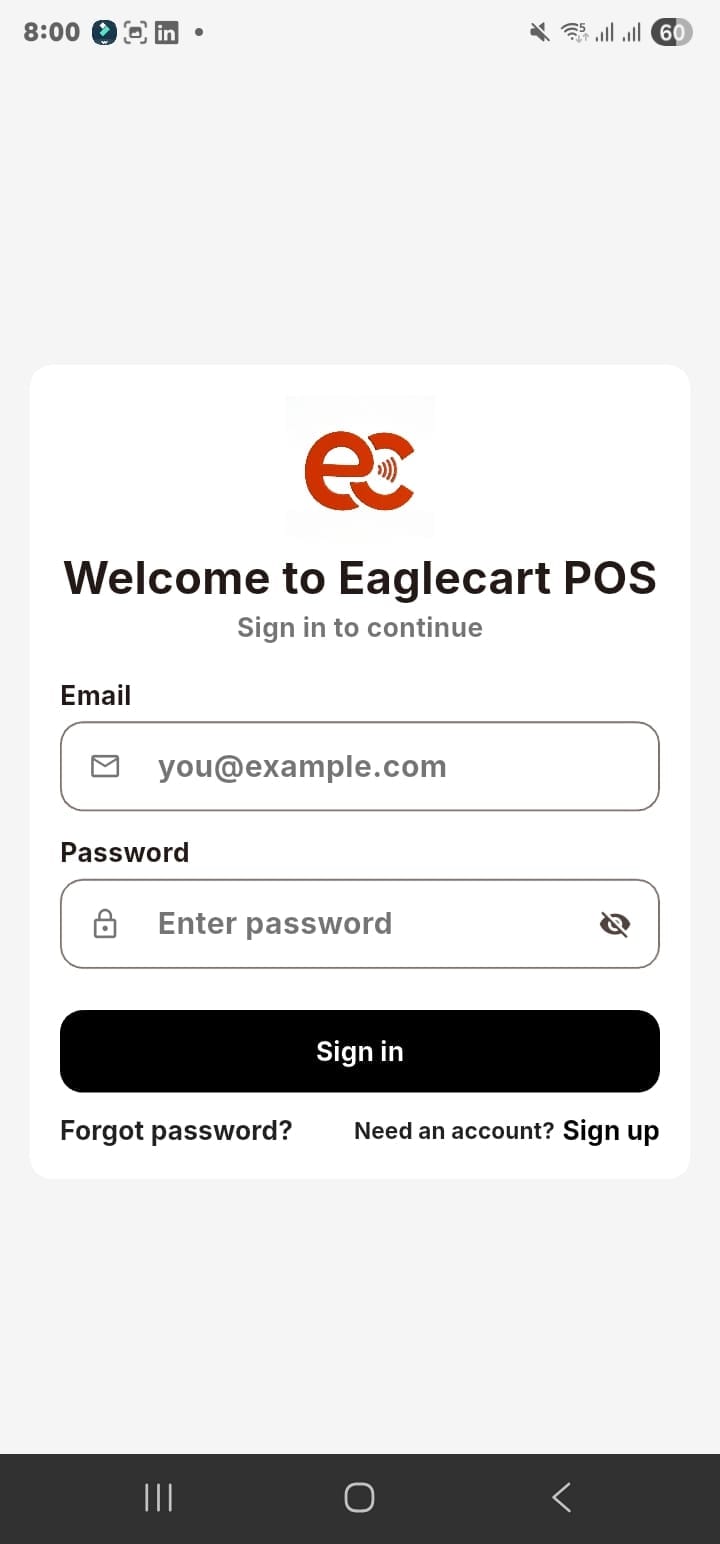
Download the Eaglecart POS app from the App Store (iOS) or Google Play (Android). Open it and you will see the welcome screen — log in with your Eaglecart account email and password, the same credentials you use for your dashboard. No separate app account to create, no new password to remember.
Choosing your store and location
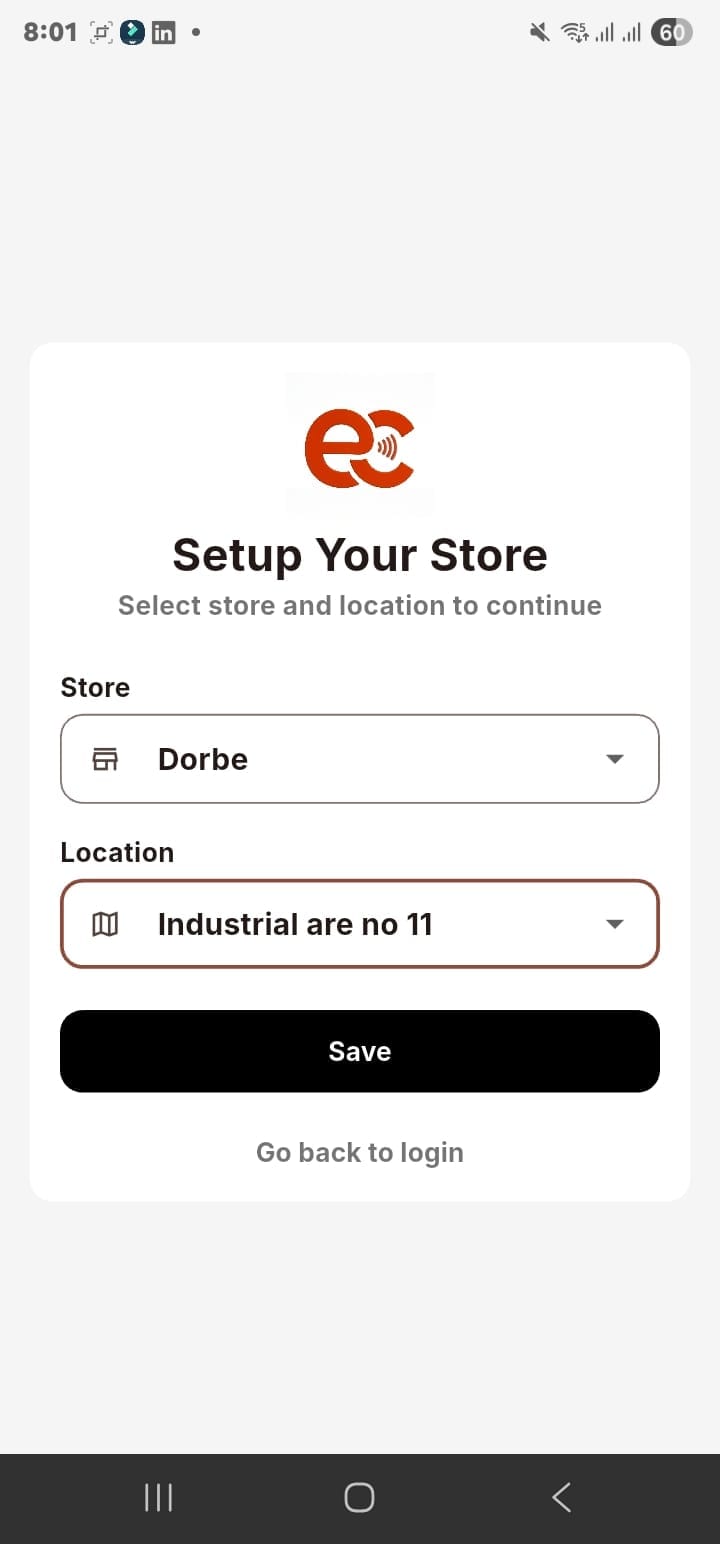
After login, the app asks you to set up your store. Choose your store name from the dropdown, then choose the location. This is how the app knows which till it is — so stock, sales and reports all go to the right place.
If you have one store and one location, select them and tap Save. If you run multiple locations, each device picks its own independently, and you see everything together in your dashboard.
Your product catalogue on the phone
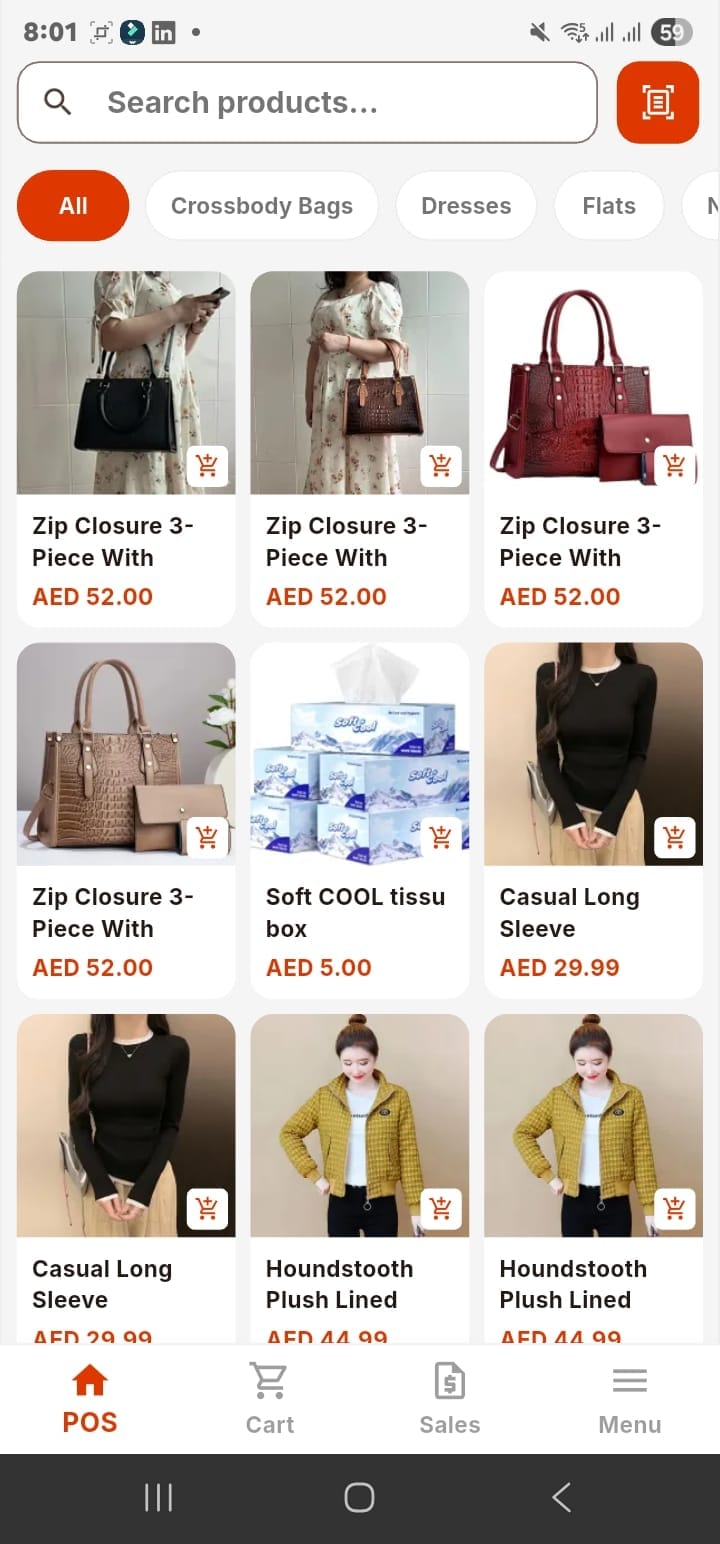
Once you are set up, the app opens directly to the sale screen. Your full product catalogue is already there — the same products, prices, images and categories you manage in your dashboard. Browse by category tab at the top, or use the search bar to find something by name. There is nothing to import and nothing to set up separately.
Scanning barcodes with the phone camera
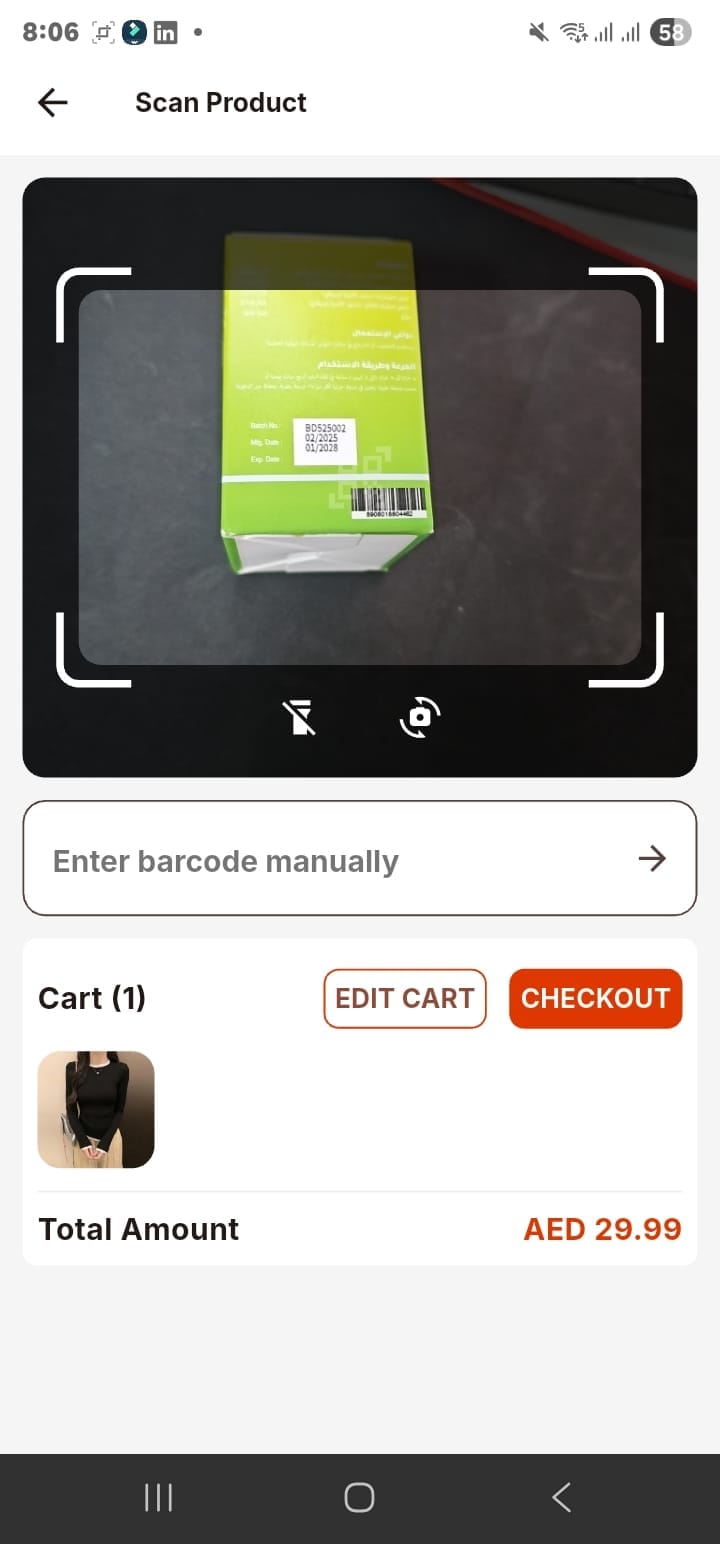
Tap the barcode icon on the sale screen and the app opens the camera. Point it at any product barcode and the item drops straight into the cart — no dedicated barcode scanner needed. You can also type a barcode in manually if a label is damaged or too small to scan.
The cart sits below the camera view, so you can see exactly what has been added and the running total as you scan. When you are ready to pay, tap Checkout.
Adding a customer to the sale
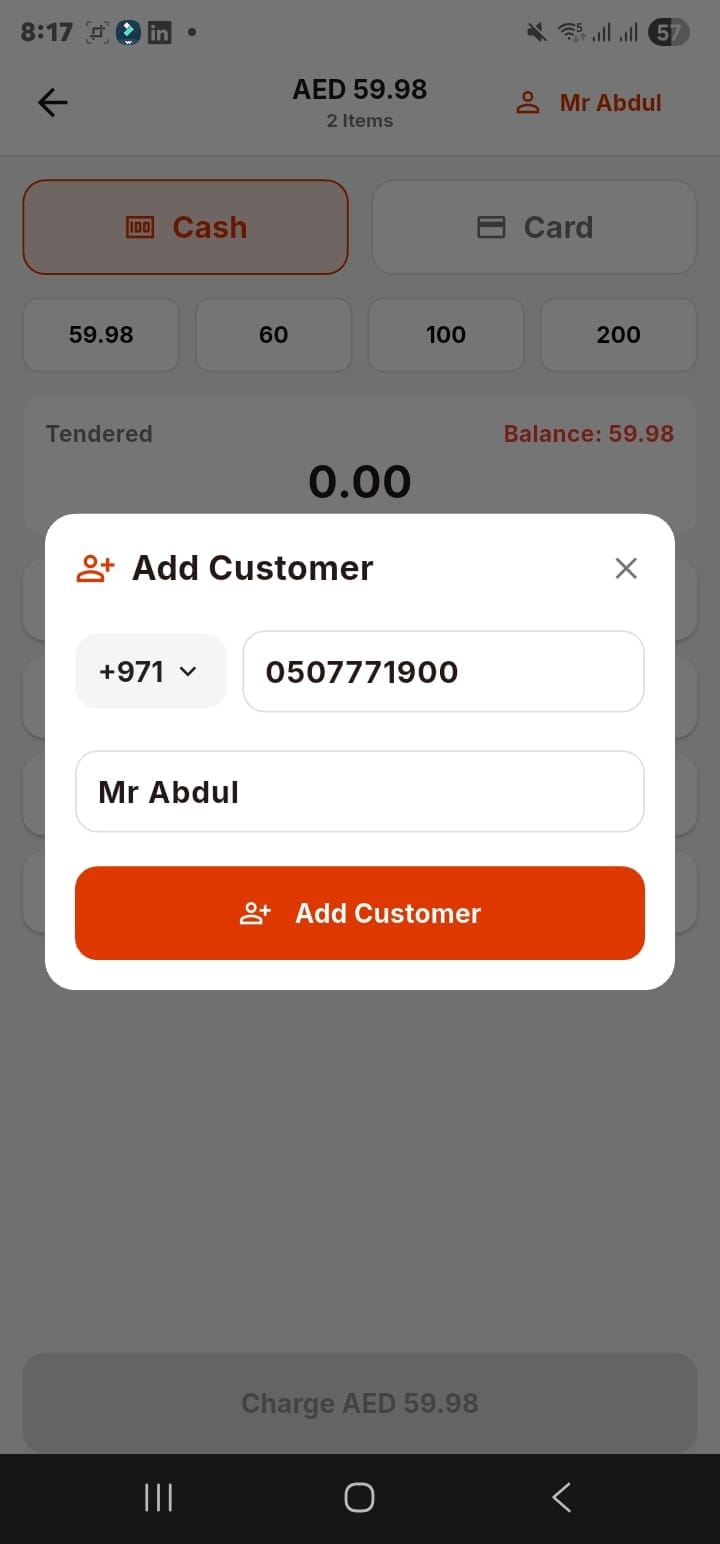
Before or during checkout, you can attach a customer to the order. Enter their phone number and name, tap Add Customer, and the sale is linked to their record. This builds your customer history automatically — so you know who your regulars are, what they bought, and when.
It takes three seconds and it is completely optional. Walk-in sales without a customer attached work exactly the same way.
Taking payment: cash or card
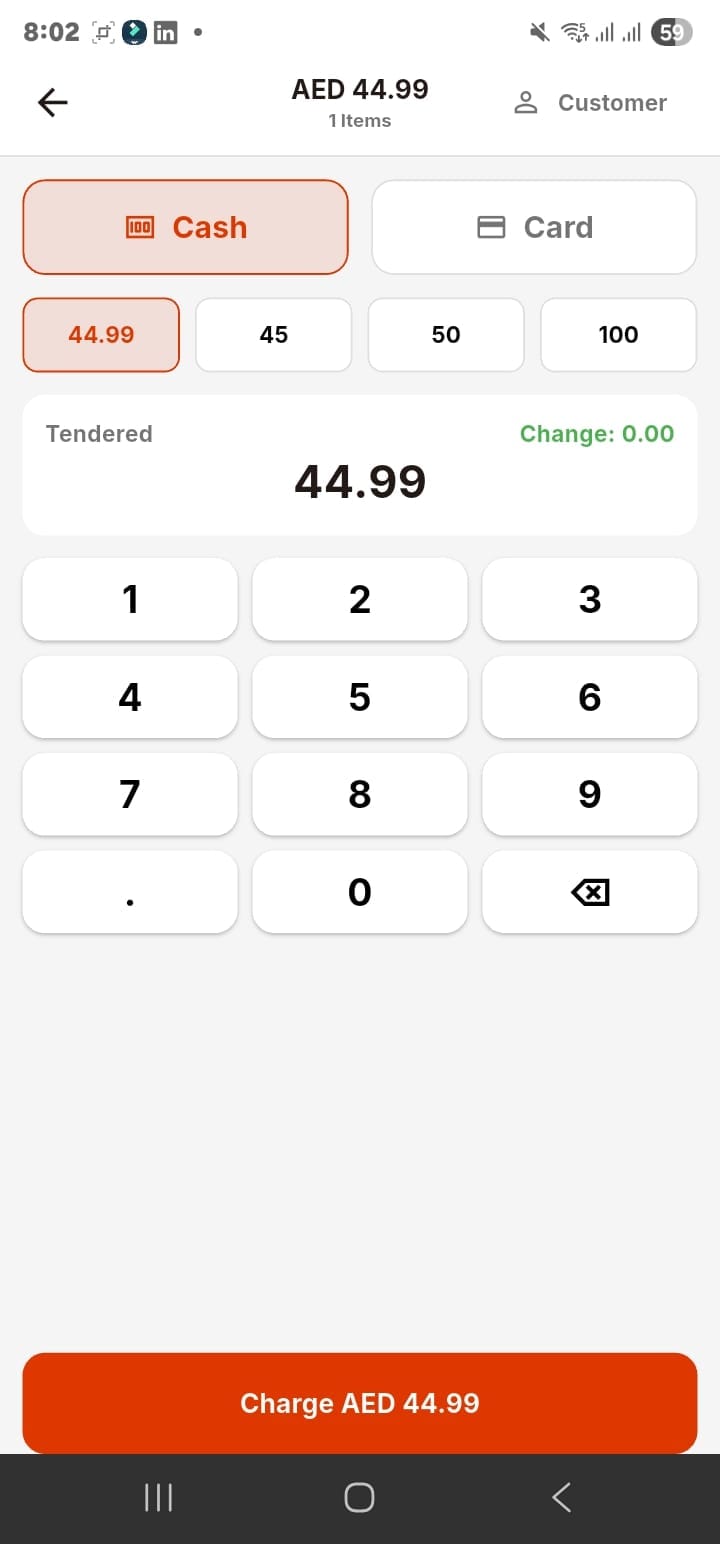
At the payment screen, choose Cash or Card. For cash, the app shows quick-tap amounts — the exact total, the next round number up, and a few common denominations. Tap the amount the customer gives you and the change is calculated instantly. No mental maths, no counting errors.
Tap Charge and the sale is done. The stock drops, the sale is recorded, and the receipt is ready.
Sharing the receipt on WhatsApp — no printer needed
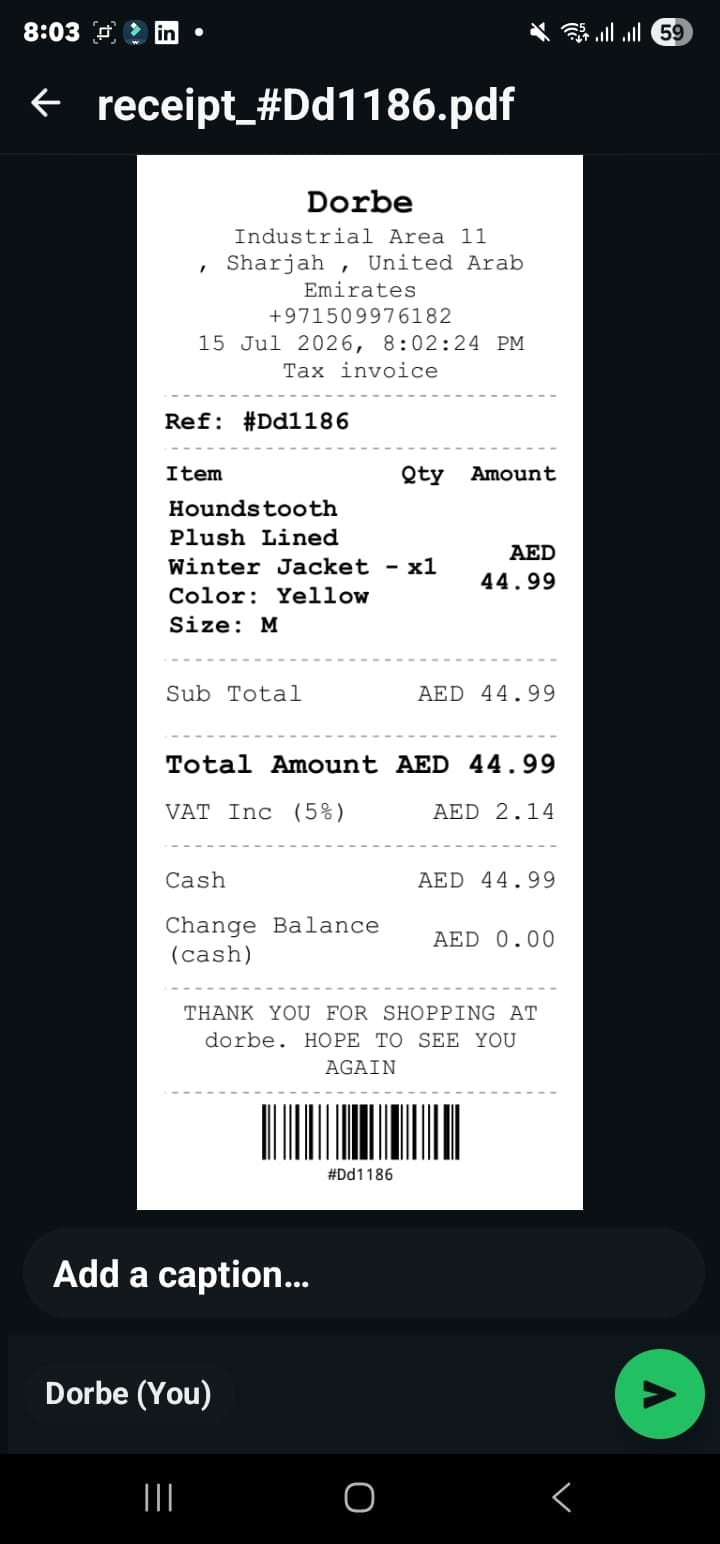
When the sale is complete, you get the option to share the receipt. Tap Share and the receipt generates as a PDF — send it straight to the customer on WhatsApp, by email, or any other app on your phone. The customer gets a proper VAT tax invoice on their phone before they have even left your shop.
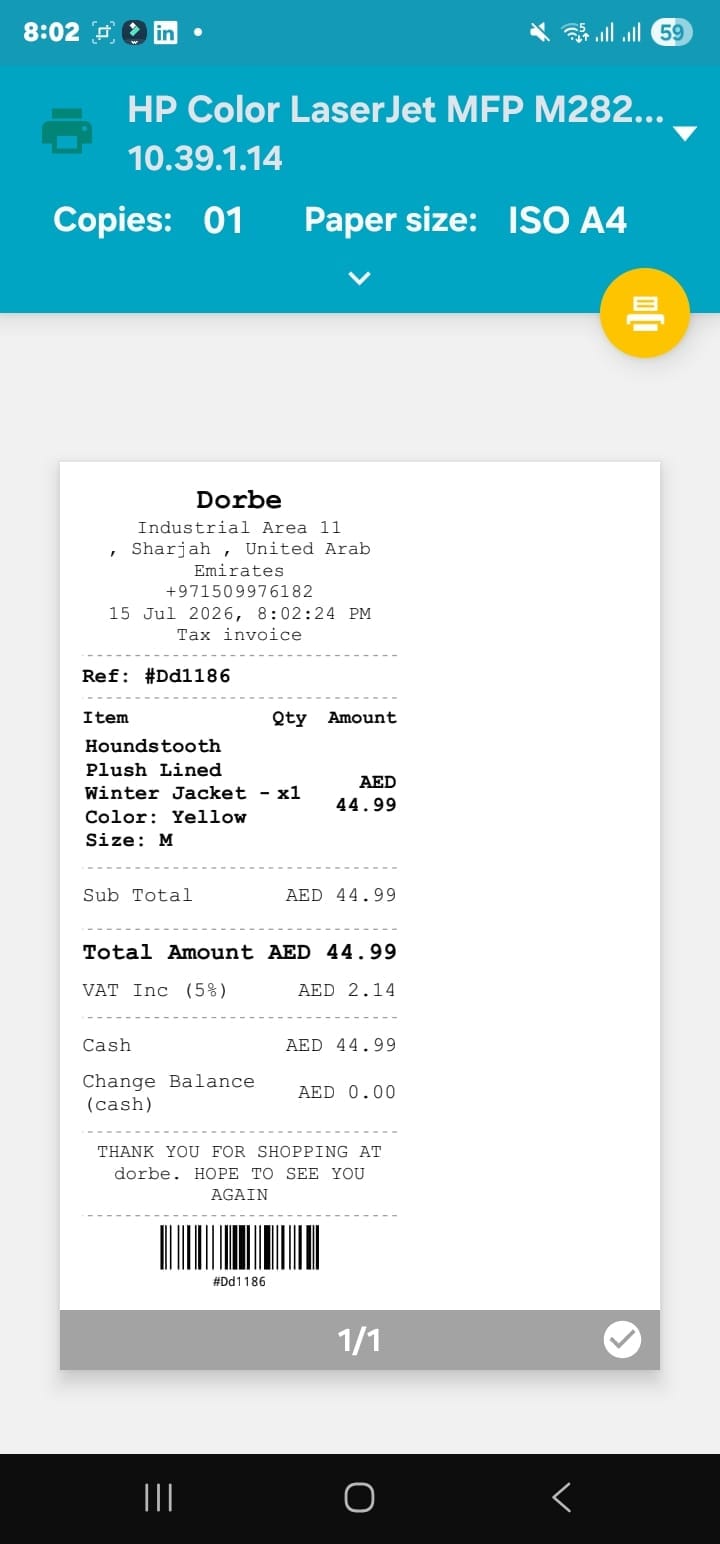
If you do have a receipt printer, you can print 80mm thermal receipts or full A4 invoices directly from the app. Both options are on the same screen — print, share, or both.
Holding an order when a customer is not ready
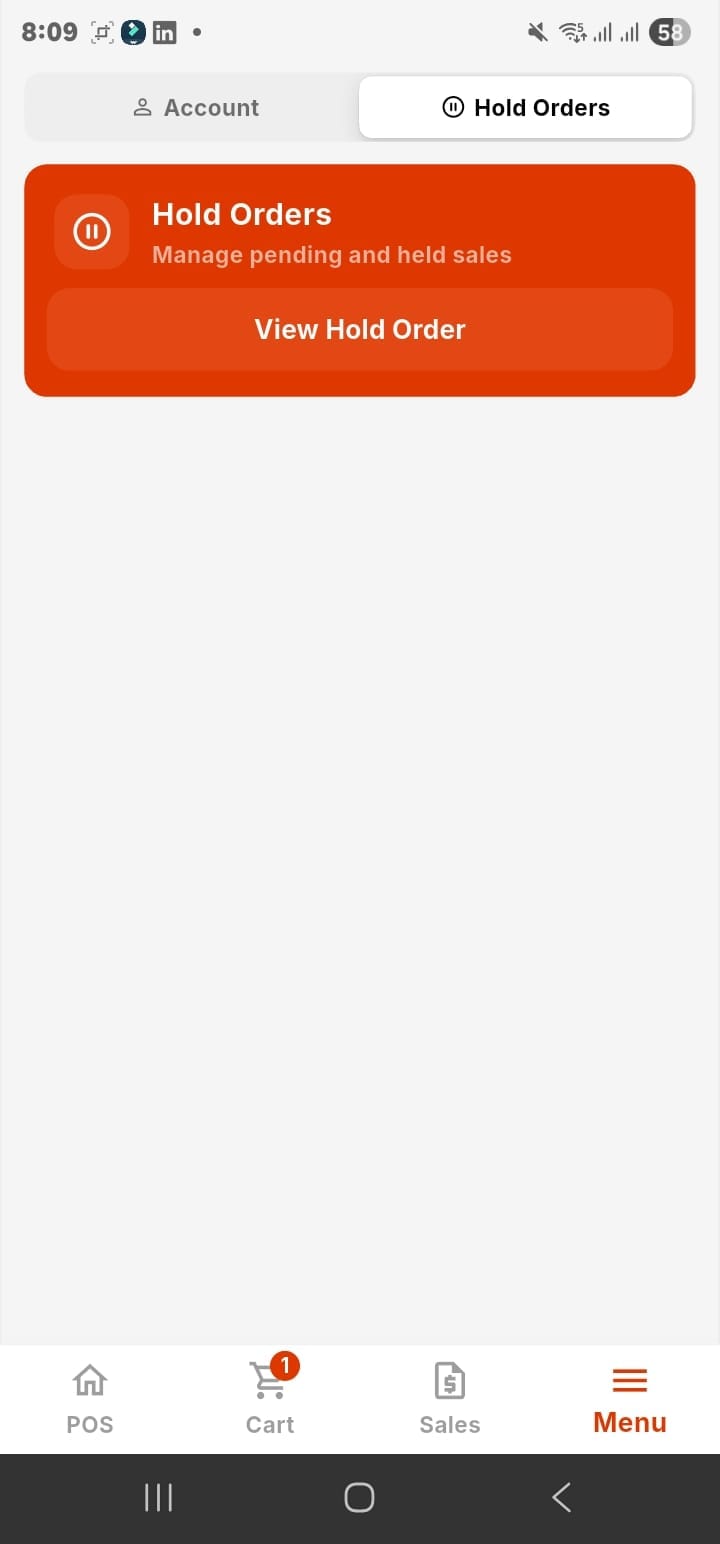
If a customer needs a moment — still choosing, waiting for someone, wants to grab more items — tap Hold on the cart. The order is parked, the till clears, and you can serve the next person. When the first customer comes back, you pull the held order and continue exactly where you left off.
Nothing is lost. The held order sits waiting until you retrieve it, and you can have more than one held at a time.
Your daily sales report, on the phone
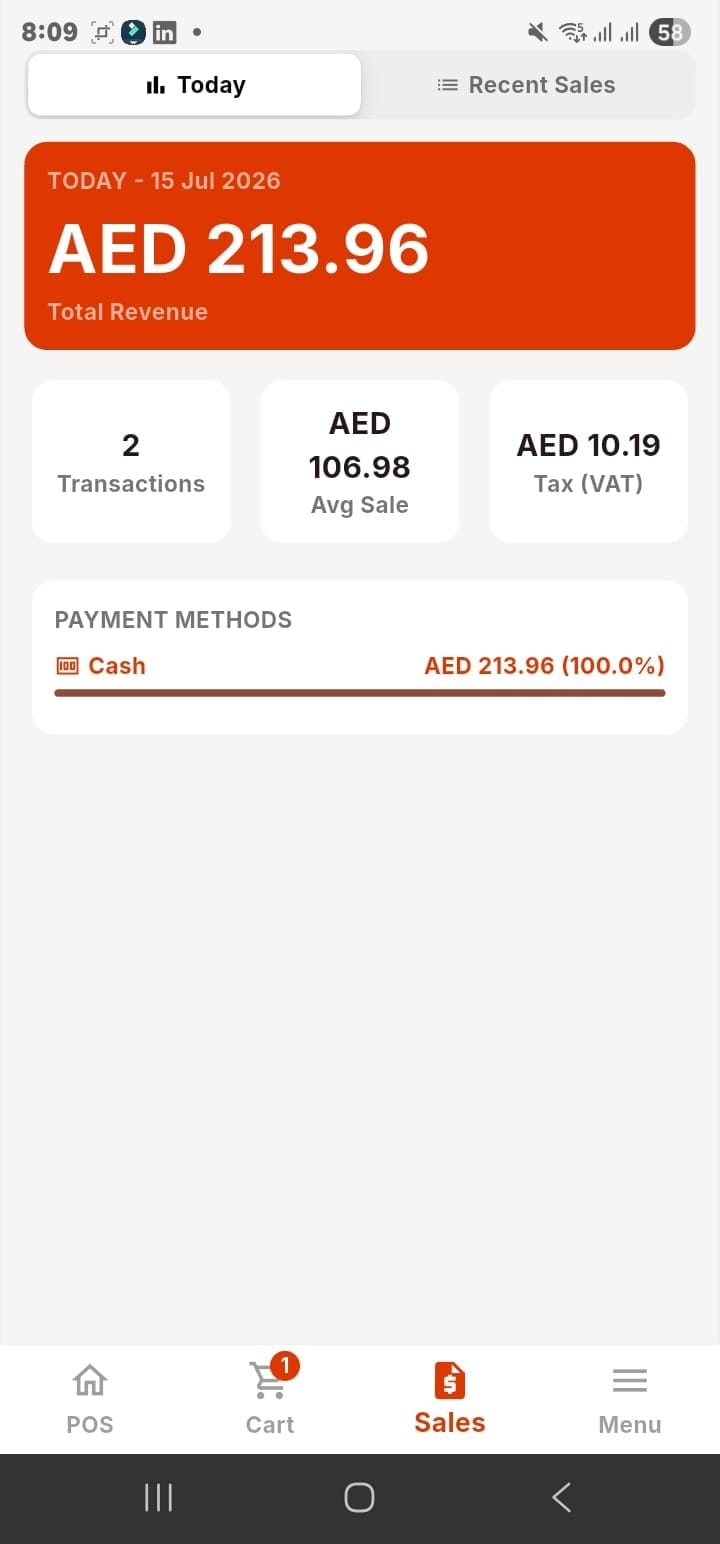
Tap Sales at the bottom of the screen and you see two views: Today and Recent Sales. Today shows the day's total revenue, number of transactions, average sale value and VAT collected — all updated in real time as you sell.
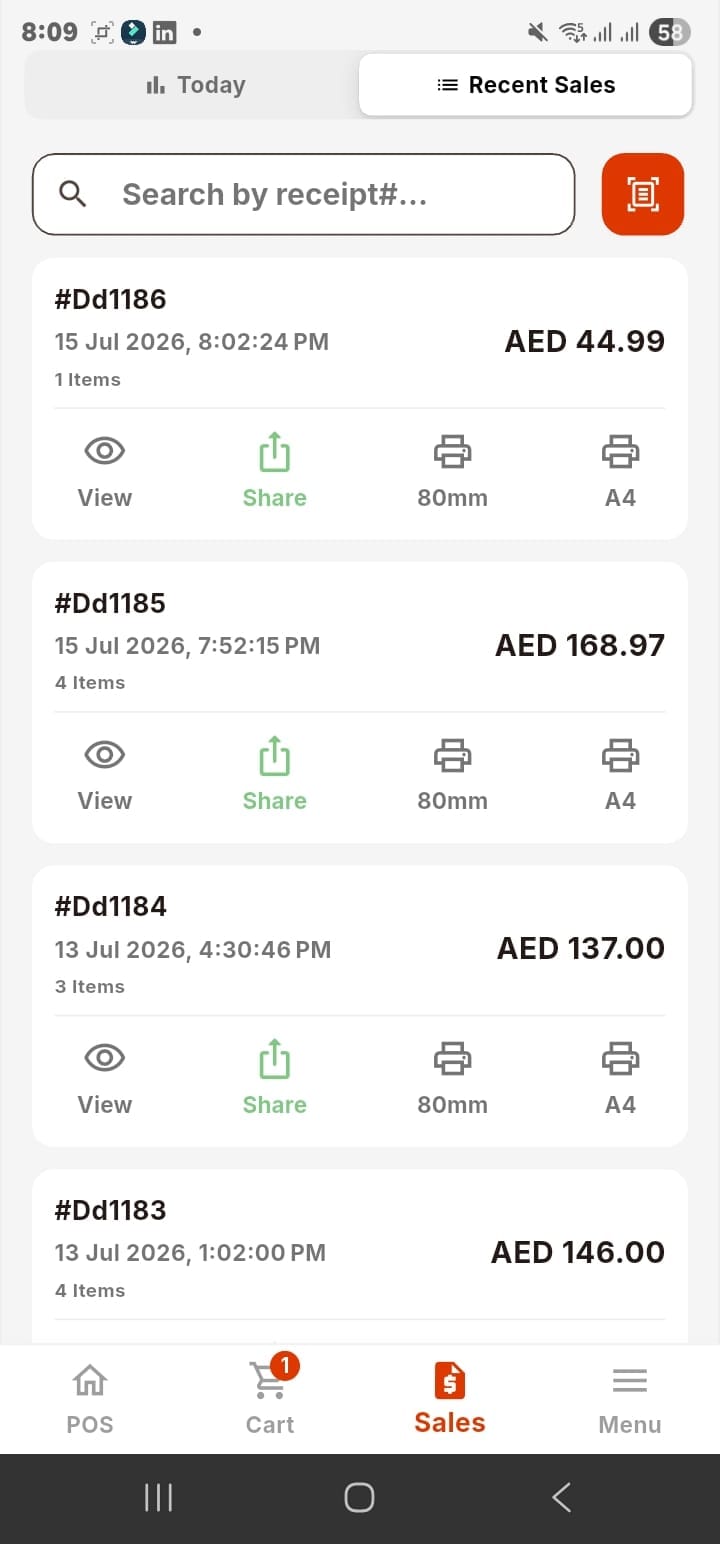
Recent Sales shows every transaction you can scroll back through, each with the sale time, amount, and quick access to View, Share, or reprint (80mm or A4). If a customer needs a duplicate receipt from earlier today, you have it in three taps.
Account and app settings
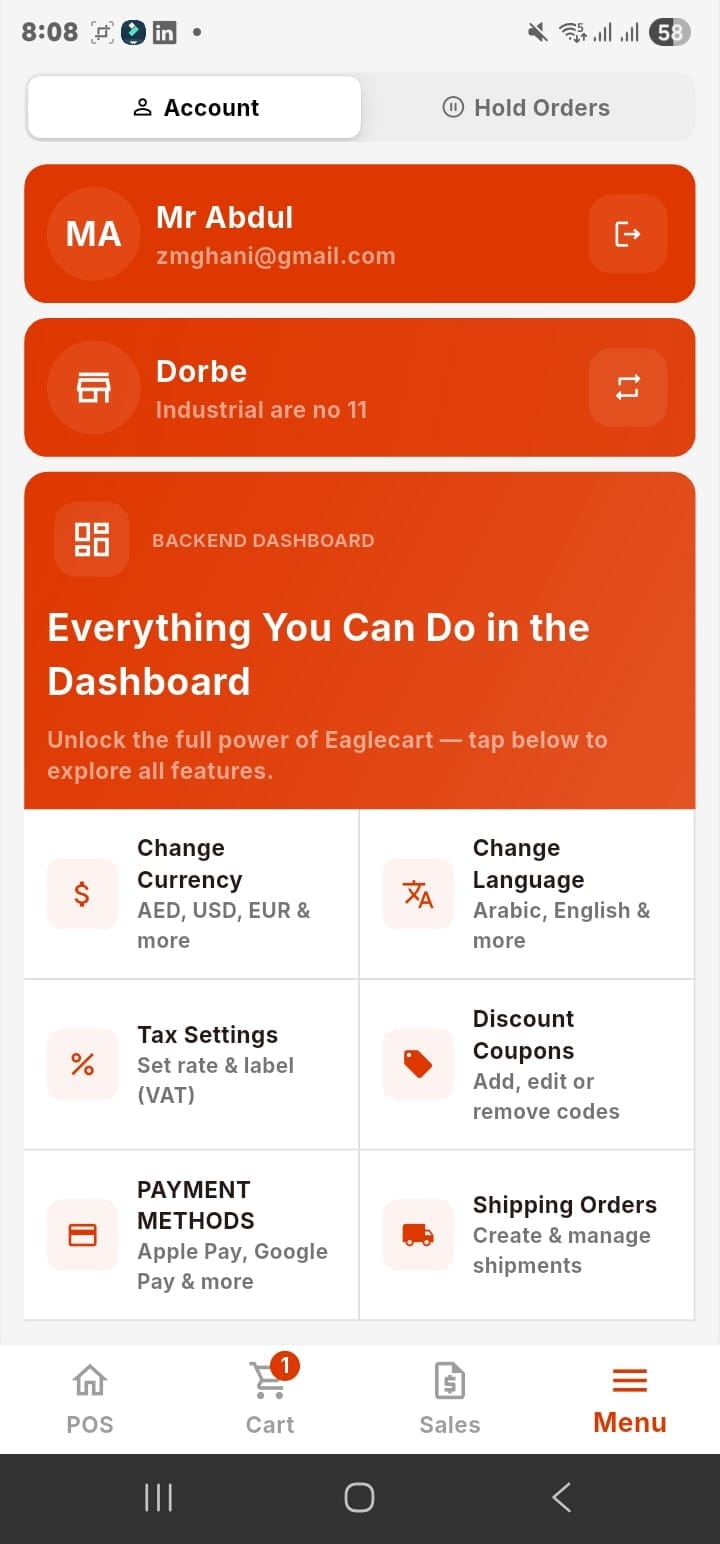
The Menu tab gives you quick access to everything you need to manage the app without leaving the POS. From here you can switch store or location, reset POS settings, and jump directly to your backend dashboard for anything that needs a deeper change — prices, products, delivery rules, tax settings. You manage the product catalogue and settings from the dashboard; the phone handles the selling.
Phone POS vs desktop POS: when to use each
Both run on the same Eaglecart system, share the same stock and feed into the same dashboard. The difference is form factor.
Use the phone when you are selling at a market or pop-up, working the floor in a shop, delivering to a nearby customer, or running a small counter without space for a proper setup. The camera becomes your scanner, WhatsApp becomes your receipt printer, and you sell from anywhere.
Use desktop when you have a permanent counter, want a larger product grid, or prefer a traditional till feel. Many UAE shops run both at once — desktop at the fixed counter, phone for the floor — and it is all the same sale and the same stock underneath.
Frequently asked questions
Can I use my Android or iOS phone as a POS in the UAE?
Yes. Download the Eaglecart POS app, log in with your Eaglecart account, choose your store and location, and you are ready to sell. Your phone camera works as the barcode scanner and WhatsApp can deliver receipts.
Do I need a barcode scanner for the mobile POS?
No. The Eaglecart POS app uses your phone camera to scan barcodes. You can also search by product name or type a barcode in manually if needed.
How do I give a receipt from my phone without a printer?
After payment, tap Share and the receipt generates as a PDF. Send it to the customer on WhatsApp, by email, or through any app on your phone. It is a proper VAT tax invoice either way.
Can I use the phone POS and a desktop POS at the same time?
Yes. Both draw from the same product catalogue and the same stock. All sales from every device appear in the same dashboard, so your numbers are always complete regardless of which device was used.
What is the cost of the mobile POS for a small business in UAE?
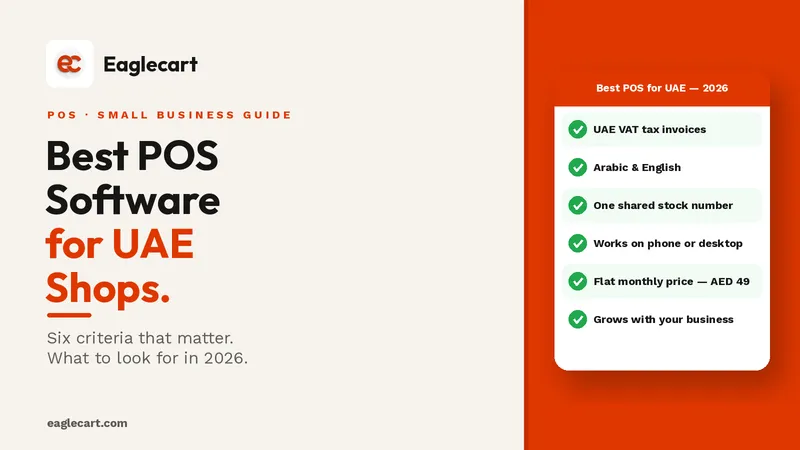
Eaglecart POS for small business is AED 49 per month for one location, on any device — phone, tablet or desktop — that you already own.