How to Migrate from WooCommerce to Eaglecart Step-by-Step UAE Guide
How do I migrate my store from WooCommerce to Eaglecart?
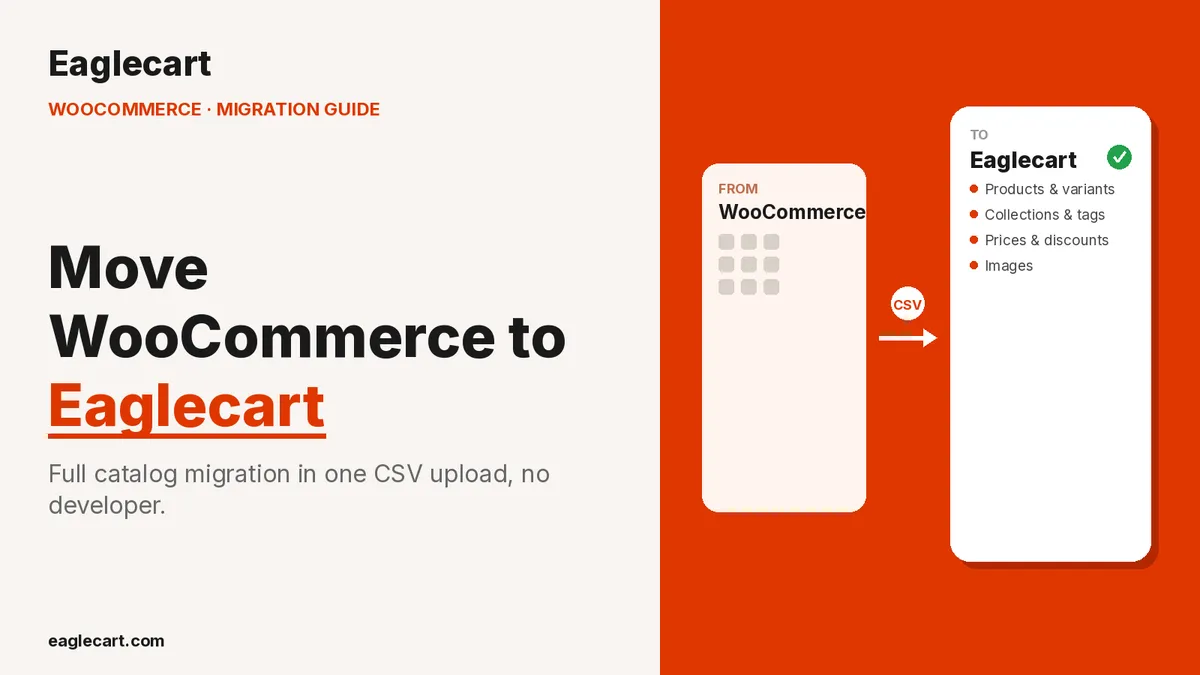
You migrate from WooCommerce to Eaglecart by exporting your product catalog as a CSV file from your WordPress admin, then uploading that same file into Eaglecart's bulk import tool. Eaglecart checks the file, lets you map every field, and syncs your products, collections, tags, vendors, pricing and images automatically.
There is no manual re-typing, and no developer required — even though WooCommerce itself needed one.
I learned why this mattered the hard way. When I was scaling my own ecommerce business past 1,700 orders a day, I had to move our full catalog — more than 20,000 SKUs — from one system to another. We didn't have a bulk tool that actually worked properly. My team spent almost three weeks re-typing product names, prices and descriptions one item at a time, while orders kept coming in. That exact pain is what I built Eaglecart's bulk import to remove.
Key Takeaways
You can migrate your entire WooCommerce catalog to Eaglecart using one CSV file — no manual re-entry.
Eaglecart checks your file for mismatched data first, then lets you map every field — including any WooCommerce field it doesn't recognize — before anything goes live.
Products, collections, tags, vendors, pricing and variants sync within 1 to 5 minutes depending on catalog size.
Images are fetched automatically from your WooCommerce media library, with automatic retries, and a full catalog of around 2,000 products typically completes in about 20 minutes, images included.
Step 1: Export your product catalog from WooCommerce
From your WordPress admin, go to Products and use WooCommerce's built-in export option to download your full catalog as a CSV file. This one file usually holds your products, variations, prices, categories, tags and vendor details.
Keep the file exactly as WooCommerce generates it. Eaglecart is built to read it as-is.
Step 2: Upload the CSV file into Eaglecart's bulk import
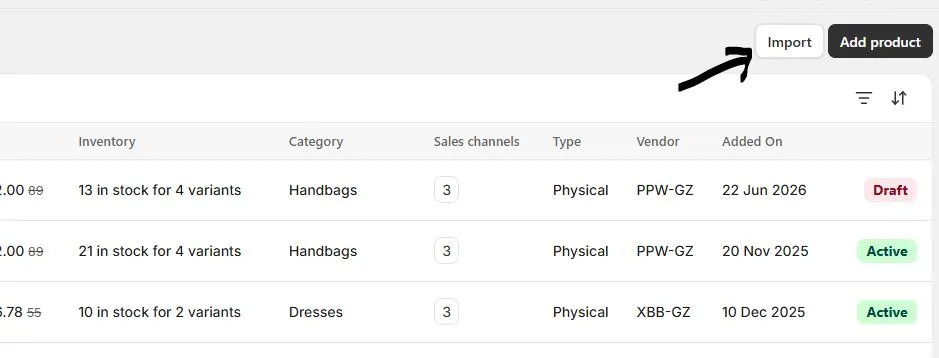
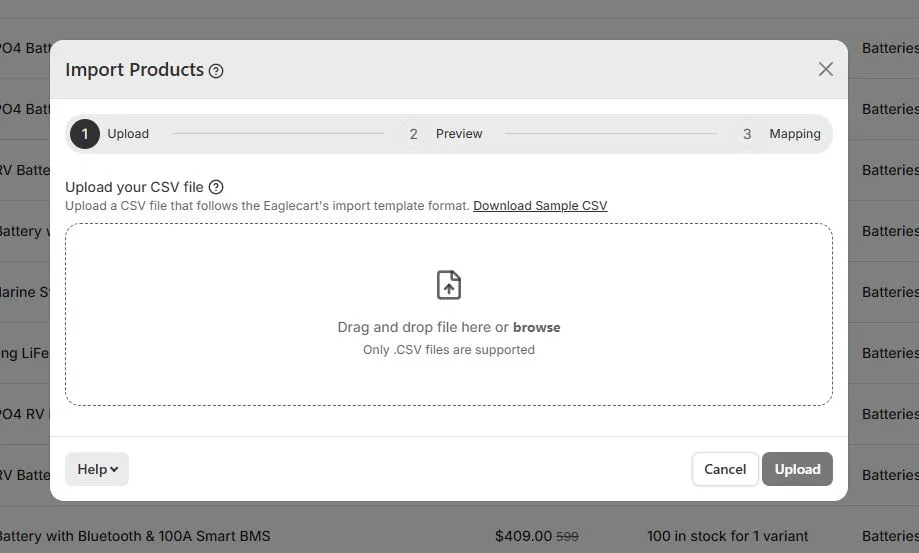
Inside your Eaglecart admin, open the Product page and choose bulk upload. Upload the WooCommerce CSV file directly — no reformatting needed.
Eaglecart immediately analyzes the file to confirm it matches the expected structure, so you know before anything imports whether there is a mismatch to fix.
Step 3: Review the field mapping
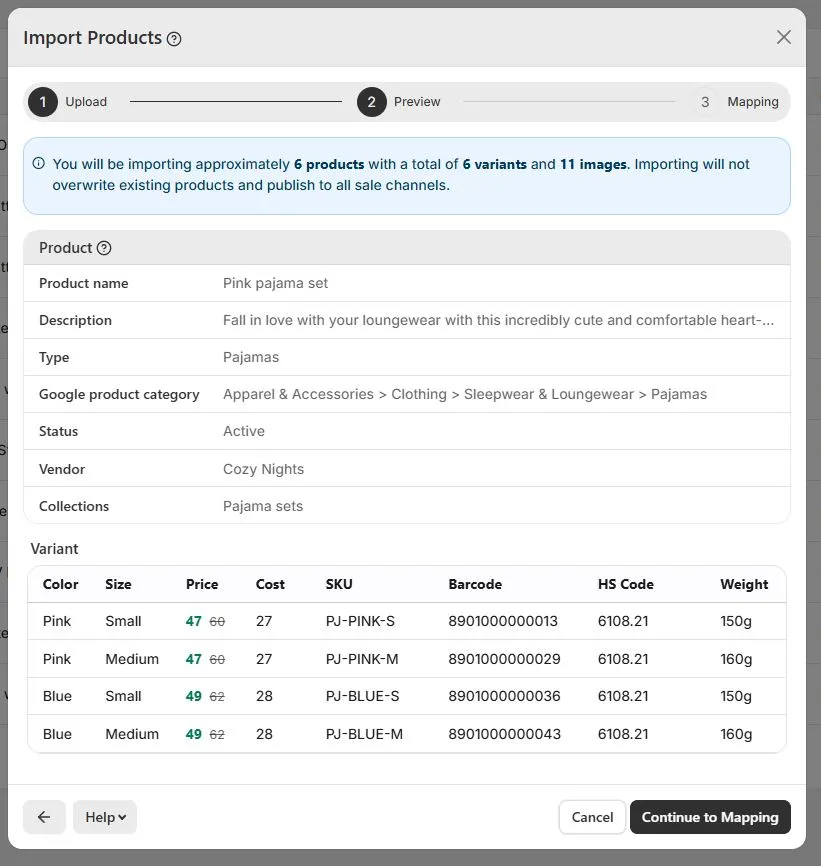
Once the file passes the check, Eaglecart moves to the mapping stage. Every recognized WooCommerce field is matched to its Eaglecart field automatically — normally 100% of standard fields map on their own.
If a field name isn't one Eaglecart recognizes, you're given the option to assign it manually to any Eaglecart field you choose. Nothing gets dropped or guessed at silently.
Step 4: Hit upload and let Eaglecart sync everything
Once you confirm the mapping, hit the upload button. Products, collections, tags, vendors, prices, discounted prices, descriptions and variants sync fully — typically within 1 to 5 minutes depending on how large your catalog is.
Keep in mind that once an import starts, it can't be cancelled or reversed mid-way — so it's worth reviewing your mapping carefully before you confirm.
How Eaglecart fetches your product images from WooCommerce
Images are pulled directly from wherever your WooCommerce store hosts them, in their original size. Eaglecart queues every image in a fetch pipeline, and if your hosting is slow to respond, each image gets up to three attempts so nothing gets left behind.
Depending on your catalog size and number of images per product, image fetching usually takes between 5 and 20 minutes. For a catalog of around 2,000 products, the entire migration — data and images together — typically finishes within about 20 minutes.
What to check before you go live
Once the import finishes, go through your catalog before switching your store live. Check that variants, prices and images landed the way you expect, and use the mapping option again on any item that needs a small correction.
This review step is what makes a 20-minute migration safe, not just fast — and it's a lot less stressful than maintaining a WordPress plugin stack just to keep your store running.
FAQ
Can I migrate from WooCommerce to Eaglecart without a developer?
Yes. The entire process is a CSV export from WordPress, an upload into Eaglecart, and a field mapping step you control yourself — no code, plugins or developer needed.
Will my WooCommerce product images transfer automatically?
Yes. Eaglecart fetches images directly from your existing hosting at original size, with automatic retries if the source is slow, so images aren't left missing.
What happens if some WooCommerce field names don't match Eaglecart's fields?
Eaglecart maps recognized fields automatically. Any field it doesn't recognize is flagged so you can assign it to the correct Eaglecart field yourself.
How long does a WooCommerce to Eaglecart migration take?
Product data usually syncs within 1 to 5 minutes, and images typically take 5 to 20 minutes depending on catalog size. A full 2,000-product catalog usually finishes within about 20 minutes.
Can I review everything before my new store goes live?
Yes. Once the import completes, you can review every product, variant and image and correct anything before switching your store live.