Which Business Reports Should You Check to Run Your Store in the UAE?
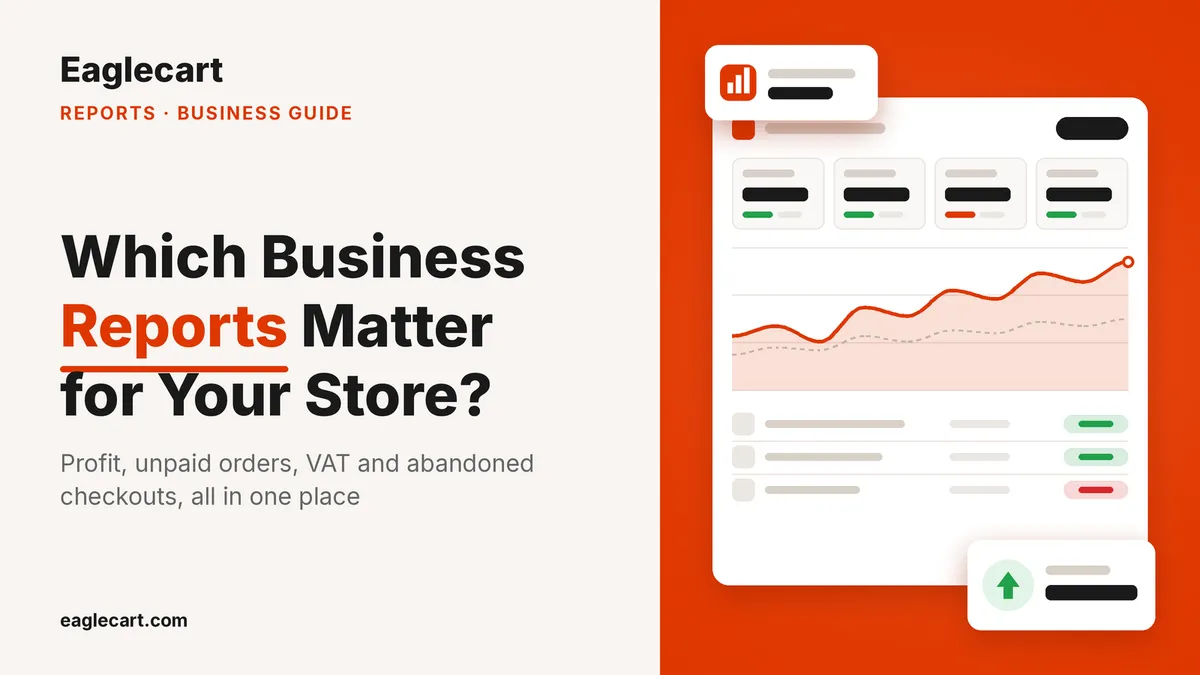
Check four reports every week: profit by product, money still owed to you, VAT collected, and abandoned checkouts. Together they tell you whether you are really making money, where your cash is stuck, what you owe in tax, and where sales slip away before they become orders.
Most store owners only watch total sales. That number feels good on a busy day, but on its own it hides almost everything that decides whether the business survives.
Key Takeaways
Total sales shows activity, not profit, so check profit and margin by product and category.
In a cash on delivery market, booked sales and collected cash are two different numbers.
A tax report with tax collected and taxable sales stops VAT from becoming a quarter-end scramble.
Abandoned checkouts and open quotations show the sales you nearly made, and who to follow up.
Why total sales is the wrong number to watch
Before I built Eaglecart, I sold on marketplaces. Every time we found a product that sold well, more sellers joined, prices dropped, and the lowest price won the checkout button. The orders kept coming, but every sale was a fight over price.
That business later grew to around 1,700 orders a day, with more than 20,000 SKUs in a 30,000 sq ft warehouse. Two lessons stayed with me from those years: growth without systems creates problems, and inventory is cash.
A product can sell every day and still earn you nothing, and you only see it when your reports put cost and margin next to sales.
Which products are actually making you profit?
Look at gross profit and margin per product, not revenue. The Sales by Product report in Eaglecart lists every product sold in the period with units sold, net sales, cost, gross profit and margin, and you can search or sort any column.
At the top, it counts profit-making and loss-making products separately and shows how much the loss-makers cost you. A product selling below its cost stands out straight away instead of hiding inside a healthy sales total.
The same report shows your stock position: products in stock across all locations, items sold out, and stock value alongside its selling value. Stock value is the cash sitting on your shelves.
To see which part of your range carries the profit, Sales by Collection and Sales by Category group the same numbers, and the Profit & Margin report charts profit against cost with margin by category. These figures are only as accurate as the product costs you record, so keep costs up to date.
How much money is still owed to you?
Compare what you sold with what you have actually collected. The Overview report splits total sales into collected and outstanding, so you see the gap at a glance.
The Outstanding / Receivables report turns that gap into a work list. It shows total outstanding, average days outstanding weighted by the amount owed, and how much has been owed for more than 90 days, then lists every open order with the customer, amount and age, oldest first.
The Orders report adds the cash on delivery share of your live orders, open orders not yet delivered, unfulfilled value, and the value lost to cancellations and returns. Booked sales are not money in the bank until they are collected.
How much VAT have you collected this period?
The Tax Report shows tax collected and the taxable sales it was charged on, for any date range you pick, with a trend chart and a comparison against the previous period.
The Sales Overview report also has a sales by day table with net sales, tax and total including tax for each day. Export the period you need and hand it to your accountant, rather than rebuilding the numbers from invoices at the end of the quarter.
Where are you losing sales before they become orders?
Check your checkout conversion and your abandoned checkouts. The Checkout report shows checkouts started, completed, the conversion rate, the number and value of abandoned checkouts, and how many were recovered and paid through the recovery link.
Below the charts is a list of every abandoned checkout with the customer, contact, value and date. Pair it with Eaglecart's abandoned checkout recovery, which sends email and WhatsApp reminders, and you can see what the follow-up actually brought back.
If you sell B2B, the Quotations report does the same job for quotes: value quoted, how many converted, how many are still open, and the conversion rate from quotation to invoice.
How to review your store reports each week
Start with the Overview report, set the date range, and compare it with the previous period. It shows sales by channel, so your online store, POS and workshop sit side by side in one view, along with your top 50 products.
Then open Outstanding to chase the oldest unpaid orders, Sales by Product to spot loss-makers, and Checkout to follow up abandoned carts. Sales by Customer tells you how many buyers were new or returning, who your top customer was, and what is still owed.
Most reports switch between chart and table, and every report has an Export button for when you need the numbers outside Eaglecart. The routine matters more than the tool: the same reports, the same day, every week.
Frequently asked questions
What reports should a small online store check every week?
Profit by product, outstanding payments, tax collected and abandoned checkouts. These four show whether you are earning, where your cash is stuck, what you owe in VAT and which sales need follow-up.
What is the difference between total sales and gross profit?
Total sales is what customers paid you. Gross profit is net sales minus the cost of the goods sold, so it shows what you actually earned. Eaglecart shows both on the Overview report.
How do I track unpaid cash on delivery orders?
Use a receivables report that lists open orders by age. In Eaglecart, the Outstanding / Receivables report shows every unpaid order oldest first, with the total owed and the amount overdue by more than 90 days.
Can I compare this month's sales with last month?
Yes. Most Eaglecart reports let you compare the selected period with the previous one, showing the previous period on the chart and the change as a percentage on the summary figures.
Does Eaglecart show online store, POS and workshop sales together?
Yes. The Overview and Orders reports break sales and orders down by channel, so online store, POS and workshop appear side by side.