How to Add a WhatsApp Button to Your Product Page in the UAE
How to Add a WhatsApp Button to Your Product Page in the UAE
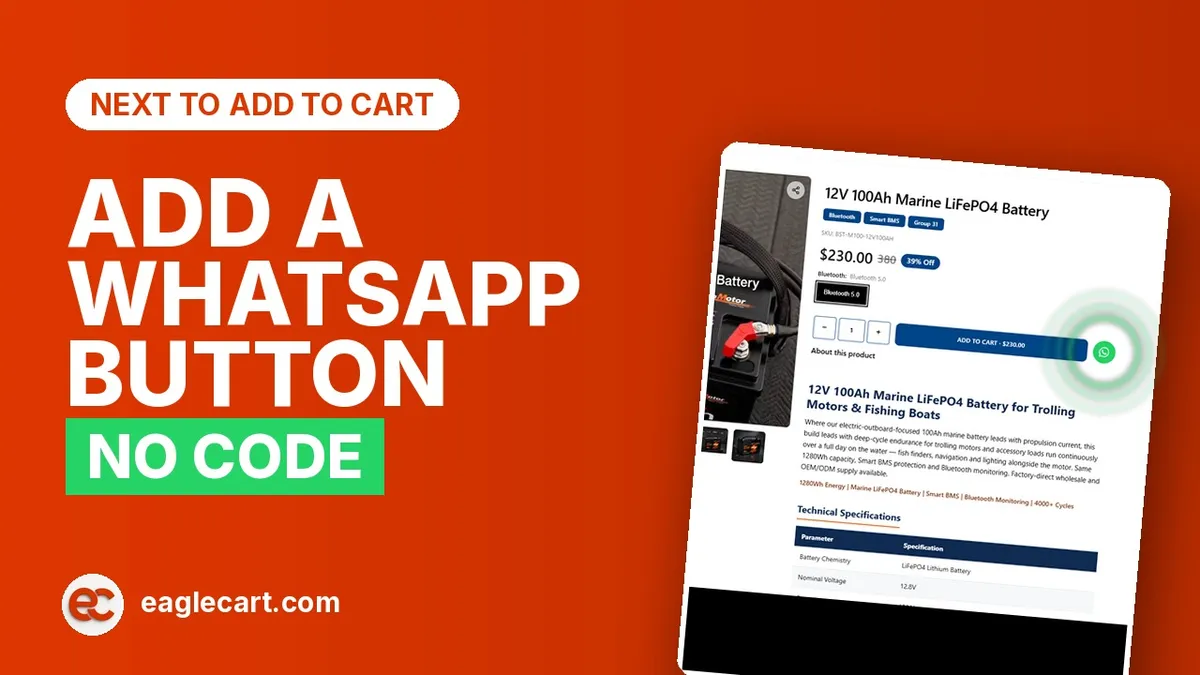
A WhatsApp button lets a customer message your business directly from your product page, right next to the Add to Cart button. You connect your WhatsApp number once in the admin panel, choose whether to show it on one product or your whole catalogue, and it appears on your live store — with no coding and no developer. It turns a customer who has a question into a conversation, instead of a lost sale.
In the UAE, WhatsApp is where business actually happens. People are more comfortable sending a quick message than filling in a form or picking up the phone. A button on your product page meets them where they already are.
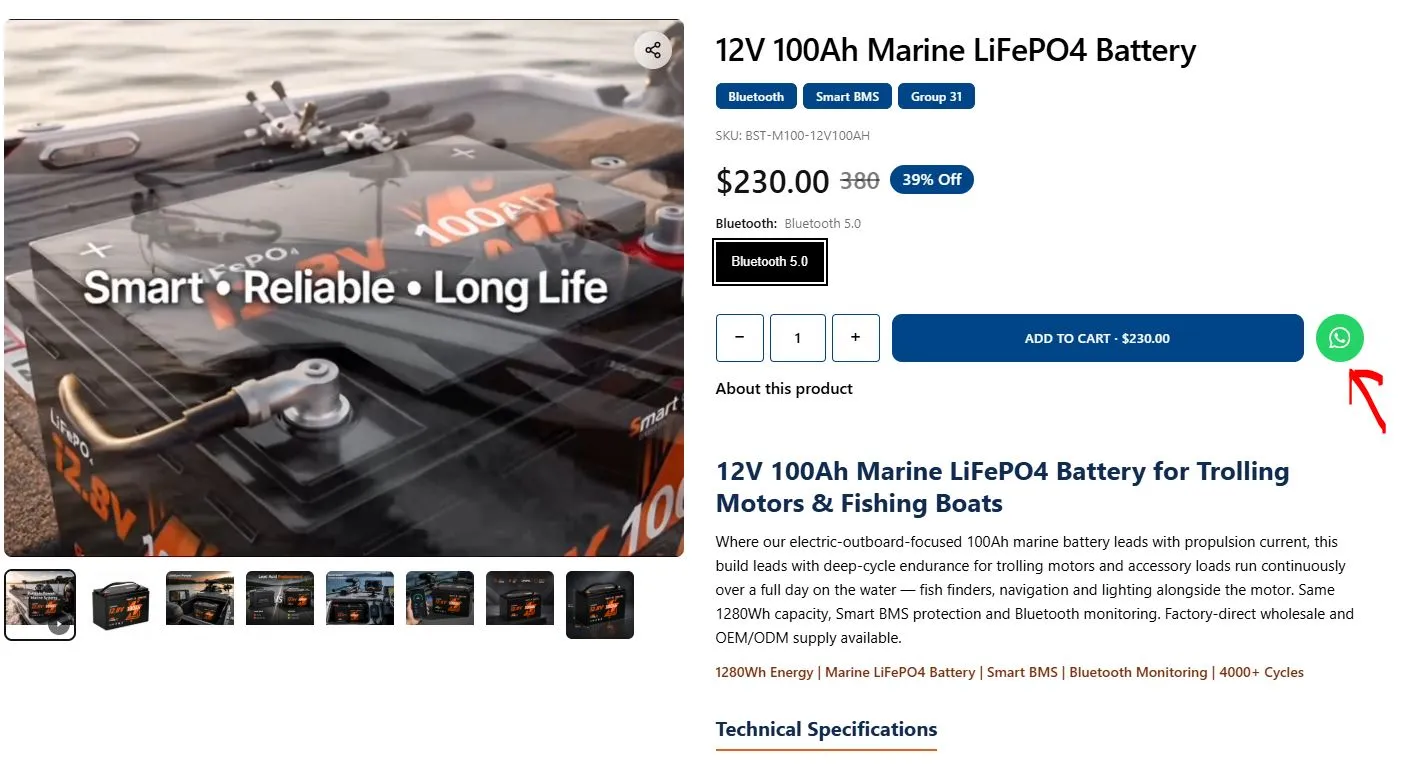
A WhatsApp button sits next to Add to Cart so customers can ask before they buy.
You connect your number and turn it on from the Eaglecart admin — no developer needed.
You can show it on one product or apply it across your whole catalogue.
You choose WhatsApp only, Add to Cart only, or both together on each product.
Why a WhatsApp button matters for a UAE business
Most small businesses lose sales they never even see. A customer lands on a product, has one question — is it in stock, can you deliver to Ajman, is there a bulk price — and there is no quick way to ask. So they leave. That question was a sale waiting to happen, and it walked out the door in silence.
I learned how expensive an unanswered question is the hard way. When we were running at around 1,700 orders a day, we had a full customer service team, and still the biggest leaks were the people who never contacted us at all. They hit a small moment of doubt on the page and quietly left. You cannot win back a customer you never spoke to.
A WhatsApp button closes that gap. The customer taps, the message lands on your business WhatsApp, and you answer. Now you are in a conversation — and a conversation is where trust and the sale happen.
How the WhatsApp button works in Eaglecart
The button appears on your product page beside Add to Cart. When a customer taps it, it opens WhatsApp with a message to your business number, ready to send. You reply from your normal WhatsApp, close the sale in chat, and the customer never had to hunt for a way to reach you.
Everything is controlled from your admin panel. You do not touch any code, you do not hire anyone, and you do not need a separate app or plugin. It is built into your store.
How to set it up, step by step
First, connect your business WhatsApp number in the admin. This is the number every message will go to, so use your business line, not a personal one you do not check.
Next, decide where the button shows. You can turn it on for a single product — useful for high-value or made-to-order items where people always have questions — or apply it across your whole catalogue at once so every product page carries it.
On each product you also choose how the buttons behave: WhatsApp only, Add to Cart only, or both together. For a standard product, both is usually right — let people buy instantly or ask first. For a product that needs a quote or a conversation before purchase, WhatsApp only can work better.
Save, and the button is live on your store. That is the whole job — from your own admin, in a few minutes.
When to use WhatsApp only, and when to use both
Use both for everyday products a customer can just buy. Some will add to cart, some will message first — you capture both.
Use WhatsApp only for products that genuinely need a conversation: custom orders, bulk pricing, made-to-measure items, or anything where the price depends on the customer's requirement. For these, pushing straight to chat is more natural than a checkout.
The point is that you decide per product. Your catalogue is not all one type, so your buttons should not be either.
Watch it done, step by step
I recorded the whole setup on screen, in the real admin, so you can follow along and do it on your own store as you watch.
Watch: How to add a WhatsApp button to your product page →
Frequently asked questions
Do I need a developer to add a WhatsApp button?
No. You connect your number and turn the button on from the Eaglecart admin panel yourself. There is no code and no plugin to install.
Can I add the button to only some products?
Yes. You can turn it on for a single product or apply it across your whole catalogue. You control it per product from the admin.
Can I keep the Add to Cart button as well?
Yes. On each product you can show WhatsApp only, Add to Cart only, or both together, depending on how you want that product sold.
Which WhatsApp number receives the messages?
The business number you connect in the admin. Every message from the button goes to that number, so use your business WhatsApp rather than a personal line.