How to Bulk Upload Products to Eaglecart Using a CSV File
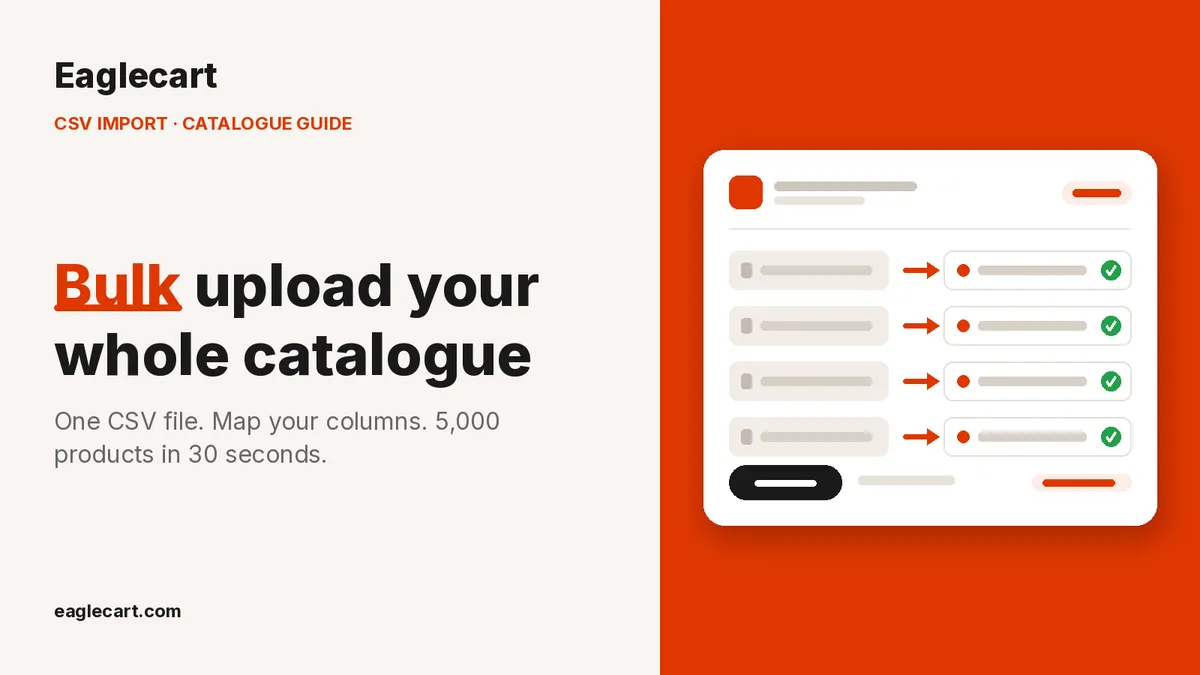
You import your products into Eaglecart by uploading one CSV file, matching your columns to Eaglecart's fields, and letting the import run. There are three steps — Upload, Preview, Mapping — and around 5,000 products import in about 30 seconds.
That means moving a catalogue from another system is mostly a download and an upload. Export your products from wherever they live today, save the file as CSV UTF-8, and bring it into Eaglecart.
Why I built this feature the way I did
When we launched our first ecommerce website in 2015, getting the catalogue in was the part nobody warned me about. The website was ready. The products were not.
Over the years that catalogue grew past 20,000 SKUs, and every new supplier shipment arrived the same way — as a spreadsheet. Someone on the team had to turn that spreadsheet into live products. We eventually had around eleven developers building internal systems, and a good part of that work was simply moving data from one shape into another shape.
Nobody should have to pay a developer to get their own products into their own store. That is why the Eaglecart importer reads your file the way you already keep it, instead of demanding you rebuild it in our format.
How do you import products into Eaglecart?
The importer walks you through three steps.
Upload. You choose your file and your options. Eaglecart checks the file and reads your column names.
Preview. You see a summary of what is coming, plus your first product shown in full so you can confirm it looks right before anything is created.
Mapping. This is the important one. You match your columns to Eaglecart's fields. Product name is required, and two fields cannot use the same column.
Once mapping is done, the import runs by itself. You can close the window — progress shows on the product list.
How fast is the product import?
Around 5,000 products import in about 30 seconds. The part that needs you — choosing the file and mapping the columns — is usually the longest part of the whole job.
Images take longer, because Eaglecart has to fetch each one from wherever it is hosted. For 5,000 products, expect roughly 10 to 15 minutes for the images to finish arriving. That timing depends on the website your images sit on and how quickly it allows us to fetch them, so a fast host finishes sooner and a slow or rate-limited one takes longer.
Your products go live first and the pictures catch up. A product may briefly show without an image while this is happening. That is normal.
Can a product import be undone?
No. Once an import starts it cannot be stopped or reversed. It runs until the upload is complete.
So spend your time on the Preview step. That screen exists precisely for this: it shows your first product in full, exactly as it will be created. If the price landed in the wrong field or the description is empty, you will see it there, before thousands of rows are created.
Check one product properly and you have checked the whole file, because every row is read the same way. If something does slip through, wait for the import to finish, then correct or remove those products from the product list.
What your CSV file needs before you upload
Save the file as CSV UTF-8, comma separated. XLSX and TXT will not work.
The limits are straightforward: up to 10 MB per file, up to 10,000 rows, and up to 100 columns. Columns Eaglecart does not use are simply ignored, so you do not need to strip your file down first. The first row holds your column names, and blank rows anywhere are skipped.
If your catalogue is bigger than 10,000 rows, split it into several files and import them one after another.
How rows become products and variants
Rows that share the same URL handle become one product. If your file has no handle column, rows sharing the same Product name are grouped instead.
The first row of each product holds everything the product only has one of: name, description, type, category, vendor, collections, tags, SEO fields and maximum order quantity. Those cells are ignored on later rows. Rows after the first one add variants or extra images, and a row with no handle and no name belongs to the product above it.
You can use up to three options per product — Color, Size and Material, for example. The option names on the first row decide which options the product uses, and later rows only supply the values. Up to 100 variants per product.
One row is one variant, and combinations are never created for you. If you sell four colours in three sizes, that is twelve rows, not seven. This is deliberate. In a real warehouse, every sellable variant needs its own SKU and its own stock number, and guessing combinations is how you end up selling something you never stocked.
That same thinking decides what gets copied down. Leave a cell blank on a variant row and price, original price, cost, weight, HS code, track quantity and continue-after-out-of-stock are copied from the first row. But SKU, barcode, quantity and option values are left empty — so no two variants ever share an ID or borrow stock they do not have.
How product images are imported
Only direct links work. The link must open the image file itself, not a page showing it, and it must not need a login. Share links from cloud drives will not work — this is the single most common reason images do not appear.
JPG, PNG and WEBP only.
Product image URL adds one gallery image per row, so each extra photo needs its own row. Product image sort sets the order, where 1 is the main image. Variant image URL sets the picture for one specific variant. The same link used more than once is downloaded once and reused, which also keeps the fetch time down.
What Eaglecart creates for you automatically
Vendor, Type, Collections and Tags are matched by name, ignoring capitals, and created if they do not exist yet. You do not need to set up your brands and categories before importing.
Google product category and HS code work differently. They are only matched, never created, and must match an existing entry exactly. If nothing matches, the field is left empty and the product still imports.
One small thing that catches people out: collections and tags are separated by commas, so their names cannot contain a comma.
What happens if some rows fail
A file is refused only when it cannot be imported at all — wrong file type, too large, no column names, or nothing in it that reads as a product.
Individual rows that fail a rule are skipped, not stopped. The import keeps going, and when it finishes you are told how many products were imported and how many rows were skipped. Fix those rows in your spreadsheet app, save as CSV UTF-8, and upload again.
A bad row does not cost you the whole import. I lost enough evenings to all-or-nothing imports to make sure of that.
Migrating to Eaglecart from another platform
If you are already selling somewhere else, your catalogue is one export away. Download your products from your current system, check the file against the rules above, then upload it to Eaglecart and map the columns.
Two things are worth checking before you upload. First, that your image column contains real direct file links, not share links. Second, that every variant row carries its own SKU and quantity. Get those two right and the rest usually maps cleanly.
Once the products are in, they are available everywhere in Eaglecart — your online store, your POS, and your inventory — because it is one catalogue, not three.
Frequently Asked Questions
How long does it take to import 5,000 products?
About 30 seconds for the products themselves. Their images take roughly 10 to 15 minutes to finish arriving, because each one is fetched from its host, and that speed depends on how fast the host allows the fetch.
Can I cancel or undo a product import?
No. Once an import starts it cannot be stopped or reversed, and it runs until the upload is complete. Use the Preview step to check your first product before the import runs, and correct anything afterwards from the product list.
Can I import products from another ecommerce platform into Eaglecart?
Yes. Export your catalogue as a CSV file, save it as UTF-8, and upload it. The mapping step lets you match your existing column names to Eaglecart's fields, so you do not have to rebuild the file.
What file format does the Eaglecart product importer accept?
CSV only, saved as UTF-8 and comma separated. XLSX and TXT files are not accepted. Convert them to CSV in your spreadsheet app first.
How many products can I upload at once?
Up to 10,000 rows and 10 MB per file, with a maximum of 100 columns and 100 variants per product. Larger catalogues should be split into several files and imported one after another.
Why did my product images not import?
Almost always because the link was not a direct image link. The URL must open the JPG, PNG or WEBP file itself and must not require a login, which is why cloud drive share links do not work.