How to Create a Quotation for a Custom Furniture or Interior Project in Eaglecart
How to Create a Quotation for a Custom Furniture or Interior Project in Eaglecart
To create a quotation for a custom furniture or interior project in Eaglecart, open the Quotations section in your admin panel, add your customer, add products from your catalogue and add custom items for the bespoke parts, apply any discount, let VAT calculate, then send it for the customer to approve and sign — in Arabic and English. The whole quote lives in one place and converts to an invoice in one click when it's approved.
Key Takeaways
- Furniture and interior quotes mix standard catalogue products with bespoke custom items — Eaglecart handles both on one quotation.
- You add custom items with your own description, quantity and price, so nothing is left "off-catalogue."
- Discounts, 5% VAT and totals calculate automatically, in Arabic and English.
- An approved, signed quotation converts to a VAT invoice in one click — no retyping.
Why furniture and interior quotations are more complex than a normal sales quote
A shop selling a fixed product just picks it and prints a price. A furniture or interior fit-out job is different: one quote might include a catalogue sofa, a made-to-measure wardrobe, a supply-and-install line for marble panels, a labour charge, and a discount on the whole package — each with its own price and VAT.
A furniture quote isn't one product — it's a mix of catalogue items, custom work and pricing that has to add up correctly and still look professional. That's why a generic template or a quick WhatsApp message falls apart on real projects.
For years I made quotations like this in Excel and Word. I retyped the same lines, got totals wrong, sometimes forgot the VAT, and kept no proper record of what I had sent. Worst of all, when the customer finally said yes, I had to build the invoice again from scratch. One wrong number in a big quote can cost you the job or the margin. That exact pain is what Eaglecart's quotation module removes.
How to create a quotation in Eaglecart, step by step
1. Start a new quotation and add your customer
Open the Quotations section and create a new quotation. Choose an existing customer or add a new one with their name and contact details. Your own business details and TRN appear on the quotation automatically, so it looks official from the first line.
2. Add products from your catalogue
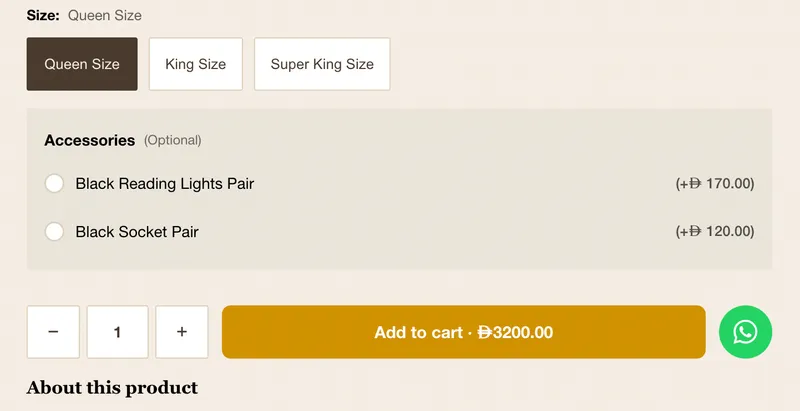
For standard items already in your catalogue — a sofa, a chair, a light fitting — add them straight from the catalogue and the price pulls in automatically, including options like colour and size. No retyping prices you already set once.
3. Add custom items for the bespoke work
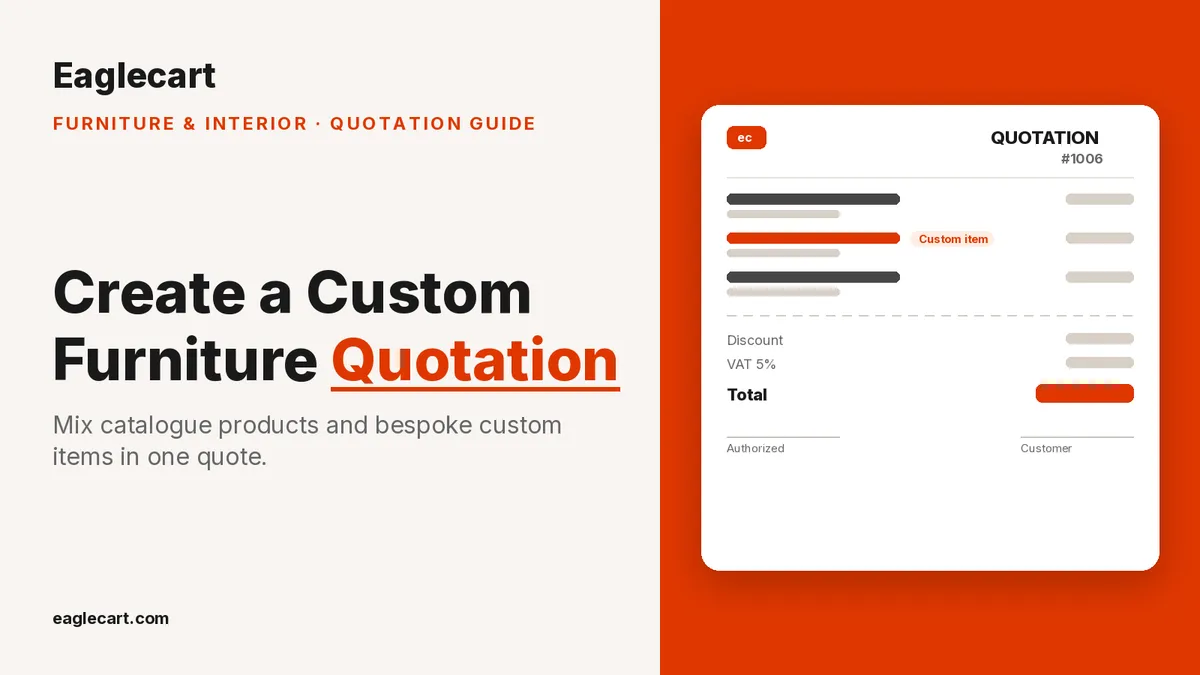
This is the key step for furniture and interior work. For anything not in your catalogue — a made-to-measure wardrobe, "supply and install marble panels, 12 sqm", a design fee, or a labour line — add a custom item with your own description, quantity and price.
Custom items are what let a furniture or fit-out quote reflect real, made-to-order work, instead of forcing every line into a fixed product. A single quotation can carry catalogue products and custom items side by side.
4. Apply discounts and let VAT calculate
Add a discount on a line or on the whole deal, and 5% UAE VAT calculates automatically into the totals. Your subtotal, VAT and grand total stay correct no matter how many lines you add or change — no manual maths, no mistakes.
5. Show it in Arabic and English
The quotation is bilingual. An Arabic-speaking client sees it in Arabic and an English-speaking client sees it in English, from the same quote — which matters for both trust and clarity in the UAE market.
6. Send it and get customer approval
The finished quotation has a professional layout with your seller details, and space for an authorized signature and the customer's approval and signature. The client can sign off, and you can track the quotation's status — sent, approved — instead of wondering where it stands.
From an approved quotation to an invoice
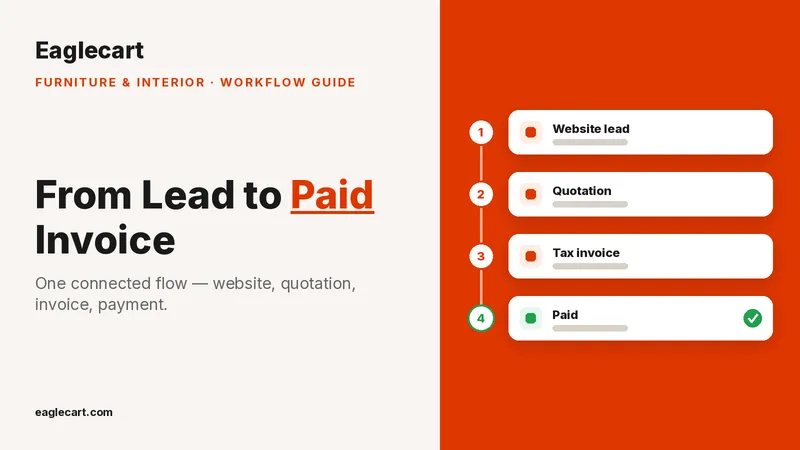
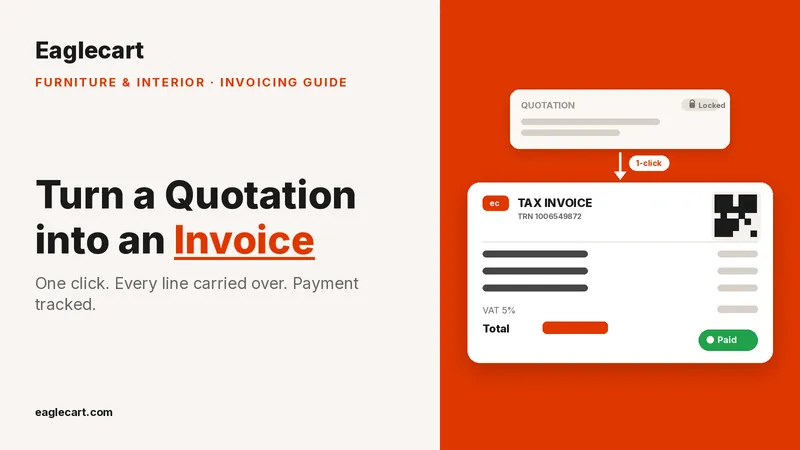
When the customer approves, you don't rebuild anything. Eaglecart converts the approved quotation into a VAT invoice in one click, carrying every line — catalogue and custom — straight across. We cover that full step in the next article in this series.
Frequently Asked Questions
Can I put custom, made-to-order items on an Eaglecart quotation?
Yes. Alongside catalogue products, you add custom items with your own description, quantity and price — ideal for bespoke furniture, interior fit-out, and supply-and-install lines.
Does Eaglecart handle VAT on quotations?
Yes. UAE VAT calculates automatically into the subtotal and total, and your TRN appears on the quotation, so it's ready for a proper tax invoice later.
Can I send the quotation in Arabic?
Yes. Quotations are bilingual, so clients can receive and approve them in Arabic or English from the same quotation.
What happens after the client approves the quotation?
You convert it to a VAT invoice in one click — every line, catalogue and custom, carries over with no retyping.