How to Convert a Quotation into a VAT Invoice in Eaglecart
How to Convert a Quotation into a VAT Invoice in Eaglecart
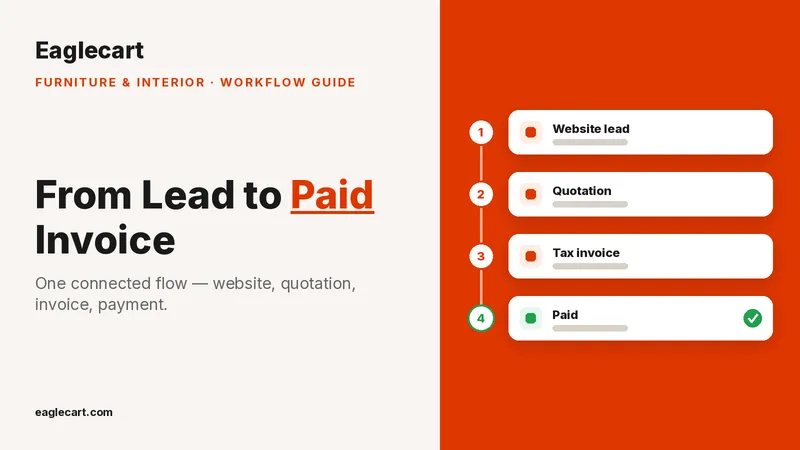
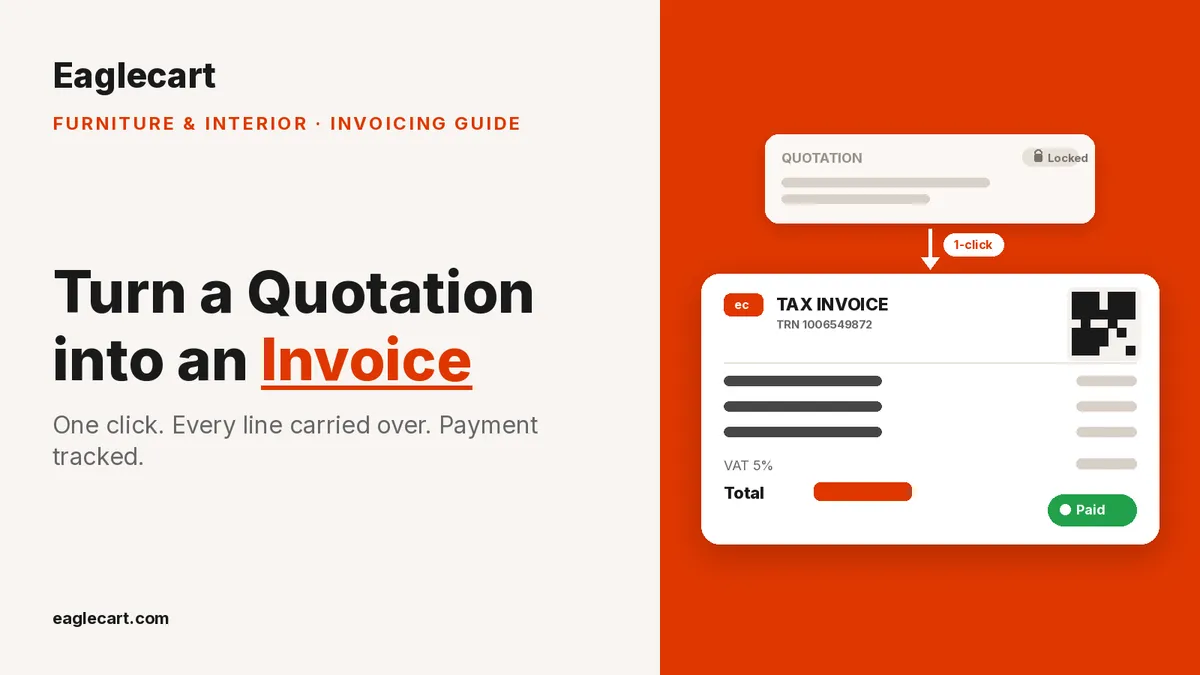
In Eaglecart, you convert an approved quotation into a VAT invoice in one click: open the quotation, choose Convert to Invoice, confirm, and every line carries over into a proper UAE tax invoice with your TRN, 5% VAT and a QR code. The original quotation locks so it stays an accurate record, and you can track payment against the new invoice.
Key Takeaways
- An approved quotation converts to a VAT invoice in one click — no retyping any line.
- The invoice is a proper UAE tax invoice with your TRN, 5% VAT and a QR code.
- The original quotation locks after conversion, so your record stays accurate.
- You can track payment against each invoice, in Arabic and English.
Why retyping a quotation into an invoice is where things go wrong
The old way is to approve a quote, open a blank invoice, and retype every line, price, discount and VAT figure by hand. On a furniture or interior project with many custom lines, that's exactly where mistakes creep in — a wrong number, a missing item, or a VAT total that doesn't match what the customer agreed to.
The invoice has to match the approved quotation exactly. Retyping is where that match breaks, and a mismatch between quote and invoice is how disputes and VAT errors start.
When my business grew to well over a thousand orders a day, doing tax invoices by hand simply didn't scale, and we couldn't afford VAT mistakes or losing track of who had paid. We needed invoices that were correct, official and tracked automatically. That need is built into Eaglecart.
How to convert a quotation into an invoice in Eaglecart, step by step
1. Open the approved quotation
Go to your Quotations and open the one the customer has approved. Everything you already built — catalogue products, custom items, discounts and VAT — is right there, ready to carry over.
2. Click Convert to Invoice and confirm
Choose Convert to Invoice. Eaglecart asks you to confirm, and once you do, the quotation becomes an invoice with every single line carried across automatically. No copying, no retyping.
3. Your invoice is a proper UAE VAT tax invoice
The new invoice is a tax invoice: your TRN, the 5% VAT breakdown, subtotal and total, plus a QR code — the format UAE customers and auditors expect. It's available in Arabic and English.
4. The original quotation locks
After conversion, the original quotation is locked so it can't be quietly changed. You keep a clean paper trail: this is exactly what was quoted, and this is the invoice that came from it.
5. Track payment against the invoice
Once the invoice exists, you track its payment status, so you always know what's paid and what's still outstanding — instead of guessing or digging through messages.
Why the locked quotation matters
Locking the approved quotation protects both sides. The customer knows the invoice reflects exactly what they signed off, and you have proof of the agreed scope and price if any question comes up later. For custom furniture and fit-out work, where a project can carry dozens of lines, that record is worth a lot.
Frequently Asked Questions
How do I turn a quotation into an invoice in Eaglecart?
Open the approved quotation and choose Convert to Invoice. Confirm, and it becomes a VAT invoice with every line carried over automatically.
Is the Eaglecart invoice a valid UAE tax invoice?
Yes. It's a tax invoice with your TRN, a 5% VAT breakdown and a QR code, available in Arabic and English.
Can I still edit the quotation after converting it?
No. The quotation locks after conversion, so your record matches the invoice exactly and can't be changed after the fact.
Can I track whether the invoice has been paid?
Yes. Payment tracking is built in, so you can see which invoices are paid and which are still outstanding.